

What this workflow does
This workflow helps move AI-created blog posts from Airtable to WordPress automatically.
It fixes the problem of copying markdown by hand and uploading images.
The final result is draft blog posts in WordPress with matching photos and Airtable updated.
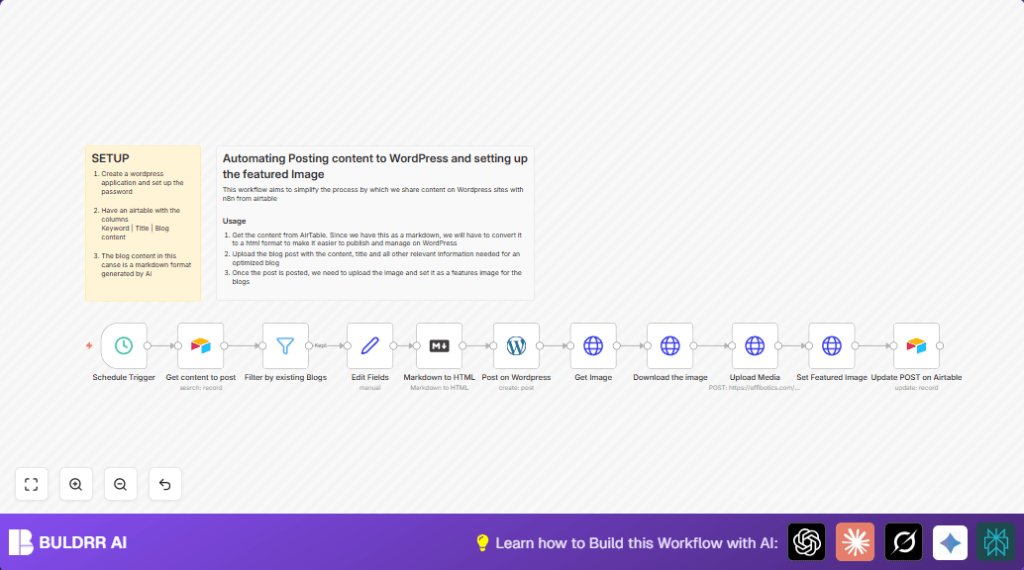
The workflow gets posts marked “To Post” in Airtable, checks if they have content, changes markdown to HTML, posts on WordPress as drafts, finds a picture from Pexels, uploads it, sets it as featured image, and marks the post “Posted” in Airtable.
Inputs, Processing Steps, and Output
Inputs
- Airtable records: Blog posts with fields for Keyword, Title, Blog Content in markdown, and Status.
- WordPress access: API credentials for posting blogs and uploading media.
- Pexels API key: To find images related to blog topics.
Processing Steps
- Trigger workflow on schedule.
- Search for Airtable posts where Status is “To Post”.
- Filter out posts without blog content.
- Use Set node to clean and rename fields.
- Convert blog content markdown to HTML.
- Create a draft post on WordPress with the title and HTML content.
- Call Pexels API to get an image matching the Keyword.
- Download the image file.
- Upload the image to WordPress media library.
- Update the WordPress post to set this image as featured image.
- Update the Airtable record to Status “Posted”.
Output
New draft posts on WordPress with featured images.
Airtable shows these posts as “Posted” preventing repeats.
Who should use this workflow
This workflow is for content managers or marketers who use Airtable to store AI-generated blogs.
It suits those publishing on WordPress sites who want to save time and avoid manual work.
It helps prevent mistakes from copying markdown wrong or forgetting to upload images.
Anyone wanting a simple scheduled post pipeline without deep coding can use it.
Tools and Services Used
- n8n: Workflow automation tool to run the sequence.
- Airtable API: Stores blogs and manages status.
- WordPress REST API: Receives posts and media uploads.
- Pexels API: Provides free images based on keywords.
Beginner step-by-step: How to use this workflow in n8n
Importing and Setup
- Download the workflow file from this page using the Download button.
- In n8n editor, click top-left menu, pick Import from File, then select saved file.
- Open imported workflow and add all needed credentials for Airtable, WordPress, Pexels API.
- Review nodes that use specific IDs or table names. Change them if your Airtable base or WordPress setup is different.
Testing
- Run the workflow manually once to check it fetches data, posts draft, uploads image, and updates Airtable.
Activating for Production
- After testing passes, turn on the workflow with the toggle switch.
- Set the schedule node timing to your preferred frequency.
- This will run the process automatically, posting new blogs regularly.
If using self hosting n8n, see self-host n8n for deployment help.
Customization Ideas
- Change WordPress post status from draft to publish to post instantly.
- Add support for multiple images per post by fetching more from Pexels.
- Switch image source to other APIs like Unsplash by replacing HTTP requests.
- Include categories or tags dynamically in WordPress post from Airtable fields.
- Modify Airtable search limit to control post batch size per run.
Common Edge Cases and Failures
WordPress 401 errors: Happens when API credentials lack permission.
Fix by ensuring application password is enabled and credentials up-to-date.
Image upload problems: Usually caused by wrong headers or missing binary data.
Check content-type and content-disposition headers and mapping of binary image data.
Airtable update fails: Occurs if record IDs don’t match or mapping is wrong.
Confirm record IDs are passed correctly between nodes.
Pre-Production Checklist
- Confirm Airtable fields and that “To Post” filter returns records.
- Test WordPress API with a manual post.
- Validate Pexels API key by making test image search request.
- Run the entire workflow once manually with debug on.
- Backup Airtable before running workflow live.
Summary
✓ Saves 5+ hours weekly by automating blog posting process.
✓ Avoids manual copy-paste errors in markdown to HTML.
✓ Automatically finds, uploads, and sets featured images on WordPress.
✓ Keeps Airtable status updated, preventing reposts.
→ Delivers draft blog posts ready for review or publication smoothly.
