
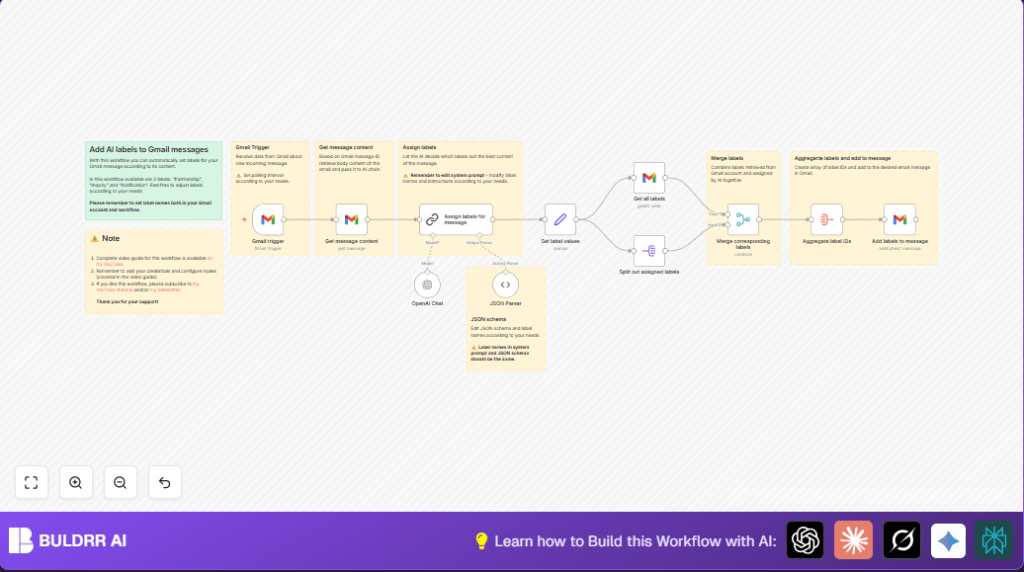

What This Automation Does
This n8n workflow reads new Gmail messages and automatically applies correct labels like Partnership, Inquiry, or Notification. It solves the problem of manual email sorting by using AI to analyze email content and decide the right labels. The result is that emails get labeled without you doing it, saving time and reducing mistakes.
The workflow triggers every minute when a new email arrives. It then fetches the full email text, asks an AI model to classify the email into labels, checks those labels against your Gmail labels, and finally updates the email with the correct labels. This means you spend less time organizing emails and more time on work that matters.
Tools and Services Used
- Gmail API via n8n Gmail Nodes: To trigger on new emails, get email content, and update labels.
- OpenAI GPT-4o-mini model through LangChain LLM Node: Processes email body to decide appropriate labels.
- n8n Platform: Hosts the workflow and manages node connections and data.
- Optional Hosting Providers: For self-host n8n scenarios.
Inputs, Processing, and Outputs
Inputs
- New Gmail messages detected every minute by Gmail Trigger node.
- Email message IDs used to get full mail content via Gmail node.
Processing Steps
- AI language model analyzes the email text to assign label names.
- Parsed AI labels are combined properly with existing Gmail labels.
- Labels are matched to Gmail label IDs.
- All label IDs are aggregated into a list ready for assignment.
Outputs
- The Gmail message is updated with new labels based on AI classification.
Beginner Step-by-Step: How to Use This Workflow in n8n Production
Importing the Workflow
- Click the Download button on this page to save the workflow file.
- Open the n8n editor and select “Import from File.”
- Upload the saved workflow JSON file.
Configuring Credentials and Settings
- Set up Gmail OAuth2 credentials inside n8n and link in Gmail nodes.
- Add OpenAI API key in the LangChain LLM node credentials.
- Update any IDs, emails, or labels if your environment uses custom values.
- Check the prompt text in the LangChain LLM node configuration matches your label choices.
Testing and Activating the Workflow
- Run the workflow manually to test using a recent email.
- Verify that labels are suggested and assigned correctly.
- Activate the workflow by toggling it from Inactive to Active.
- Monitor the n8n execution panel for any errors at the start.
Step-by-Step Guide
Step 1: Configure Gmail Trigger Node
Navigate to Nodes → Add Node → Gmail Trigger. In the credentials, connect your Gmail account using OAuth2. Set the polling interval to “Every Minute” to check incoming emails frequently. This node listens for new emails and provides their metadata like message ID.
Expected Outcome: The trigger activates upon new email arrival.
Common Mistake: Forgetting to authenticate or misconfiguring the polling interval causing delayed triggers.
Step 2: Retrieve Full Email Content with Gmail Node
Add a Gmail Node connected to the Gmail Trigger. Set the operation to “Get” and pass the message ID from the trigger. This fetches the entire email body content for analysis.
Expected Outcome: You should see full email text available for the next nodes.
Common Mistake: Not mapping the message ID correctly leading to empty or failed content retrieval.
Step 3: Analyze Email Content with AI Label Assignment (LangChain LLM Node)
Add the Assign labels for message LangChain LLM node. Use the email text as input. Configure the node to use the “define” prompt type and write a custom system prompt directing AI to classify email into “Partnership,” “Inquiry,” or “Notification” categories precisely.
Example Prompt Instruction: “Categorize this email into one or more labels: Partnership, Inquiry, Notification based on its content.”
Expected Outcome: The AI outputs an array of labels tailored to the message.
Common Mistake: Forgetting to update the prompt or label names causing misclassification.
Step 4: Process AI Output with JSON Parser Node
Use the JSON Parser node to interpret the AI’s response structured as JSON containing the labels array. You need to carefully define the JSON schema matching the expected output for smooth parsing.
Expected Outcome: The parsed labels accessible as structured data for next operations.
Common Mistake: Schema mismatch or incorrect enum values leading to parse failures.
Step 5: Set Labels for Use with Set Node
Add a Set Node to assign the parsed labels into a workflow variable. This prepares the label names for merging with the existing Gmail labels.
Expected Outcome: Labels stored as an array in the workflow JSON context.
Common Mistake: Incorrect field mapping causing empty label arrays.
Step 6: Retrieve All Gmail Labels
Add another Gmail Node with operation “Get All Labels” to fetch your Gmail labels including IDs and names.
Expected Outcome: The node outputs all label metadata required for matching AI labels with Gmail system labels.
Common Mistake: Not using the right operation or credentials errors.
Step 7: Split Out Assigned Labels and Merge With Gmail Labels
Add the Split Out Node on the AI-assigned labels array, then connect it to a Merge Node that combines the AI labels with Gmail label metadata based on matching label names.
Expected Outcome: You get enriched label objects including Gmail label IDs that correspond to the AI-assigned names.
Common Mistake: Incorrect field names in Merge Node settings causing no match.
Step 8: Aggregate Label IDs
Use the Aggregate Node to collect all label IDs from the merged labels into a single array, ready to be applied to the Gmail message.
Expected Outcome: An array of label IDs to assign to the email message.
Common Mistake: Forgetting to choose the correct field for aggregation results in missing IDs.
Step 9: Add Labels to Gmail Message
Finally, add a Gmail Node with operation “Add Labels.” Pass both the aggregated label IDs array and the original Gmail message ID. This action modifies the Gmail message by assigning the appropriate labels as determined by AI.
Expected Outcome: Your Gmail email has the selected labels added automatically.
Common Mistake: Misconfiguring label IDs or message ID causing operation failure.
Customizations ✏️
- Modify Label Names: Change label enums and system prompt text in the Assign labels for message and JSON Parser nodes to fit your unique labeling system.
- Adjust Polling Frequency: In the Gmail Trigger node, change the polling interval to balance between immediacy and API limits.
- Add More Labels: Extend the JSON schema and system prompt to include more label categories based on your email types.
- Use Different AI Model: In the OpenAI Chat node, switch to a different OpenAI model for cost or performance preferences.
- Create Notifications: Add Slack or Email nodes post-labeling to notify you of categorized emails.
Troubleshooting ????
Problem: “AI Parsing Error or No Labels Found”
Cause: The AI output format doesn’t match the JSON schema in the JSON Parser node.
Solution: Review and adjust the JSON schema exactly to the AI output. Test outputs in LangChain node debug panel.
Problem: “Gmail Node Fails to Add Labels”
Cause: Label IDs array may be empty or mismatched with Gmail actual label IDs.
Solution: Ensure proper merging of labels by verifying field names in Merge node and that Gmail label retrieval is successful.
Problem: “Trigger Does Not Fire”
Cause: Polling interval not set or credentials expired.
Solution: Double check Gmail Trigger polling settings and refresh OAuth credentials.
Pre-Production Checklist ✅
- Validate your Gmail OAuth2 credentials are active and authorized in n8n.
- Test the Gmail Trigger by sending a test email to your Gmail inbox.
- Verify the AI prompt and label names match exactly in both LangChain and JSON Parser nodes.
- Check that the Gmail “Get All Labels” node returns expected label details.
- Run the full workflow in manual mode to confirm labels get applied correctly.
- Backup your workflow JSON before making live changes.
Deployment Guide
Activate the workflow by toggling it from “Inactive” to “Active” in your n8n editor. Monitor execution history for errors initially to ensure smooth operation. Because the workflow uses Gmail and OpenAI API calls, keep an eye on API usage quotas to avoid interruptions.
If you plan to scale this automation, consider running n8n on a dedicated server or cloud instance for stable availability. For running self-host n8n, check reliable hosts to keep the automation steady.
Conclusion
By following this comprehensive guide, you have automated your Gmail labeling process using AI in n8n. Oskar’s tedious manual labeling task is replaced by a smart, accurate system that saves hours of work weekly and improves email response efficiency. This setup not only enhances productivity but reduces the risk of missed opportunities by ensuring every email is properly tagged.
Next, you could explore automating email response drafting based on labels or integration with other communication tools like Slack for instant alerts on important emails. Keep innovating your email workflows with n8n and AI to make your workday smoother and more efficient!
Summary
✓ Saves hours by automatically labeling Gmail emails using AI.
✓ Prevents errors from manual labeling and missed emails.
→ Results in a cleaner, smarter inbox updated in real time.
→ Easy to set up inside n8n with specified nodes and credentials.
