

What This Automation Does
This workflow helps users ask questions about customer data in a Google Sheet using AI.
It finds only the needed data parts to answer questions fast.
The result is quick, correct answers about customers.
It saves time and avoids mistakes from looking through big sheets by hand.
How This Workflow Works
Inputs: User types a question into a chat interface about customer records.
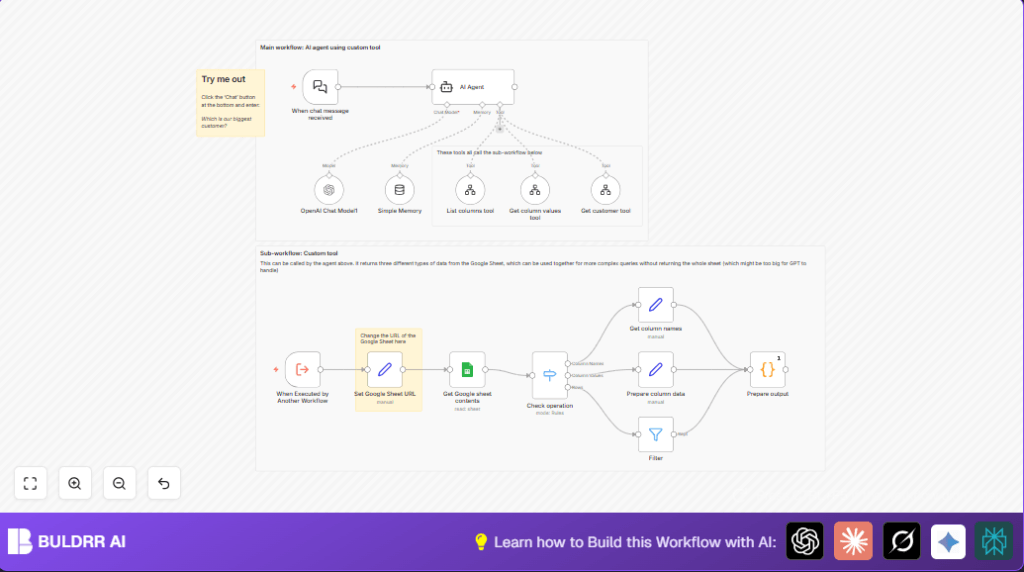
Processing Steps: The workflow listens for the chat using When chat message received node.
It uses an AI Agent node with OpenAI Chat Model (GPT-4o-mini) to understand the question.
Custom tool nodes run sub-workflows that connect to Google Sheets and fetch specific data.
For example, listing columns, getting column values, or fetching a customer’s full data row.
The workflow manages memory with a Simple Memory node to keep chat context.
Switch nodes decide what kind of data to get based on the user’s request.
Output: The user gets a clear and precise answer in the chat format.
Why Use This Workflow
It cuts down the time spent searching big spreadsheets.
It reduces mistakes by automating data filtering.
The AI chat interface lets users ask data questions naturally.
It can handle large customer lists without slowing down.
Tools and Services Used
- OpenAI GPT-4o-mini: Understands and responds to chat questions.
- Google Sheets API: Reads specific customer data from the sheet.
- n8n automation platform: Runs the workflow nodes and logic.
- LangChain nodes: Connect AI components and tools.
Beginner Step-by-Step: How to Use This Workflow in n8n
Step 1: Download and Import Workflow
- Click the Download button on this page to get the workflow file.
- Inside your n8n editor, click “Import from File”.
- Select the downloaded file and import.
Step 2: Configure Credentials and Settings
- Add your OpenAI API Key in the OpenAI Chat Model1 node.
- Update the Google Sheets OAuth2 credentials in relevant Google Sheet nodes.
- Change the Google Sheet URL in the Set Google Sheet URL node to your actual sheet link.
- If needed, update any IDs, emails, or sheet names to match your data.
Step 3: Test and Activate
- Run the workflow once by sending a test chat message.
- Check the output to make sure the AI returns correct answers.
- If all works, activate the workflow by toggling it from draft to active.
You can also explore self-host n8n if preferred for privacy or more control.
Inputs, Processing, and Outputs Explained
Input: User sends a natural language question about customers via chat.
Processing: The workflow triggers on chat message.
The AI Agent analyzes the query.
Based on query type, workflow runs sub-workflows linked as custom tools.
These fetch only desired data columns, values, or rows from Google Sheets.
Chat memory helps keep conversation flow.
Output: A clear, human-friendly answer is sent back to chat.
Customization Ideas
- Change the Google Sheet URL to point to different customer data.
- Increase memory buffer size in Simple Memory node for longer conversations.
- Add new toolWorkflow nodes for other queries like sales totals or regions.
- Swap the OpenAI model to other GPT versions to balance cost and power.
- Explore self-host n8n options for better privacy.
Common Problems and Fixes
- Error: Google Sheets permission denied.
Fix: Check OAuth credentials and sheet sharing settings. - Error: AI Agent returns no data.
Fix: Verify toolWorkflow inputs and test each tool separately. - Error: Workflow stops at Switch node.
Fix: Confirm operation input matches expected values: ‘column_names’, ‘column_values’, or ‘row’.
Pre-Production Checklist
- Check OpenAI API call limits.
- Confirm Google Sheet URL and access.
- Run sample chat queries to test AI responses.
- Test custom toolWorkflow nodes for Google Sheets queries.
- Backup the Google Sheet before big queries.
Deployment Tips
Turn on the workflow in n8n editor.
Watch executions in the activity panel.
Check OpenAI usage and Google Sheets API credits regularly.
Summary of Results
✓ Save hours by avoiding manual data filtering.
✓ Get accurate answers from big customer sheets.
✓ Ask questions naturally in chat form.
✓ Keep conversation context for multi-turn queries.
✓ Use it easily in n8n with simple configuration.
Useful Code and Prompts
Inside the workflow, the Set Google Sheet URL node holds this example URL:
https://docs.google.com/spreadsheets/d/1GjFBV8HpraNWG_JyuaQAgTb3zUGguh0S_25nO0CMd8A/edit#gid=736425281The Check operation node expects operation values exactly like:
column_names
column_values
row
Prompt examples inside the agent node ask for these operations accurately.
