

What This Automation Does
This workflow watches an Airtable table for new CSV file records.
It reads each CSV, pulls out contact data, and adds contacts to another Airtable table called Leads.
It changes the upload status to Processing, Uploaded, or Failed as it works.
This saves time and stops errors from manual copying.
The workflow handles empty campaign fields without breaking.
You get clear status updates right in Airtable while contacts upload.
Beginner step-by-step: How to use this workflow in n8n
Download and Import Workflow
- Download the workflow file using the Download button on this page.
- Open your n8n editor (cloud or self-host n8n).
- Click “Import from File” in n8n and select the downloaded workflow file to import it.
Configure Credentials and IDs
- In the workflow, add your Airtable Personal Access Token with required scopes to the Airtable nodes.
- Update the Airtable Base IDs set node with your Airtable Base ID, Uploads Table ID, and Leads Table ID.
- If needed, update emails or channels used in any notification or status update nodes.
Test Then Activate
- Run the workflow with a test CSV upload record to check the process works.
- Check that contacts appear in the Leads table and the Uploads record status updates correctly.
- When happy, toggle the workflow switch ON to run automatically in production.
How the Workflow Works (Input → Process → Output)
Inputs
- New records in Airtable Uploads table with CSV file attachments.
- Configured Airtable Base ID and Table IDs for Uploads and Leads tables.
- Airtable Personal Access Token with read/write access.
Processing Steps
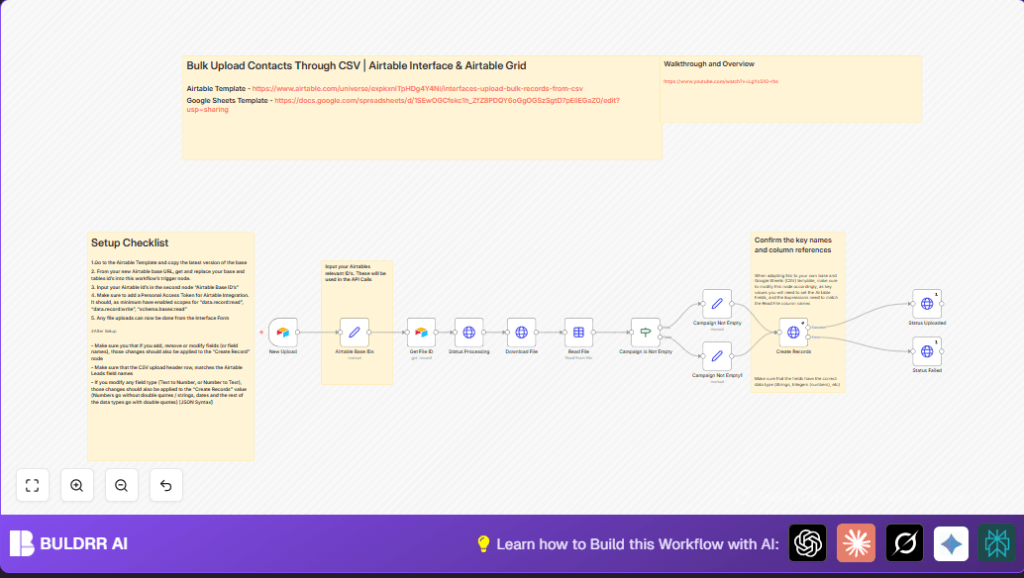
- The Airtable Trigger node detects new Upload records.
- The Get File ID node fetches the CSV file URL from the Upload record.
- Status is set to Processing with an HTTP Request PATCH call to Airtable.
- The CSV file downloads with the Download File HTTP Request node set to file response.
- The Read File node parses CSV content by headers (FirstName, Email, etc.).
- The Campaign is Not Empty IF node checks if Campaign data is present.
- If Campaign exists, the Campaign Not Empty SET node formats the campaign data for Airtable.
- The Create Records HTTP Request node posts new Leads in batches with contact data.
- On success, the Uploads record status updates to Uploaded. On any error, it updates to Failed.
Outputs
- New contact records in the Airtable Leads table.
- Upload records status changed from Processing to Uploaded or Failed.
- Real-time record of upload progress visible inside Airtable.
Tools and Services Used
- Airtable API: Used for reading, updating, and creating Airtable records.
- n8n Automation Platform: Runs the workflow nodes and manages the CSV import logic.
- HTTP Request Nodes: Perform API PATCH and POST calls for status updates and record creation.
- Spreadsheet File Node: Reads CSV files into JSON-readable data.
Customization Ideas
- Change the Campaign field key and value in the Campaign Not Empty SET node to match custom Airtable fields.
- Adjust batch size in Create Records node to optimize API calls depending on Airtable limits.
- Add more CSV fields by extending JSON body in the Create Records node to capture extra contact info.
- Change the polling frequency in Airtable Trigger node to control how often n8n checks for new uploads.
Common Issues and Fixes
HTTP 401 Unauthorized Error on Airtable API
The Airtable Personal Access Token is missing or does not have the required scopes.
Solution: Recreate the token with data.record:read, data.record:write, and schema.bases:read scopes.
Update the token in all Airtable nodes inside n8n.
CSV Parsing Error in Read File Node
The downloaded file is not CSV or headers don’t match expected field names.
Solution: Ensure CSV files are correctly formatted and the Read File node has header row enabled.
Make sure CSV column headers match Airtable field names.
Status Not Updating on Upload Record
Incorrect record ID or wrong JSON body in HTTP Request nodes cause update failure.
Solution: Check expressions used to get record IDs and formatting of JSON body for PATCH calls.
Use n8n debug mode to follow data flow.
Pre-Production Checklist
- Confirm Airtable Base and Table IDs are exact and set correctly in the Airtable Base IDs node.
- Upload test CSV files as new records in the Uploads table to trigger the workflow.
- Check all CSV headers exactly match Airtable Lead table columns.
- Verify Airtable Personal Access Token permissions and API connectivity.
- Inspect Upload record statuses during test imports for correctness.
Deployment Guide
Turn the workflow ON in n8n so it automatically watches for new CSV upload records.
Check the status updates in Airtable to see progress as contacts import.
Use n8n execution logs for troubleshooting any failures quickly.
Summary
✓ Automates CSV contact bulk upload to Airtable.
✓ Reduces manual work and errors by syncing statuses live.
✓ Supports optional campaign data.
✓ Requires minimal setup after import.
→ Gives user clear visibility of upload progress.
→ Saves hours each week of manual data entry.
