

What This Workflow Does
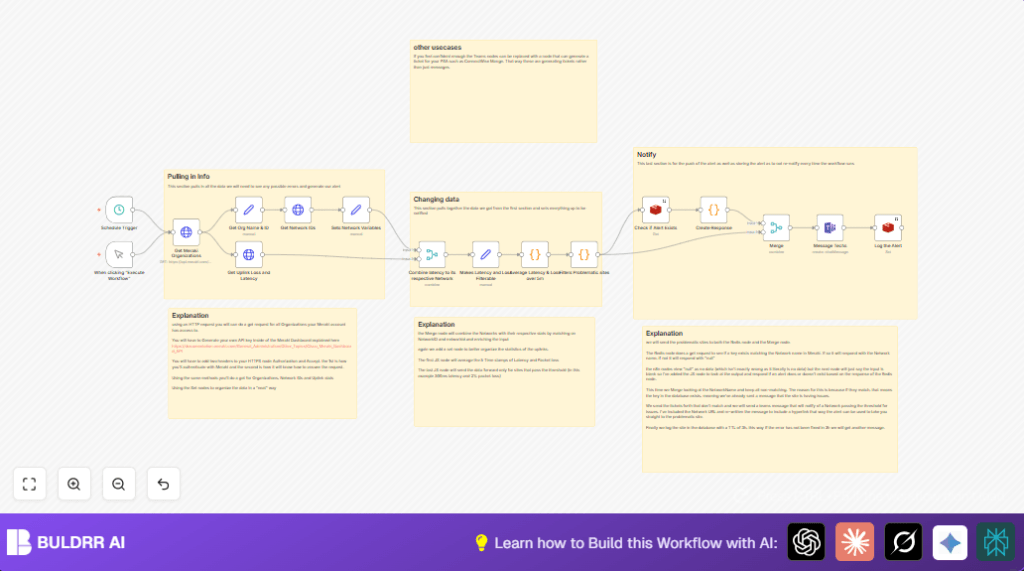
This workflow watches Cisco Meraki networks for high latency and packet loss. It finds problem sites fast and sends alerts to Microsoft Teams. It runs every 5 minutes on workdays to keep monitoring in business hours only.
The goal is to stop manual checks and alert repeatedly. It looks at all organizations linked to your Meraki API key, collects the last five minutes of uplink data for each network, then finds networks with latency over 300ms or loss over 2%.
Alerts go to Teams only if no alert was sent recently for the same site, avoiding spam. Alerts stay logged in Redis for 3 hours to stop repeated messages.
Who Should Use This Workflow
This is made for network operations engineers and IT staff who manage many Meraki networks. If you spend too long checking Meraki dashboards or wait till users complain, this workflow helps save time. It works for accounts with multiple organizations and networks.
Tools and Services Used
- Cisco Meraki API: Fetches organizations, networks, and network uplink data.
- n8n Automation Platform: Runs the workflow and connects nodes.
- Redis: Stores active alerts for 3 hours to avoid duplicates.
- Microsoft Teams: Receives alert messages.
- HTTP Header Auth Credentials in n8n: Holds the Meraki API Key securely.
Inputs, Processing Steps, and Output
Inputs
- Meraki API key with access to all organizations.
- Redis connection to track alerts.
- Microsoft Teams channel for notifications.
Processing Steps
- Scheduled trigger every 5 minutes, 8 AM to 5 PM, Monday-Friday.
- Get all Meraki organizations for the API key.
- Retrieve all networks for each organization.
- Pull uplink latency and packet loss data over the past 5 minutes for each network.
- Calculate average latency and packet loss using the last 5 data points.
- Filter networks exceeding 300ms latency or 2% loss.
- Check Redis for existing alerts on these networks.
- If no recent alert, send a formatted alert message to Microsoft Teams.
- Log the alert key in Redis with a 3-hour expiry.
Output
Teams channel messages with network issue details for only new problems.
Beginner Step-by-Step: How To Use This Workflow In n8n
Step 1: Import the Workflow
- Download the workflow file using the Download button on this page.
- Open your n8n editor.
- Click “Import from File” and select the downloaded workflow.
Step 2: Configure Credentials
- In n8n, open Credentials and add your Meraki API Key via HTTP Header Auth.
- Add Redis credentials with proper host, port, and password.
- Add Microsoft Teams credentials or webhook URL to send messages.
Step 3: Update IDs and Fields (if needed)
- Edit the HTTP Request nodes URLs if your Org IDs or Network IDs require manual input.
- Change the Teams channel ID in the Microsoft Teams node to your target channel.
- Check code nodes for any threshold adjustments, copy/paste given code snippets.
Step 4: Test and Activate
- Run the workflow once manually to test data flow and alert sending.
- Look for errors or missing data in execution logs.
- If all works, toggle the workflow to active for production use.
Now workflow runs every 5 minutes on workdays, alerting teams only when needed.
Key Code Snippets to Use
The code nodes calculate averages and filter problematic sites. Copy them exactly to get the workflow working correctly.
// Average Latency & Loss
function calculateAverages(inputItems) {
  return inputItems.map(item => {
    const totalLoss =
      parseFloat(item.json['TS0-Loss']) +
      parseFloat(item.json['TS1-Loss']) +
      parseFloat(item.json['TS2-Loss']) +
      parseFloat(item.json['TS3-Loss']) +
      parseFloat(item.json['TS4-Loss']);
    const averageLoss = totalLoss / 5;
    item.json['AverageLoss'] = averageLoss;

    const totalLatency =
      parseFloat(item.json['TS0-Latency']) +
      parseFloat(item.json['TS1-Latency']) +
      parseFloat(item.json['TS2-Latency']) +
      parseFloat(item.json['TS3-Latency']) +
      parseFloat(item.json['TS4-Latency']);
    const averageLatency = totalLatency / 5;
    item.json['AverageLatency'] = averageLatency;

    return item;
  });
}

return calculateAverages($input.all());
This code calculates the average latency and loss from 5 time-stamped values.
// Filter problematic sites
function filterItems(items) {
  return items.filter(item =>
    item.AverageLatency > 300 || item.AverageLoss > 2
  );
}

const inputItems = items.map(item => item.json);
const filteredItems = filterItems(inputItems);

return filteredItems.map(item => ({json: item}));
This filters only networks with latency bigger than 300ms or loss larger than 2%, so alerts only go for major issues.
Customizations
- Change thresholds in the filter code node to fit your needs.
- Update Microsoft Teams channel ID to notify different groups.
- Replace the Teams node with a ticketing node to auto-create support tickets.
- Edit schedule cron to run at different times or frequencies.
- Add more uplink data fields in the set nodes if wanted.
Troubleshooting
Unauthorized Errors from Meraki API
Check the API key in the HTTP Header Auth credentials. Make sure it is correct and active.
Redis Returns Null
Verify Redis connection settings and server status. Ensure keys are properly written and read.
Repeated Alerts for Same Network
Make sure Redis logging node sets correct TTL (10800 seconds). Confirm keys save without errors.
Pre-Production Checklist
- Have valid Meraki API key set up in n8n.
- Test HTTP Request nodes for organizations and networks.
- Check Redis connection and ability to set/get keys.
- Send a test message to Microsoft Teams.
- Run workflow manually and review output and logs.
Deployment Guide
Activate the workflow in the n8n editor to let it run automatically.
Keep the n8n instance running reliably during business hours.
For full control, consider self-host n8n to run on your own server.
Summary
✓ Automates monitoring of Meraki network latency and packet loss.
✓ Sends alerts to Microsoft Teams only when new problems arise.
✓ Avoids alert fatigue via Redis caching of active issues.
✓ Saves time spent checking dashboards manually.
→ Helps IT teams act faster on network problems.
→ Runs on schedule only during work hours.
