

What this Automation Does
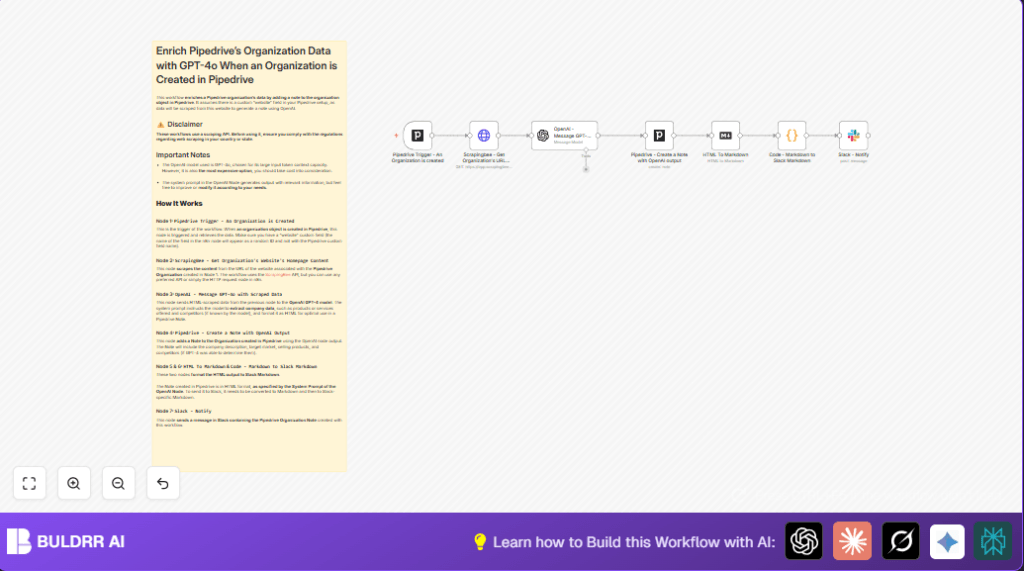
This workflow starts when a new organization is added to Pipedrive.
It gets the organization’s website from a custom field in Pipedrive.
Then it scrapes the website homepage with ScrapingBee API.
The scraped HTML is sent to OpenAI GPT-4o model.
GPT-4o analyzes and summarizes company products, target market, unique points, and competitors.
It creates a rich HTML note inside the Pipedrive organization with the AI summary.
Then the HTML note is converted to Slack markdown format.
The workflow ends by sending this summary to a Slack channel for the sales team.
This saves time from manual research and helps salespeople have better info for follow-ups.
Who Should Use This Workflow
If you work with sales data in Pipedrive and spend lots of time researching new companies, this workflow is for you.
Anyone needing consistent, detailed company info in CRM notes can benefit.
It helps teams save time and avoid missing important details.
Tools and Services Used
- Pipedrive CRM: Detects new organizations and stores data.
- ScrapingBee API: Gathers website HTML content.
- OpenAI GPT-4o model: Produces detailed company summaries from HTML.
- Slack: Sends formatted notifications to sales teams.
- n8n: Automates the entire workflow.
Inputs, Process, and Output
Inputs
- Trigger from Pipedrive when a new organization is created.
- Custom website URL field from Pipedrive organization’s data.
Processing Steps
- HTTP Request node calls ScrapingBee to scrape HTML from the website.
- OpenAI node sends scraped HTML with specific prompt to GPT-4o for detailed analysis.
- Pipedrive node creates an HTML note for the organization with AI summary.
- Markdown node converts the HTML note into markdown format.
- Code node converts markdown to Slack-compatible markdown format.
- Slack node sends the formatted summary alert to a selected channel.
Output
An AI-enhanced note inside Pipedrive.
Plus a Slack message with a clean, readable company summary for the team.
Beginner Step-by-Step: How to Use This Workflow in n8n
Import Workflow
- Download the workflow file using the Download button on this page.
- Open the n8n editor where you want to use the workflow.
- Use the “Import from File” option to upload the downloaded workflow file.
Configure Credentials
- Add or update Pipedrive API credentials in n8n settings.
- Insert your ScrapingBee API key in the HTTP Request node query parameters.
- Fill in the OpenAI API key to enable GPT-4o calls.
- Authorize the Slack bot token with permission to send messages to the chosen channel.
Update Identifiers and Fields
- Check and update the custom website field ID in the HTTP Request node to match the one in your Pipedrive setup.
- Verify that the Pipedrive organization ID is correctly mapped in the note creation node.
- Adjust Slack channel IDs or email addresses if needed.
- Review the OpenAI system prompt inside the OpenAI node to ensure it fits your preferred summary style.
Test and Activate
- Manually trigger the workflow or create a new organization in Pipedrive to run the flow.
- Watch outputs in n8n to see if notes and Slack messages are created correctly.
- Fix any errors using the logs, then activate the workflow by turning it on within n8n.
- Monitor regularly to ensure smooth operation once live.
Using this simple import and setup process lets beginner users deploy the workflow quickly without building from zero.
If running self-host n8n, consider this resource: self-host n8n to manage hosting.
Common Problems and Fixes
- No website URL found in Pipedrive data: Check the custom website field ID for mistakes and update the HTTP Request node expression.
- OpenAI token limit exceeded: Large HTML input may cause problems; reduce scrape size or trim content before using OpenAI.
- Slack message formatting errors: The markdown conversion code may not cover all HTML tags; adjust the Code node’s JavaScript or simplify output HTML from OpenAI.
Customization Ideas
- Switch ScrapingBee for another scraping API or HTTP node with needed parameters.
- Modify OpenAI prompt to ask for additional details like leadership info or industry trends.
- Add nodes to update more custom Pipedrive fields based on AI results.
- Change Slack channels dynamically or add conditions to notify only for certain industries.
- Swap GPT-4o for cheaper models like GPT-3.5 for lower cost with less detail.
Pre-Production Checklist
- Test Pipedrive trigger to ensure fires on new organizations.
- Confirm HTTP Request node scrapes sample web pages correctly.
- Check OpenAI node returns detailed and well-formatted summary.
- Ensure Pipedrive notes attach with correct org ID.
- Validate Markdown and Code nodes correctly format Slack message.
- Test Slack node posts messages to chosen channel.
- Perform a full test by creating a dummy organization and reviewing logs.
Deployment Guide
After fully testing, activate the workflow by switching it on inside n8n.
Use n8n’s dashboard to watch runs and handle errors.
Set up alerting or logging for production monitoring if helpful.
This workflow runs well on either n8n cloud or self-host n8n.
Keep an eye on OpenAI usage and cost since GPT-4o is premium.
Summary
✓ Saves time by automatically enriching Pipedrive organization records with detailed company data.
✓ Removes manual research and prevents missing important business context.
✓ Gives sales teams clear, consistent notes and instant Slack alerts on new companies.
✓ Easy to deploy for beginners with clear import and configuration instructions.
→ Results in faster, smarter sales follow-ups and better deals closed.
