

What This Workflow Does
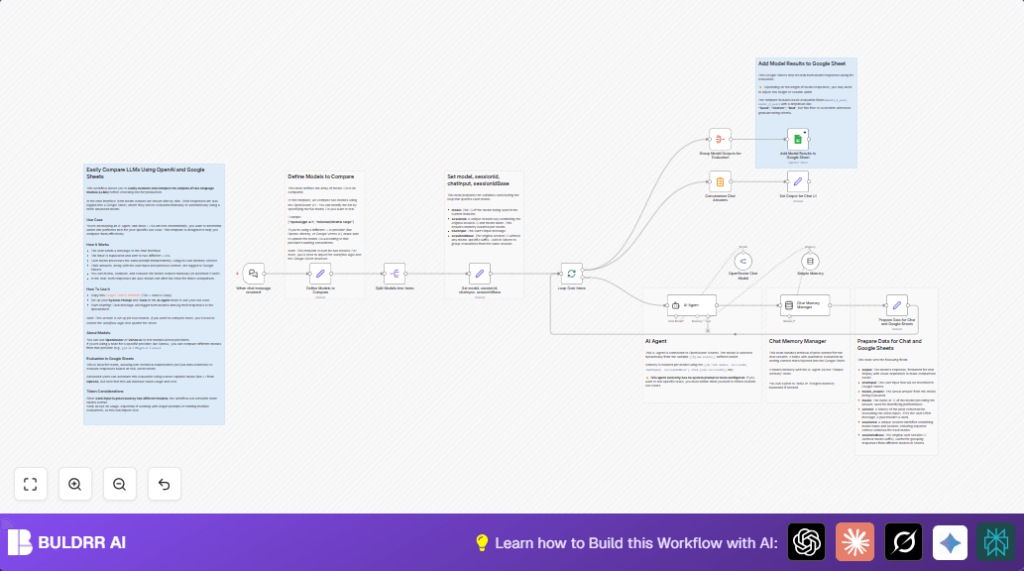
This workflow compares answers from two large language models (LLMs) side by side.
It takes a user chat message and sends it to two AI models.
Then it shows both answers one after another in chat and logs them into Google Sheets for review.
This saves time and helps decide which AI fits best for your needs.
The automation keeps chat memory separate per model so answers stay relevant.
It makes comparing multiple AI responses clear and simple.
Who Should Use This Workflow
This is for anyone who tests different AI language models and wants quick comparisons.
Non-technical users can use it with little effort after minimal setup in n8n.
It suits developers, content creators, or AI testers who want neat logs and easy side-by-side AI answers.
Users who want to cut manual copying and pasted errors will find it useful.
Tools and Services Used
- n8n Automation Platform: Runs the workflow and connects nodes.
- OpenRouter API: Allows access to language models like OpenAI GPT-4.1 and Mistral Large.
- Google Sheets API: Saves data in a spreadsheet for analysis and logging.
- Langchain Nodes in n8n: Handle chat triggers, AI agents, and memory buffers.
- Optional Self-Hosting n8n: Use self-host n8n to control data privacy and cost.
Beginner Step-by-Step: How to Use This Workflow in n8n for Production
Import the Workflow
- Download the workflow file with the Download button on this page.
- Open n8n editor; inside it choose “Import from File”.
- Select the downloaded workflow file.
Configure Credentials
- Add your OpenRouter API Key in the relevant node settings.
- Add Google Sheets Service Account Credentials in the Google Sheets node.
- Update any spreadsheet ID, sheet name, or column mappings if needed.
- Check model IDs in the “Define Models to Compare” node; change if needed.
Test the Workflow
- Trigger test chat messages using the webhook URL from the When chat message received node.
- Confirm that answers from both models show up and data appends to Google Sheets.
Activate for Production
- Turn on the workflow toggle in n8n editor.
- Connect your chat interface to the webhook URL.
- Monitor the first few runs for any errors.
Explanation of Inputs, Processing, and Outputs
Inputs
- The workflow listens for a user chat message via the When chat message received trigger node.
- The user message enters as input text along with a session ID.
- An array of two model IDs is defined to specify which LLMs to compare.
Processing Steps
- The models list is split so each item represents one AI model call.
- For each split model, variables store the model name, a unique session ID (combining base ID and model ID), and original chat message.
- A Simple Memory node keeps chat history separated per model session.
- The AI Agent node sends the message to the chosen model using the OpenRouter API and retrieves its response.
- Results format with model name and answer in the Set node for chat display and logging.
- Responses from both models are batched and aggregated to combine inputs, answers, and session data.
- The combined data appends as a new row in Google Sheets for record-keeping.
- The final concatenated answers appear back in chat for immediate visual comparison.
Outputs
- User sees both AI model answers shown together in chat interface.
- Google Sheets contains logs of input prompts, model outputs, and session context for evaluation.
- Sessions retain their memory separately per model for context-aware conversations next time.
Edge Cases and Troubleshooting
Issue: No Data Appended to Google Sheets
The most common cause is wrong credentials or sheet setup.
Verify the Google Sheets node credentials are correct.
Check the spreadsheet ID, sheet name, and ensure column headers match the mapping exactly.
Incorrect or missing mappings block appending data.
Issue: Memory Context Not Keeping Between Messages
The session ID variable might not be set properly.
Confirm the Set node’s expression for sessionId combines base session and model names consistently.
All memory nodes must use this exact session key to track conversations separately.
If keys mismatch, chat history resets every time.
Issue: Model Responses Inconsistent or Empty
Check API key validity and usage limits with OpenRouter provider.
Also, verify model IDs are correct such as “openai/gpt-4.1” or “mistralai/mistral-large”.
If responses still empty, add basic system prompts in the AI Agent node to guide the model better.
This reduces confusion in replies.
Ideas for Customizing the Workflow
- Add more models by expanding the list in the “Define Models to Compare” node.
- Include an AI evaluator that scores or rates answers automatically, then save scores in Google Sheets.
- Customize system prompts and tools in the AI Agent node to fit tasks like customer support or writing help.
- Switch memory from Simple Memory to Redis or Postgres-based nodes to save longer chat context when needed.
- Modify Google Sheets columns to add rating dropdowns or new evaluation metrics such as creativity or accuracy.
How to Handle This At Scale
This workflow works well for low to medium chat volume.
If testing many inputs quickly, use batching and queues to avoid API rate limits or slowdowns.
Also monitor OpenRouter API costs carefully as queries double sending to two models.
Consider self-host n8n to manage costs and data privacy better for heavy use.
Summary and Result
→ This workflow lets users easily compare two AI language model answers side by side in chat.
→ It keeps conversation context separate per model for accurate replies.
→ Results get saved automatically into Google Sheets for clean record keeping.
→ The user saves time and gets clear data to choose the best AI model.
✓ Saves hours of manual copying and checking.
✓ Enables transparent side-by-side AI response comparison.
✓ Provides structured chat logs for stakeholders or teams.
