

What This Automation Does ⚙️
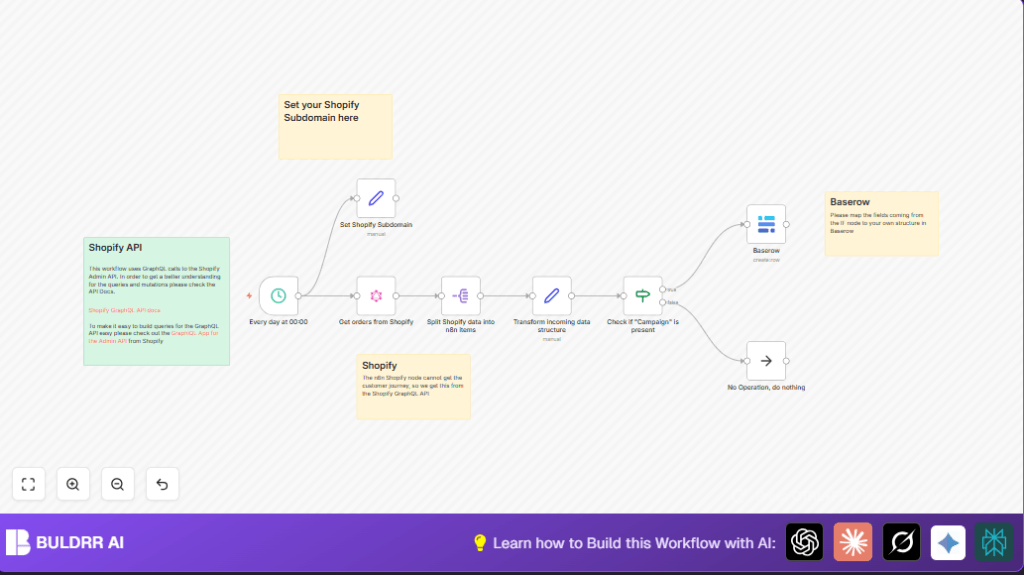
This workflow runs every day at midnight to get Shopify orders made yesterday.
It pulls detailed UTM tracking info for each order using Shopify’s GraphQL API.
Then, it breaks the list of orders into single items so it can work on each order separately.
The data is changed into a simple format with fields like order name, campaign, source, medium, content, term, and revenue.
Only orders that have a campaign UTM tag get moved forward for processing.
These orders are saved as new records in a Baserow table with the right marketing and revenue info.
If an order does not have a campaign tag, it is ignored to keep data tidy.
This saves time by stopping manual data entry and gives clearer views on what marketing brought sales.
Beginner Step-by-Step: How to Use This Workflow in n8n
Step 1: Import the Workflow
- Download the workflow file using the Download button on this page.
- Open your n8n editor where you want to add the workflow.
- Click on “Import from File” and select the downloaded workflow file.
Step 2: Configure Credentials and IDs
- Add your Shopify API Key and other credentials into n8n’s credential manager.
- Add your Baserow API Key and connect to your database and table.
- In the Set Shopify Subdomain node, update the store subdomain to your real Shopify store domain.
- If needed, check and update database and field IDs in the Baserow node to match your setup.
Step 3: Test the Workflow
- Run the workflow manually once inside n8n.
- Watch the outputs step-by-step to make sure the orders are pulled and created in Baserow correctly.
Step 4: Activate for Production
- Turn on the workflow toggle in n8n to make it run daily automatically at midnight.
- Monitor executions at first to catch any errors early.
- If running on your own server, consider self-host n8n for full control.
Inputs, Processing Steps, and Output
Inputs
- Shopify GraphQL Orders: Fetches orders made yesterday including UTM tracking data.
- Shopify Subdomain: Used to build the API URL dynamically.
- Credentials: Shopify API Key, Baserow API Key.
Processing Steps
- Use GraphQL node to pull order data from Shopify with nested UTM fields.
- Split Out node breaks orders list into single items.
- Set node transforms complex JSON into flat fields for easy access.
- If node checks if “campaign” exists on an order.
- Orders with campaign data go to the Baserow Create Record node to save info.
- Orders without campaign data are ignored.
Output
- Baserow Table Records: New rows for each order with clean UTM fields and revenue data for analysis.
Customization Ideas ✏️
- You can change the Shopify Subdomain value anytime in the Set Shopify Subdomain node if switching stores.
- Add extra UTM parameters like “term” or “matchtype” in the transformation and Baserow node if needed.
- Modify the Shopify GraphQL date filter to fetch orders for a different time range.
- Add extra If nodes to filter orders, for example by minimum revenue or specific source.
- Switch the Baserow node with Google Sheets or another database node based on user preference.
Troubleshooting ????
Problem: “No data found or empty orders array”
Cause: The Shopify API query for orders returns nothing.
Solution: Check the date filter in the GraphQL query and verify Shopify Subdomain is correct.
Problem: “Baserow API errors or field mapping issues”
Cause: Wrong database or field IDs configured in the Baserow node.
Solution: Double-check Baserow database ID, table ID, and field IDs to match exactly.
Problem: “Campaign field missing or condition never true”
Cause: JSON paths in the Set or If node are wrong or orders have no campaign UTM data.
Solution: Use debug mode in n8n to check JSON structure; fix paths or provide fallback values.
Pre-Production Checklist ✅
- Make sure Shopify API credentials have all needed permissions.
- Test the GraphQL query outside n8n (Postman or Shopify GraphiQL IDE).
- Confirm Baserow database and table IDs are correct.
- Run the workflow once manually and check outputs thoroughly.
- Ensure campaign check in the If node works as expected.
- Back up Baserow data before starting main sync just in case.
Deployment Guide
After testing and configuration, activate the workflow in n8n to run daily at midnight.
Review the execution logs early on to catch any failures.
Respect Shopify API limits by fetching only needed orders.
Increase Baserow capacity if handling many records.
For better control and reliability, consider self-host n8n on a stable server.
Summary of Benefit and Outcome
✓ Saves time by automating daily Shopify UTM data export.
✓ Stops mistakes from manual copying and pasting of order info.
✓ Gives clear, organized marketing source data linked to revenue.
✓ Works every day automatically without extra effort.
→ User gets a clean Baserow table ready for marketing analysis.
→ Helps track which campaigns make real sales.
