

What This Automation Does ⚙️
This workflow catches Stripe checkout payments right after they’re done.
It takes customer info and list of bought products without any mistakes or manual work.
You get clean order details quickly, ready to use for other tools or sending emails.
It saves daily time and stops delivery errors.
Who Should Use This Workflow
This is for store owners who use Stripe for payments.
It fits people who want to cut down manual order checking and data typing.
Good for stores selling many products or giving discounts, where mistakes happen often.
Tools / Services Used
- Stripe API: Sends info when payment finish.
- n8n: Automation platform runs the workflow and nodes.
- HTTP Request node: Gets full order details from Stripe.
- Set node: Selects and renames important data fields.
Beginner Step-by-Step: How To Use This Workflow In Production
Importing the Workflow
- Download the workflow file using the Download button on this page.
- Open the n8n editor where you already work.
- Choose “Import from File” and select the downloaded workflow.
Configuring the Workflow
- Add your Stripe API credentials in the Stripe Trigger and HTTP Request nodes.
- Change any default IDs, emails, or channels to match your store settings.
- Make sure you update any paths or tokens if your system needs it.
Testing and Activating
- Run the workflow manually once to confirm it grabs data as expected.
- Check outputs for correct customer and product info.
- After testing, turn on the workflow to listen live to payments.
If using self-host n8n, ensure your webhook endpoint is public and secure for Stripe.
Inputs, Processing, and Outputs
Inputs
Stripe checkout.session.completed webhook trigger sends payment data.
Processing Steps
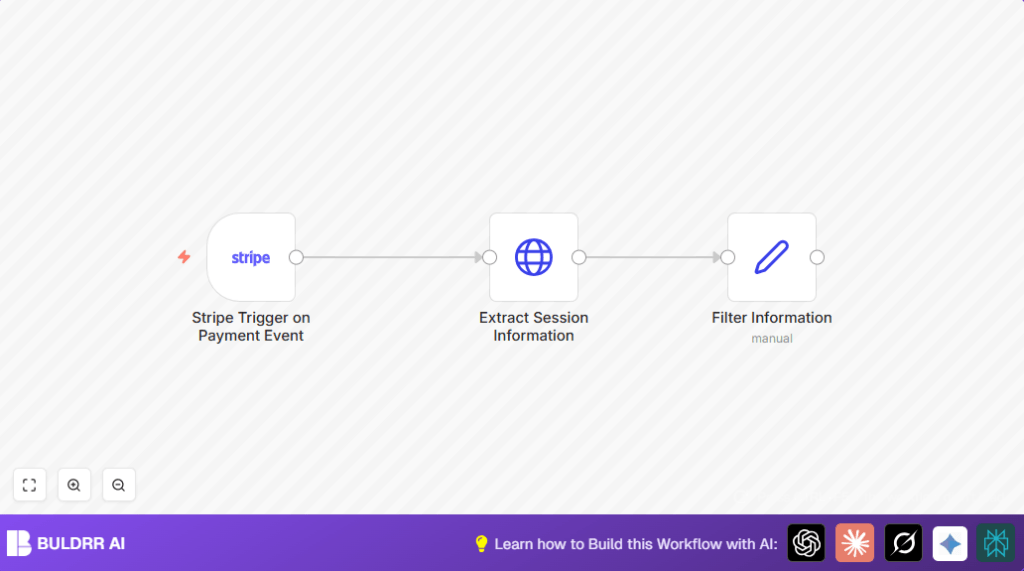
- Stripe Trigger node: Waits for checkout session done events.
- HTTP Request node: Uses session ID to get full order details from Stripe with line items.
- Set node: Extracts customer name, email, and first product description into clear fields.
Outputs
You get structured order info ready to send to CRM, email, or inventory tools.
This reduces errors and manual entry time.
Common Customizations ✏️
- Show all products by looping through the line_items array and joining descriptions.
- Add customer phone field from customer_details if your Stripe collects it.
- Send confirmation email with Gmail or Email nodes using the customer email from Set node.
- Use HTTP Request or database nodes to update inventory systems with purchased products.
Troubleshooting ????
Webhook not receiving Stripe events?
Check webhook URL in Stripe is exactly same as from Stripe Trigger node. Make sure webhook listens to checkout.session.completed.
HTTP Request missing line_items?
Verify query param “expand[]=line_items” is set exactly in HTTP Request node.
Pre-Production Checklist ✅
- Stripe API Keys are correct and on matching live or test mode.
- Make test orders using Stripe test cards to fire events.
- Webhook URLs are reachable and registered in Stripe dashboard.
- Confirm line items are expanded in HTTP Response data.
- Check Set node maps fields like customer name and products correctly.
Deployment Guide
Turn on the workflow to listen to Stripe checkout sessions.
Use n8n interface to watch logs and data flow.
If self hosting n8n, confirm public HTTPS endpoint is set for Stripe’s webhook calls.
Summary
→ Sync Stripe checkout payment data immediately after payment.
✓ Save manual data entry time.
✓ Reduce wrong shipments from data mistakes.
✓ Get ready-to-use customer and product order info for other systems.
✓ Easy to test and activate in n8n.
