

What this Workflow Does
This workflow tests many local LLMs running on LM Studio with the same chat prompt.
It helps find how clear, readable, and fast each model answers.
You get results logged with key info like response time and readability scores in Google Sheets.
This saves a lot of testing time and gives clear comparison data.
Tools and Services Used
- LM Studio Server: Hosts local AI language models.
- n8n Platform: Runs the workflow, manages automation.
- Google Sheets: Stores test results for review.
- OpenAI API Credentials: For LangChain node to send prompts.
Inputs, Processing, and Outputs
Inputs
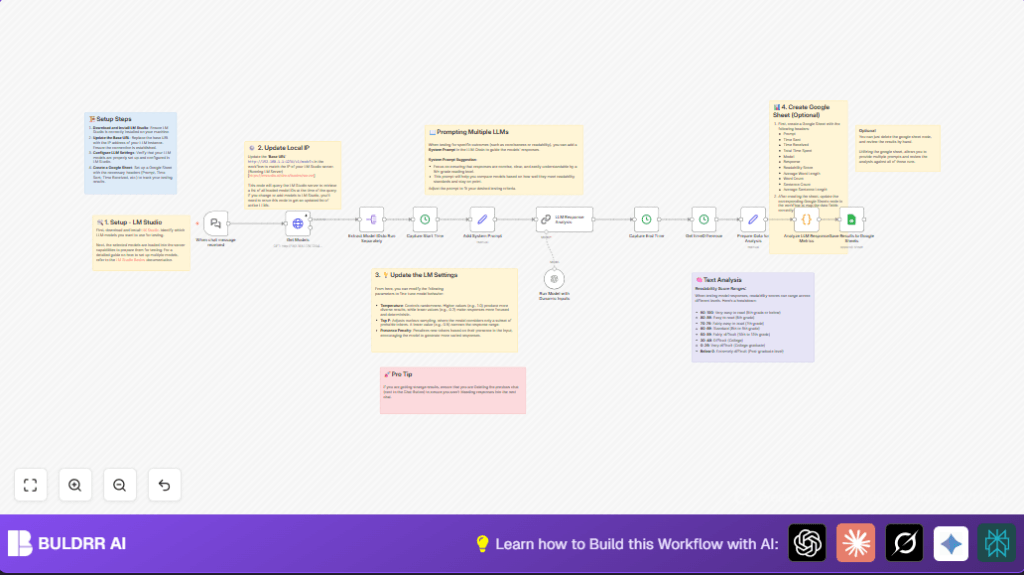
- User chat message prompt sent via When chat message received node.
- Currently loaded model IDs fetched from LM Studio via Get Models HTTP Request node.
Processing Steps
- Split each model ID to query separately.
- Record time when prompt is sent to each model.
- Add a system prompt to guide model replies.
- Send prompt with parameters like temperature to each model using LangChain.
- Capture response time for each.
- Calculate text metrics such as word count, sentence length, and readability score via code.
- Format all data for logging.
Outputs
- Detailed row data appended to Google Sheets showing prompt, model, timings, and response metrics.
- Optionally review data inside n8n if Google Sheets node is removed.
Who Should Use This Workflow
This is for AI developers testing different local LLMs on LM Studio.
It suits users who want clear, side-by-side data about how each model answers the same questions.
Beginners and experts can both use results to pick the best model for their needs.
Beginner Step-by-Step: How to Use This Workflow in n8n
Step 1: Import the Workflow
- Download the workflow JSON file using the Download button on this page.
- Open the n8n editor, then click “Import from File” and select the downloaded file.
Step 2: Configure Credentials and Settings
- Add Google Sheets API credentials in n8n for saving test results.
- Add OpenAI API Key to the LangChain Run Model with Dunamic Inputs node.
- Update the Get Models node’s Base URL with the correct LM Studio IP and port (like http://192.168.1.179:1234).
- If needed, update Google Sheets table ID or sheet name inside the Google Sheets node.
- Verify that system prompt text in the Add System Prompt node fits your goals (optional).
Step 3: Test and Activate
- Run the workflow once manually by sending a chat prompt trigger.
- Check that results appear in Google Sheets or inside n8n output.
- Fix any errors like permission issues or wrong URLs.
- Once tested, activate the workflow to run automatically on new chat messages.
Note: Use self-host n8n to run this automation privately if needed.
Customization Ideas
- Change temperature and topP in LangChain node to see how model creativity shifts.
- Edit system prompt to change model response style or reading difficulty.
- Add text sentiment or keyword analysis in the JavaScript code node.
- Replace Google Sheets logging with a database node or CSV export for preferred storage.
- Modify Base URL in Get Models to test models hosted elsewhere.
Common Issues and Solutions
- Timeout fetching models: Check LM Studio IP and port. Server might be offline.
- No or empty model response: Verify model IDs from extracted list. Test models manually in LM Studio.
- Google Sheets permissions error: Refresh OAuth tokens and confirm access rights.
Inputs and Outputs Summary
- Input: Chat message prompt, LM Studio model list.
- Output: Response texts, metrics, timings logged to Google Sheets.
This helps users see which local LLM answers best and fastest for their needs.
Results and Benefits
✓ Save hours of copying and testing models one-by-one.
✓ Get clear data like speed, readability, and length of each answer.
✓ See all results in one Google Sheet for easy comparison.
✓ Make better model choices with objective info.
✓ Quickly adapt prompts and see how different models react.
