

What This Automation Does
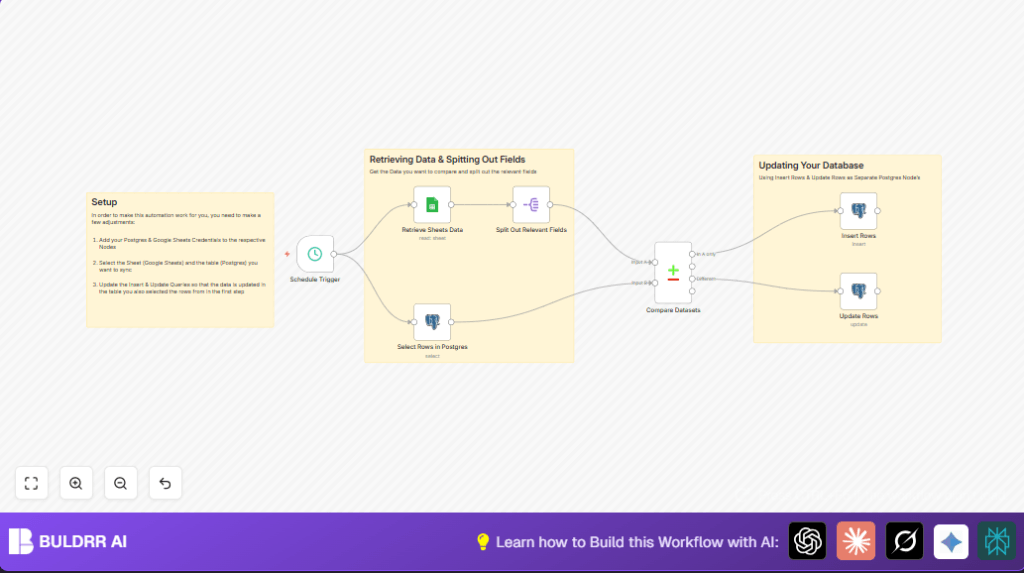
This workflow syncs Google Sheets customer data with a Postgres database automatically.
It solves the problem of spending hours manually updating and comparing data.
The result is both data sources stay up-to-date without mistakes or extra work.
Who Should Use This Workflow
This automation is best for users who have customer info in Google Sheets and need it matched in a Postgres database.
It fits those who want to avoid manual syncing and reduce errors in business data.
Tools and Services Used
- n8n: Automation tool to build and run the workflow.
- Google Sheets: Source of customer data.
- Postgres database: Stores customer records for business use.
- Schedule Trigger node: Starts the workflow on a timed interval.
- Google Sheets node: Retrieves rows from the spreadsheet.
- Postgres Select node: Gets current records.
- Split Out node: Filters relevant fields for comparison.
- Compare Datasets node: Compares Google Sheets data with database data.
- Postgres Insert and Update nodes: Add new rows or update existing ones in the database.
Inputs → Processing Steps → Output
Inputs
- Customer data fields from Google Sheets: first name, last name, town, and age.
- Existing customer records from the Postgres database table.
Processing Steps
1. The workflow is triggered every hour automatically.
2. It fetches customer rows from Google Sheets.
3. It pulls current data from the Postgres database.
4. It filters customer data to only the needed fields.
5. It compares both data sets by first name to find new or changed records.
6. It inserts new customers found only in Google Sheets into Postgres.
7. It updates existing records in Postgres if any fields differ.
Output
Updated Postgres database with exact copies of Google Sheets customer data.
Automated sync saves time and reduces errors in customer info across systems.
Beginner step-by-step: How to use this workflow in n8n Production
Step 1: Import the Workflow
- Download the workflow file using the Download button on this page.
- In the n8n editor, click “Import from File” and upload the downloaded workflow file.
Step 2: Configure Credentials
- Add Google Sheets API credentials with access to the target spreadsheet.
- Add Postgres database credentials matching the correct server, database, user, and password.
Step 3: Update Workflow Settings
- Update the Google Sheets Document ID and Sheet name if different from the example.
- Check the Postgres Schema and Table names match the user’s setup.
Step 4: Test the Workflow
- Run the workflow once manually in n8n by selecting the Schedule Trigger and clicking “Execute Node”.
- Confirm data flows correctly, with new entries inserted and existing ones updated.
Step 5: Activate for Production
- Toggle the workflow to “active” to let it run every hour automatically.
- Monitor runs in n8n to confirm no errors appear and data stays synced.
For users self hosting n8n, see self-host n8n for ideas on reliable setup.
Customization Ideas
- Change the Schedule Trigger interval for faster or slower syncing.
- Add more fields in the Google Sheets and Postgres mappings like email or phone number.
- Use a Filter node to sync only customers matching criteria, such as living in a specific town.
Troubleshooting
Problem: No data returned from the Google Sheets node.
Cause: Wrong Document ID or missing permissions.
Solution: Double check Google Sheets credentials, Document ID, and Sheet name inputs.
Problem: Postgres Update Rows node does not change records.
Cause: Missing or incorrect column matching on update node.
Solution: Make sure the Matching Columns include unique identifiers like first_name and last_name exactly.
Pre-Production Checklist
- Verify Google Sheets access and correct spreadsheet selected.
- Confirm Postgres login details and table info are correct.
- Use n8n’s manual Execute Node to test data retrieval and insertion.
- Take a backup of Postgres database before running automatic updates.
Conclusion
By following this guide, the user gets an n8n workflow that automatically matches Google Sheets data with Postgres database records.
This saves hours, avoids human errors, and keeps business data correct.
Next, the user can add more fields, handle deletes, or link other data sources. This allows more complete and reliable data pipelines.
