
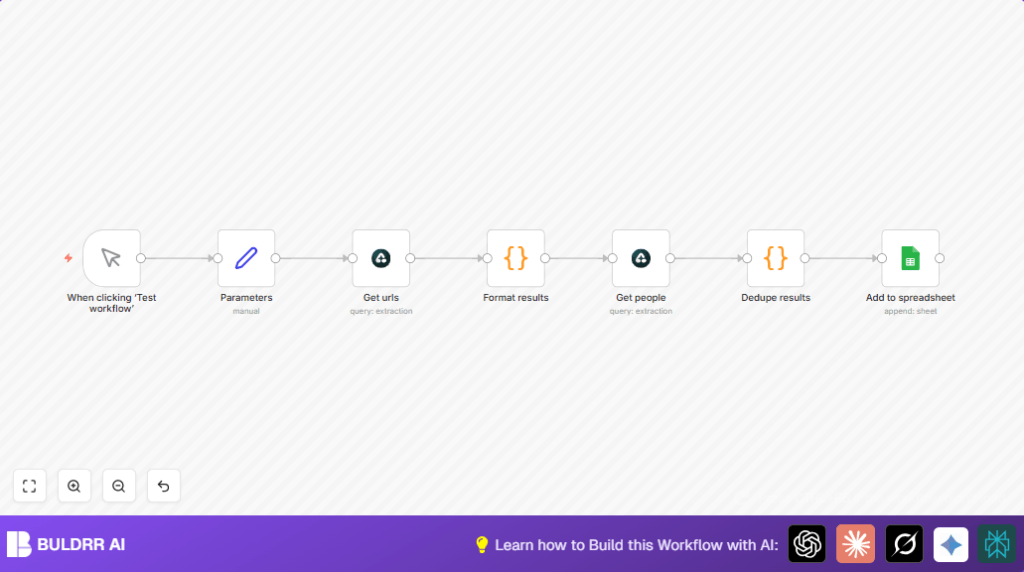

What This Automation Does
This workflow automatically finds top “Build in Public” influencers on platform X and saves their details in a Google Sheet.
The main problem it solves is the slow, manual task of searching, copying, and organizing influencer information.
At the end, you get a clean, up-to-date spreadsheet with names, handles, and URLs without any repeated entries.
Who Should Use This Workflow
This automation is for marketers, researchers, or anyone needing to build influencer lists fast.
It helps users who want to avoid errors and save lots of time on manual searching and data cleaning.
Tools and Services Used
- n8n: Runs the automation workflow.
- Airtop API: Searches the web and extracts influencer details with AI.
- Google Sheets: Stores the final list in an accessible spreadsheet.
- Optional hosting: Users can set up self-host n8n if preferred.
Inputs, Processing, and Output
Inputs
- Manual trigger with custom search query parameters (
whoandwhere). - Airtop API credentials for web search and data extraction.
- Google Sheets OAuth2 credentials to write results.
Processing Steps
- Builds a search query from input parameters.
- Fetches up to 10 non-sponsored Google search results using Airtop AI.
- Extracts influencer names, handles, and URLs from each result page.
- Removes duplicate entries by cleaning URLs and filtering repeats.
- Appends the cleaned data with context and timestamp into Google Sheets.
Output
A structured Google Sheet showing a unique list of influencers with names, IDs, URLs, search context, and added date.
Beginner Step-by-Step: How to Use This Workflow in n8n
Step 1: Download and Import
- Download the workflow file using the Download button on this page.
- Open the n8n editor where you want to run the workflow.
- Click “Import from File” and select the downloaded workflow file.
Step 2: Configure Credentials and Settings
- Add your Airtop API Key in the designated credential field inside n8n.
- Add your Google Sheets OAuth2 credentials so the workflow can write to your Sheet.
- Update the Google Sheet ID inside the Add to spreadsheet node.
- If you want to customize the search, edit the Parameters node: change
whoandwherevalues.
Step 3: Review Code or Prompt if Needed
Check the Format results and Dedupe results code nodes.
You can copy-paste their JavaScript from the code blocks below to replace or customize if needed.
// Format results code
const input = $input.first().json.data.modelResponse
const listOfLinks = JSON.parse(input).results
const output = listOfLinks.map((item) => ({
  json: { url: item.url }
}))
return output;
// Dedupe results code
const allResults = []
for (const inputItem of $input.all()) {
const input = inputItem.json.data.modelResponse
const results = JSON.parse(input).items
const cleanedResults = results
.filter((res) => res.name)
.map((res) => ({
...res,
url: res.url.split('?')[0]
}))
allResults.push(...cleanedResults)
}
const uniqueList = allResults.filter((item, index, self) =>
index === self.findIndex((t) => (t.url === item.url))
);
return uniqueList.map((item) => ({ json: {...item} }));Step 4: Test the Workflow
- Click Execute Workflow or the manual trigger When clicking ‘Test workflow’.
- Check that nodes run without errors and Google Sheet updates with data.
Step 5: Activate for Production
- Switch the workflow from manual trigger to a regular Cron or Interval trigger if automated runs desired.
- Enable the workflow in the n8n editor dashboard.
- Monitor runs under workflow history for success or errors.
Customization Ideas
- Adjust search queries by editing the Parameters node’s
whoandwherefields. - Add extra influencer fields like email or biography by changing the Get people node’s AI prompt.
- Change the manual trigger to a timed trigger node for regular updates.
- Export data to CSV, send email reports, or connect to other apps after the deduplication step.
- Insert a filter node to only keep influencers matching certain keywords before saving.
Troubleshooting Common Issues
- Airtop API connection fails: Check your API Key in n8n. Test Get urls node alone to see if it connects.
- Google Sheets authorization error: Re-authenticate Google OAuth2 credentials in n8n. Ensure the target Google Sheet is shared with the OAuth email.
- Duplicate entries in the Sheet: Confirm the code in Dedupe results removes URL parameters fully. Edit cleaning code if needed.
Pre-Production Checklist
- Verify Airtop API Key and test its calls.
- Confirm Google Sheet access and correct Sheet ID is set.
- Run a manual test to catch errors before going live.
- Check expected JSON formats from Airtop nodes to avoid parsing errors.
- Backup Google Sheet data before first writes to avoid data loss.
Deployment Guide
Activate the workflow in the n8n editor once testing is done.
Replace the manual trigger with scheduled triggers like Cron for period updates.
Watch workflow run history for errors or interruptions.
Enable detailed logging on nodes to quickly fix failures.
This keeps influencer lists fresh with little effort over time.
Conclusion
This workflow turns slow manual influencer searching into a fast, repeatable task.
The AI-powered search and extraction combined with Google Sheets storage means users focus on work that matters, not busywork.
Users can further grow this system by adding APIs like LinkedIn or Twitter, or automating outreach emails.
It lets marketers and researchers save many hours and reduce errors.
Code Samples
Format Results Code
// Get first input item
const input = $input.first().json.data.modelResponse
// Parse list of links
const listOfLinks = JSON.parse(input).results
// Prepare simplified output array
const output = listOfLinks.map((item) => ({
  json: { url: item.url }
}))

return output;
Dedupe Results Code
const allResults = []

for (const inputItem of $input.all()) {
  const input = inputItem.json.data.modelResponse
  const results = JSON.parse(input).items

  const cleanedResults = results
    .filter((res) => res.name)
    .map((res) => ({
      ...res,
      url: res.url.split('?')[0]
    }))

  allResults.push(...cleanedResults)
}

const uniqueList = allResults.filter((item, index, self) =>
  index === self.findIndex((t) => (t.url === item.url))
);

return uniqueList.map((item) => ({ json: {...item} }));
Example AI Prompt from Get people Node
This is a list of {{ $('Parameters').item.json.who }} on {{ $('Parameters').item.json.where }}.
Extract up to 20 items. For each person extract:
- name
- handle or ID
- URL
Summary
→ Saves hours by automating influencer list building
→ Uses AI search to get fresh data without ads
→ Extracts and cleans influencer name, handle, and URL
→ Removes duplicates for a tidy final spreadsheet
→ Stores results with timestamps and context in Google Sheets
