
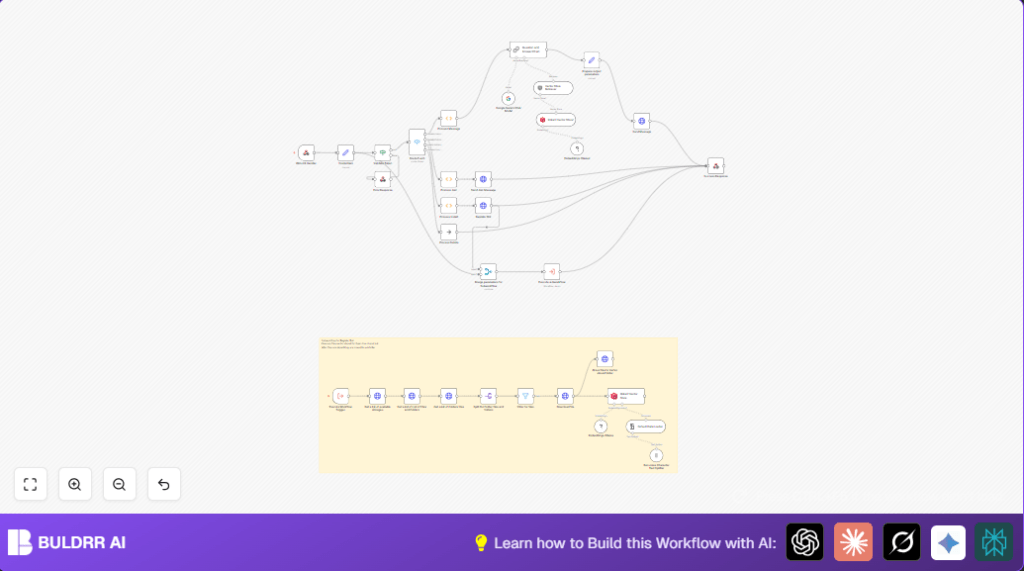

What This Workflow Does
This workflow catches messages from Bitrix24 Open Channels and answers clients automatically using company documents.
It stops support teams from spending many hours answering common questions by hand.
The chatbot reads company PDFs and files stored in Bitrix24 Drive and uses AI to give smart, right answers fast.
It works inside Bitrix24 chats, so clients get quick replies without waiting.
How the Workflow Works (Inputs → Process → Output)
Inputs
- Incoming webhook events from Bitrix24 Open Channels like new user messages, bot joining chats, installation, or deletion.
- Company documents stored in Bitrix24 Drive PDFs or similar files.
- Bitrix24 API Credentials for making REST calls.
Processing Steps
- The Webhook node waits for Bitrix24 events and parses them.
- Extracts client tokens, app IDs, and tokens with the Credentials Set node.
- Checks tokens for validity in the Validate Token node.
- Uses switch nodes to route the event type to proper handling: new messages, bot installs, joins, or deletes.
- Processes user messages to get text, chat ID, user ID, and session info.
- When users ask normal questions, sends texts to a retrieval AI chain using embeddings from company documents.
- Documents are loaded from drive, split into chunks, converted to vectors with Ollama embeddings, then saved in Qdrant.
- The AI chain uses Google Gemini Chat model to answer questions using document context.
- Sends answer back to chat via Bitrix24 API
imbot.message.add. - Registers the bot dynamically on install to automate setup.
- Sends welcome messages on chat join.
- Handles bot deletion events gracefully.
Outputs
- Chat replies sent inside Bitrix24 Open Channels.
- Automated bot installation responses.
- Updated document vector store for smarter answers.
Tools and Services Used
- Bitrix24 Open Channels: Handles client chat messages and delivers chatbot replies.
- n8n Automation Platform: Runs the workflow nodes and logic.
- Bitrix24 REST API: For bot registration, message sending, and Drive file access.
- Qdrant Vector Store: Stores text chunks from documents as AI vectors for fast retrieval.
- Ollama Embeddings: Converts texts to AI vector format.
- Google Gemini Chat Model: Answers client questions using document knowledge.
- Langchain: Loads, splits, and processes documents.
Who Should Use This Workflow
This suits businesses using Bitrix24 with Open Channels and many document files.
Support teams spend too much time on common chats.
Users want fast help with real company info inside the chat.
You want to save human work and avoid confused clients with late or wrong answers.
Beginner Step-by-Step: How to Use This Workflow in n8n
1. Importing the Workflow
- Download the workflow file using the Download button on this page.
- Open n8n editor (can be cloud or self-host n8n setup).
- Click “Import from File” then select the downloaded JSON file.
2. Setting Credentials
- Open the node named Credentials Set.
- Fill in Bitrix24 API CLIENT_ID, CLIENT_SECRET, and tokens.
- Enter Qdrant vector store URL and API key.
- Configure Ollama embeddings node with your API key.
3. Updating IDs and Links
- Check folder or storage IDs in Bitrix24 to point to your document folder.
- Update any channel or chat IDs if needed.
- If prompts or messages include variables, adjust text inside relevant function nodes.
4. Testing the Workflow
- Manually trigger the workflow or send a test event to Bitrix24 webhook URL.
- Inspect the response and log output for errors.
- Make sure the chatbot replies appear inside Bitrix24 chat.
5. Activating for Production
- In n8n, toggle the workflow switch to “active”.
- Provide the webhook URL shown in the Webhook node to Bitrix24 Open Channels webhook settings.
- Monitor execution in n8n dashboard for smooth operation.
Customizations
- Change greeting text inside Process Join node to reflect brand tone.
- Add other file types by editing Filter Files node to accept .docx or .txt
- Swap Ollama embeddings with another provider by updating the embeddings node model.
- Adjust number of document chunks retrieved by changing
topKin vector store retriever. - Insert translation steps to support other languages before and after AI response.
Troubleshooting
Problem: “Invalid application token” error
Means the incoming token does not match your Bitrix24 CLIENT_ID.
Check that Credentials Set node uses the correct CLIENT_ID. Make sure Bitrix24 webhook URLs and tokens are updated.
Problem: Chatbot does not respond to messages
Verify the Route Event node catches ONIMBOTMESSAGEADD events.
Check extraction logic in Process Message node matches the event data structure.
Problem: Files not ingested into vector store
Test Bitrix24 API calls for reading files have proper permissions.
Confirm Download File nodes get correct URLs.
Verify Qdrant vector store access and collection availability.
Pre-Production Checklist
- Test webhook URL with sample Bitrix24 events to ensure triggers.
- Verify all credentials and API keys are valid.
- Check Bitrix24 app permissions for bot setup and messaging.
- Confirm documents upload and folder IDs.
- Run document ingestion separately to validate text splitting and vector inserts.
- Simulate chat messages to see AI replies.
Deployment Guide
After testing, activate the workflow inside n8n by switching it on.
Copy the webhook URL from the Webhook node and add it to your Bitrix24 Open Channels webhook configuration.
Monitor the workflow in n8n dashboard for errors or warnings.
Check chat clients receive smart answers right away.
Summary
✓ Automatically answers client chats inside Bitrix24 Open Channels.
✓ Uses company documents as AI knowledge base.
✓ Saves hours of manual support work weekly.
✓ Keeps chatbot registration and messaging fully automated.
✓ Improves client satisfaction with fast, accurate replies.
