

What This Automation Does
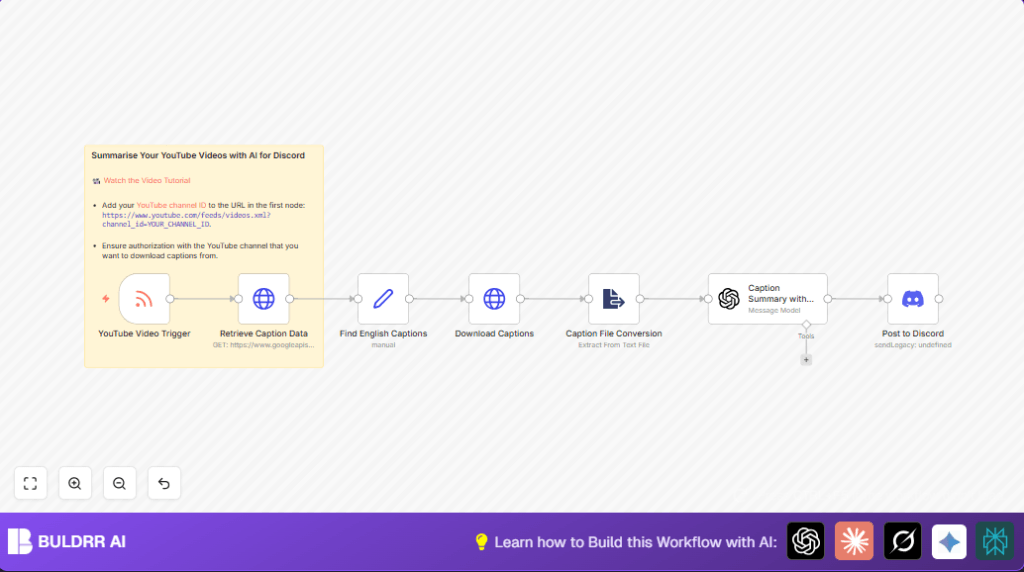
This workflow watches a YouTube channel for new videos and fetches their English captions automatically.
It turns the captions into text, then uses GPT-3.5 Turbo to write a simple summary in three bullet points.
Finally, it posts the video title, summary, and link into a Discord channel using a webhook.
This helps share instant video summaries without manual work.
Who Should Use This Workflow
Anyone who runs a YouTube channel and wants to quickly share video info to Discord.
This is useful if manual summarizing feels slow or hard.
Tools and Services Used
- YouTube API with OAuth: To get video captions.
- OpenAI GPT-3.5 Turbo: To summarize transcript text.
- Discord Webhook: To post messages to the server.
- n8n Automation Platform: To run the workflow.
Input → Process → Output Explained
Inputs
- YouTube channel RSS feed new video notifications.
- Video ID and metadata from the feed.
Processing Steps
- Use YouTube API to get available captions for the video.
- Find English caption data from the list.
- Download the English caption file content.
- Convert captions from XML (or other format) into plain text.
- Send the text transcript to OpenAI GPT-3.5 Turbo for summary.
- Create a simple three-bullet summary of the video.
- Prepare a formatted message with video title, summary, and URL.
- Send the message via Discord webhook to a selected channel.
Output
- A Discord message posting video title, summary bullet points, and video link.
Beginner Step-by-Step: How to Use This Workflow in n8n
Step 1: Download and Import Workflow
- Click the Download button on this page to save the workflow file.
- Open your n8n editor where workflows are created.
- Use the menu option “Import from File” to upload the downloaded workflow.
Step 2: Add Required Credentials
- Go to credential settings in n8n.
- Add your YouTube API OAuth credentials with access to captions API.
- Enter your OpenAI API key for GPT-3.5 Turbo usage.
- Add your Discord webhook URL to allow posts.
Step 3: Configure IDs and URLs
- In the RSS feed trigger, replace
YOUR_CHANNEL_IDwith your actual YouTube channel ID. - If needed, update any placeholders for captions or other nodes.
Step 4: Test the Workflow
- Trigger the workflow manually in n8n with a recent video from your channel.
- Check logs to confirm each step runs without error.
Step 5: Activate the Workflow
- Switch the workflow toggle to Active in n8n.
- The workflow will poll your YouTube RSS feed at your set interval.
- Summaries will post automatically once new videos appear.
You can also find more tips on self-host n8n if running the workflow on your own server.
Inputs and Outputs Detail
This workflow uses the YouTube channel’s RSS Feed as the main input to detect new videos.
It then input YouTube API videoId to get captions.
The final output is a Discord message containing the video title, a short summary bullet list, and the video URL.
Common Problems and Fixes
- Problem: No English captions found.
Fix: Check the video’s captions are public and English is available. - Problem: YouTube API errors.
Fix: Refresh the OAuth tokens and verify API access. - Problem: Discord webhook posts fail.
Fix: Confirm webhook URL and that it has permission in the Discord channel.
Customization Ideas
- Change the GPT prompt to make longer or shorter video summaries.
- Change language code in filtering to support other caption languages.
- Edit Discord message templates to add emojis or mentions.
- Use multiple Discord webhook nodes to post to different channels.
- Adjust the RSS polling interval to check videos more or less often.
Conclusion
This workflow helps share YouTube video summaries fast by fetching captions,
running AI summarization, and posting results into Discord automatically.
It saves time and makes community updates smooth.
Consider adding further logic for social media posts or comment analysis using similar nodes.
