

1. What this workflow does
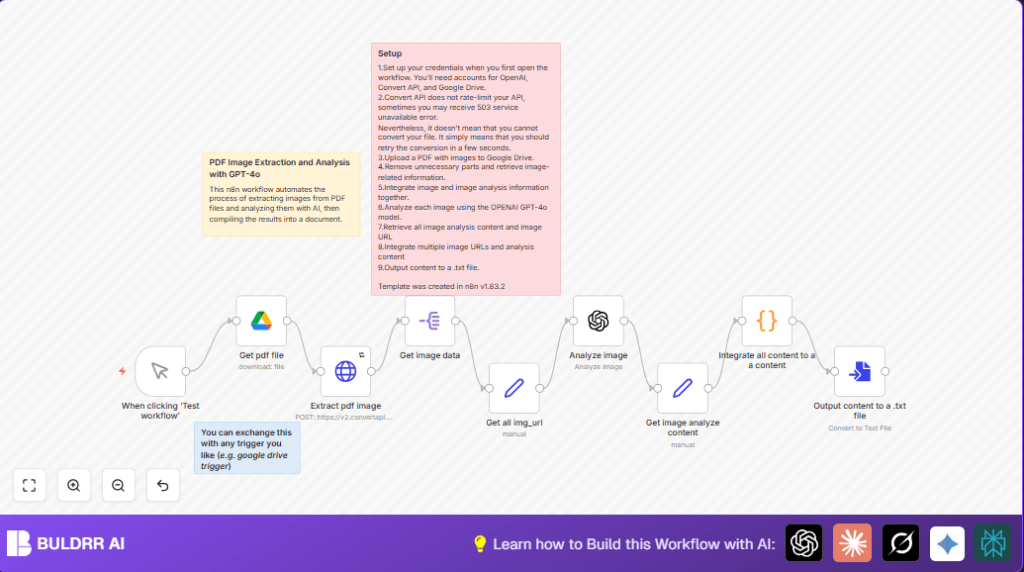
This workflow takes a PDF file from Google Drive and extracts all images inside it automatically.
Then, it uses an AI model to analyze each image and describes what it shows in detail.
Finally, the workflow saves all these descriptions in one text file.
It helps save many hours of manual work checking images in PDFs.
The main problem solved is getting fast and correct image analysis from PDF reports without doing it yourself.
The result is one clear text file with all image links and AI-generated explanations ready to read or share.
2. Who should use this workflow
This is made for people who work often with PDFs full of images.
Researchers, analysts, or anyone needing to get info from pictures inside PDF reports.
If manual extraction takes too much time and makes mistakes, this workflow saves effort and gives better, consistent results.
3. Tools and services used
- Google Drive: Stores the PDF file to download.
- ConvertAPI: Extracts images from the PDF file.
- OpenAI GPT-4o: Analyzes each extracted image for detailed content.
- n8n: Automates the whole process connecting all parts.
4. Beginner step-by-step: How to build this in n8n
How to get and import the workflow
- Download the workflow file using the Download button on this page.
- Open your n8n editor.
- Use the menu to choose Import from File and select the downloaded workflow.
How to configure after import
- Go to the Get pdf file node and update the
fileIdwith your own Google Drive PDF file ID. - Check the Google Drive credentials are properly set up in the n8n credential manager.
- In the Extract pdf image HTTP Request node, add your ConvertAPI API Key in the header.
- Make sure the Analyze image node has your OpenAI API Key with access to GPT-4o model.
- If the prompt in Analyze image needs to be changed, copy and edit the prompt text:
Please analyze the video in detail and provide a thorough explanation
- Save all changes.
- Run one test using the Manual Trigger node or Webhook node. Check for errors in each step.
- If all runs well, activate the workflow by switching it ON for regular use.
For long term use or automation, you can replace the Manual Trigger with a Google Drive Trigger.
Remember to visit self-host n8n resources if running n8n on your own server.
5. Inputs, Process, and Output explained
Inputs
- PDF file stored in Google Drive identified by file ID.
Processing Steps
- Download the PDF file content from Google Drive.
- Send the PDF to ConvertAPI to extract all images in JPG format.
- Split the array of images so each gets processed alone.
- Extract the image URL from each split image item.
- Send each image URL to OpenAI GPT-4o for text analysis.
- Combine each image URL with its AI-generated description.
- Merge all separate analyzed text blocks into one big text.
- Convert this text into a downloadable .txt file.
Output
A single text file containing all image URLs with detailed AI explanations.
This file can be saved, shared, or used for report creation.
6. Edge cases or failures
- ConvertAPI 503 error: The service can be overloaded sometimes.
The workflow retries download after 5 seconds automatically. - Google Drive file download error: Happens if file ID is wrong or Access permission missing.
Check file ID and credential permissions. - OpenAI API errors or timeouts: May occur if API Key is invalid or quota exceeded.
Validate your OpenAI API Key and monitor usage.
7. Customization ideas
- Change triggering with Google Drive watcher for automated runs on new PDF uploads.
- Adjust image output format in ConvertAPI from JPG to PNG or GIF.
- Edit the GPT-4o prompt in the Analyze image node to get different analysis focus.
- Add nodes after the output to upload the final text file to Google Drive or Dropbox.
- Modify retry settings to better handle occasional API downtime.
8. Summary of benefits and results
✓ Automates image extraction from PDFs without manual work.
✓ Provides detailed AI-generated explanations for every image.
✓ Saves many hours of effort and reduces human mistakes.
✓ Outputs all info in one easy-to-use text file.
→ Faster, more reliable research and reporting.
→ Clear, ready-to-share image insights.
