
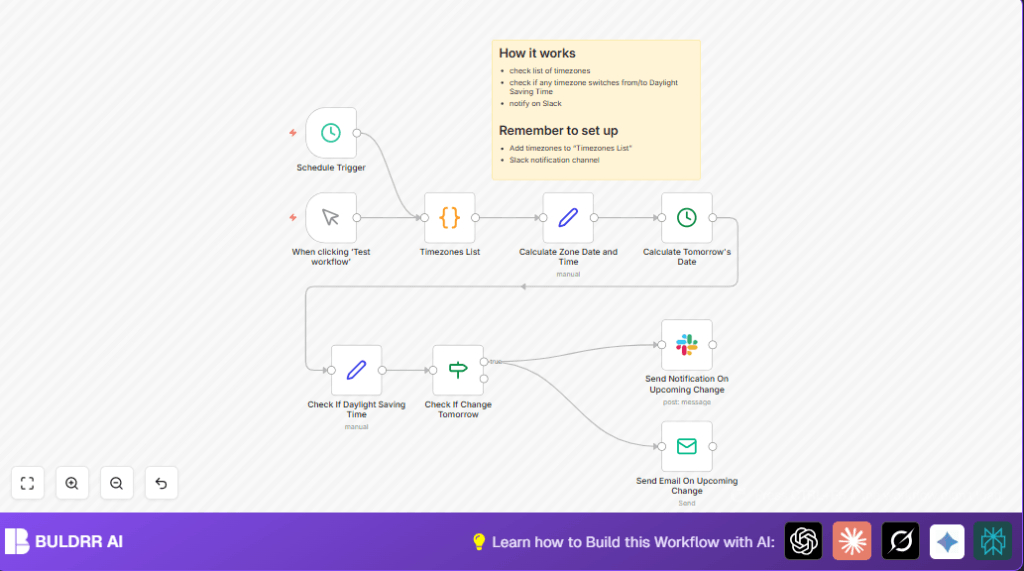

What this workflow does
This workflow checks multiple timezones every day to find if any timezone will change due to Daylight Saving Time (DST) the next day.
It sends alerts on Slack and by email to remind the team about the upcoming DST switch.
This helps avoid meeting confusion and saves time fixing schedules.
Who should use this workflow
If you manage teams in different timezones and want to avoid missed meetings when DST starts or ends, this workflow helps.
It is good for project managers, remote teams, or anyone tracking timezone changes.
Tools and services used
- n8n: Runs and schedules the workflow.
- Slack API: Sends notification messages to team channels.
- SMTP Email: Sends email alerts about DST changes.
The workflow needs valid Slack OAuth2 credentials and SMTP credentials configured in n8n.
How the workflow works (Input → Process → Output)
Inputs
A list of timezone names in IANA format is supplied through a code node.
Processing steps
- Schedule trigger runs daily to start the workflow.
- For each timezone, it gets today’s current time adjusted to that timezone.
- It calculates the datetime for tomorrow in the same timezone.
- Checks whether today and tomorrow are in Daylight Saving Time.
- Uses an IF node to see if DST status changes from today to tomorrow.
- If DST will change, workflow continues to notification nodes.
Outputs
- Sends a Slack message warning about DST change in the timezone.
- Sends an email alert with the same information.
Beginner step-by-step: How to run this workflow in n8n
1. Import the workflow
Download the workflow file using the Download button on this page.
Open your n8n editor and choose “Import from File” to add the workflow.
2. Configure credentials and settings
Add Slack OAuth2 credentials in n8n for the Slack node.
Set up SMTP credentials for the email node.
In the Timezones List code node, check and update the timezones array if needed using this code:
return [
  { timezone: "America/New_York" },
  { timezone: "Europe/Warsaw" },
];
Confirm the Slack node uses the correct channel ID where messages should go.
Set the email node with the right sender and recipient email addresses.
3. Test the workflow
Run the workflow manually to ensure it detects DST and sends notifications.
4. Activate the workflow for daily runs
Turn on the Schedule Trigger node so it runs once every day automatically.
The workflow will now check timezones daily and alert the team before DST changes.
For better control or security, run this on your own server using self-host n8n.
Inputs and Outputs Details
Input: A predefined list of timezones in the code node, formatted as:
return [
  { timezone: "America/New_York" },
  { timezone: "Europe/Warsaw" },
];
Output: Notifications sent through Slack messages and emails.
Each notification says the timezone name and reminds about adjusting meetings for DST change tomorrow.
What to do in case of errors or failures
- If Slack messages do not send, check the Slack node’s channel ID and OAuth2 scopes. Make sure credentials are valid.
- If emails fail, verify SMTP credentials, network connections, and email addresses.
- If timezones aren’t recognized, ensure the timezone names match the IANA standards exactly.
Ideas for customization
- Add more timezones by editing the Timezones List code node.
- Change the Slack channel ID to send alerts to different teams.
- Modify the email subject and body text for tone or added details.
- Adjust the Schedule Trigger to run more or less often according to needs.
- Add other notification platforms supported by n8n if wanted.
Summary
✓ This workflow finds DST changes for many timezones automatically every day.
✓ Alerts go both to Slack and email so teams get clear reminders.
✓ It prevents scheduling mistakes when clocks change.
→ Users save time fixing meeting times and keep remote teams aligned.
