
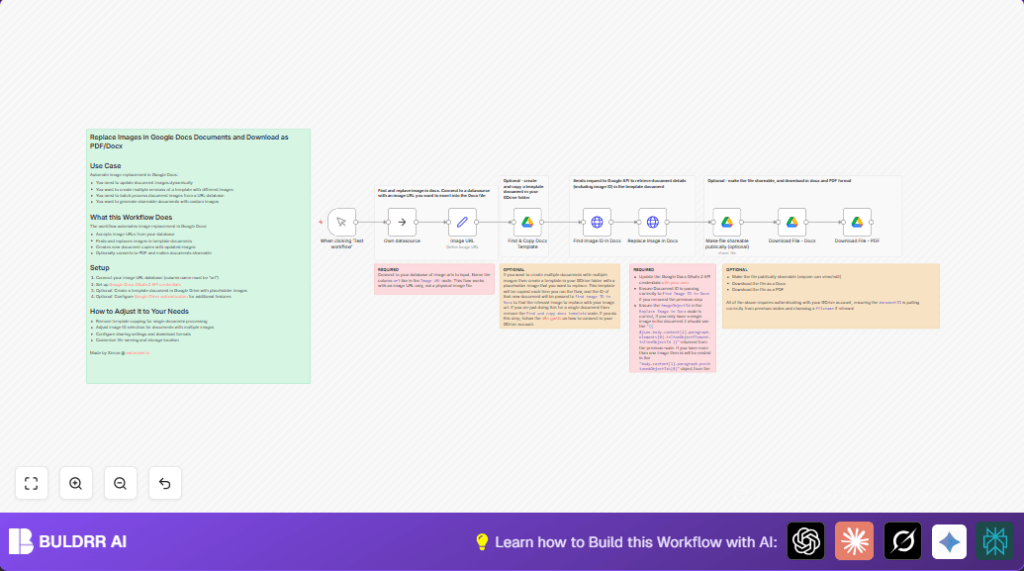

What This Automation Does
This workflow takes image URLs and updates images inside Google Docs automatically.
It solves slow manual image replacement and stops errors from missed updates.
The result is new docs with fresh images fast and easy.
- Gets image URLs from your data source in n8n named
url. - Optionally copies a Google Docs template to make a new file each time.
- Finds placeholder image IDs inside the document using Google Docs API.
- Replaces the placeholder image with your new image URL.
- Optionally shares the updated doc so everyone can edit or view.
- Downloads updated files as DOCX and PDF for sharing offline.
This removes manual work and makes bulk updating easier and less error-prone.
You get quick, up-to-date documents without the hard work.
Tools and Services Used
- n8n workflow automation: runs and connects all steps.
- Google Docs API: reads and updates document image elements.
- Google Drive API: copies templates, sets share permissions, downloads files.
- Data source inside n8n: holds image URLs (named exactly
url).
Inputs, Processing Steps, and Outputs
Inputs
- A data source providing image URLs under a field called
url. - Optionally, a Google Docs template ID if new documents are created per run.
Processing Steps
- Start workflow manually with a Manual Trigger node.
- Read or set the image URL in a Set node named
Image URL. - If used, copy the Google Docs template with Google Drive Copy node.
- Fetch document structure and image object IDs via HTTP Request node calling Google Docs API.
- Replace the placeholder image using HTTP Request to the Google Docs batchUpdate endpoint, sending the new image URL.
- Optionally adjust file sharing permissions with Google Drive Share node.
- Download the updated document as DOCX and PDF using Google Drive Download nodes.
Outputs
- New or updated Google Docs file with replaced images.
- Optional public share link with editing or viewing rights.
- DOCX and PDF files for offline use or distribution.
Beginner Step-by-Step: How to Use This Workflow in Production
Step 1: Download and Import
- Click the Download button on this page and save the workflow file.
- In n8n editor, use Import from File to load the saved workflow.
Step 2: Configure Credentials and IDs
- Add or verify Google Docs and Google Drive API credentials in n8n.
- Update any document IDs, folder IDs, or template IDs in the workflow nodes to your own.
- Check the Set node to ensure the image URL field is correctly named
urland has valid URLs.
Step 3: Test the Workflow
- Run the workflow manually by clicking Execute Workflow.
- Check results and logs for errors or success.
Step 4: Activate for Production
- Switch the trigger to a schedule or webhook as needed.
- Keep credentials up to date.
- Monitor workflow runs inside the n8n UI.
- If self hosting n8n or hosting n8n on server, consider this self-host n8n resource.
Common Errors and How to Fix Them
- Invalid authentication credentials
Happens if API keys or OAuth tokens are wrong or expired.
Fix by re-authenticating Google Docs and Drive credentials in n8n. - imageObjectId not found or null
Means placeholder image ID can’t be found in the Google Docs document.
Fix by checking the document to have an image placeholder and verifying JSON paths in HTTP Request nodes. - Permission denied when sharing document
Due to Google Drive permissions or token scope mistakes.
Fix by confirming Google Drive authorization and correct document IDs in sharing nodes.
Customization Ideas
- Change the workflow to replace multiple images in a single document by adjusting how you find and send
imageObjectIdvalues. - Use a dynamic data source like a spreadsheet or API inside n8n to get many image URLs and produce many docs.
- Alter sharing permissions to give viewers read-only or disable sharing.
- Add a Set node before downloads to rename output DOCX or PDF files as you want.
- Loop through batches of image URLs to create many customized documents automatically over time.
Summary
✓ Automates updating images inside Google Docs
✓ Saves hours of manual work replacing images
✓ Supports creating new docs from templates for each image
✓ Handles sharing and downloading updated files easily
→ Makes documents with fresh images fast and error-free
→ Fits well for marketers, content creators, and teams needing batch updates
→ Simple to run after import with minimal config inside n8n
