
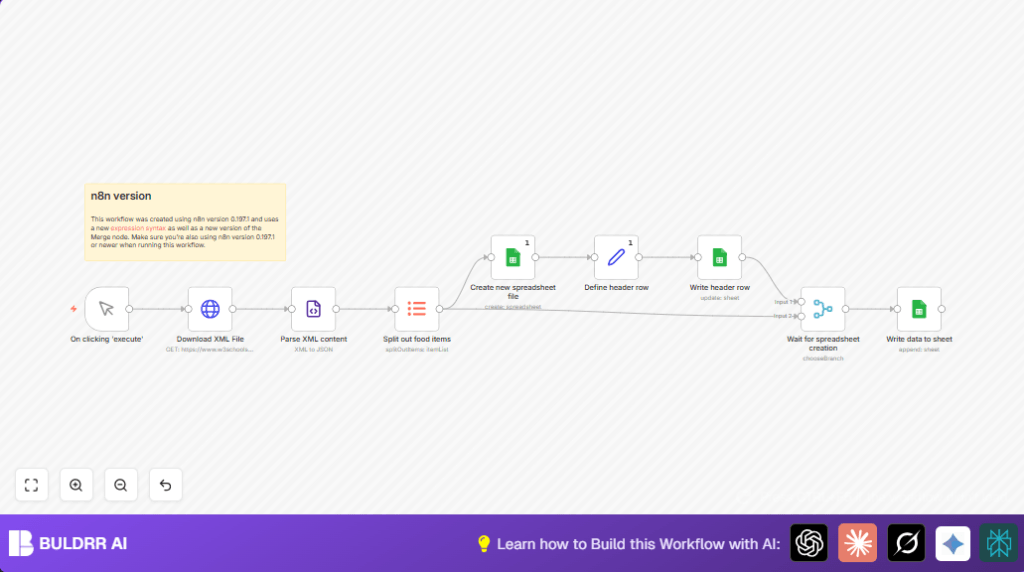

What This Workflow Does
This workflow takes an XML food menu from a website and loads it into Google Sheets without any manual work.
It solves the problem of copying XML data by hand, which wastes time and causes mistakes.
The result is a new Google Sheet with all the food items neatly listed and labeled.
Who Should Use This Workflow
Anyone who gets food menu or similar XML data and wants to save hours entering data into sheets.
No need to know how to code because n8n does all steps automatically.
Tools and Services Used
- HTTP Request node: Downloads the XML file from a web address.
- XML node: Turns XML into JSON format to work with.
- Item Lists node: Extracts items from the nested JSON array.
- Google Sheets nodes: Create new spreadsheet, write headers, and add data rows.
- Set node: Builds the header row from keys in the JSON data.
- Merge node: Makes sure the sheet is ready before adding rows.
How This Workflow Works
Inputs
The starting input is a manual trigger inside n8n.
The workflow fetches XML data from a web URL (https://www.w3schools.com/xml/simple.xml by default).
Processing Steps
First, it downloads the XML file using the HTTP Request node.
Then the XML node changes the XML data into JSON to make it easier to handle.
Next, the Item Lists node pulls out each food item in the list from the JSON path breakfast_menu.food.
The Google Sheets node makes a new spreadsheet called “My XML Data.
The Set node builds a header row from the keys of the first food item.
The Google Sheets node writes this header row into the new sheet.
The Merge node waits until the spreadsheet is ready.
Finally, the last Google Sheets node adds each food item as a row below the header.
Output
The output is a fully created Google Sheets spreadsheet with correctly labeled columns.
Each food item from the XML is shown in its own row for easy reading and analysis.
Beginner Step-by-Step: How to Use This Workflow in n8n
Import the Workflow
- Download the workflow file using the Download button on this page.
- Open the n8n Editor where workflows are managed.
- Choose “Import from File” and select the downloaded workflow to load it into n8n.
Configure the Workflow
- Add your Google Sheets OAuth2 credentials to n8n if not set up already.
- Check the HTTP Request node and change the XML URL if you want other XML data.
- If needed, adjust paths or spreadsheet titles in the nodes to match your data.
Test and Activate
- Run the workflow manually by clicking “Execute Workflow” inside n8n.
- Look at each node’s output to make sure the data is correct.
- After successful tests, turn on the workflow to use it in production.
- For automatic runs, replace the manual trigger with a scheduling node like Cron.
If running self-host n8n, visit self-host n8n for setup help.
Inputs and Outputs Explained
- Input: Manual start triggers workflow. XML URL provides raw data.
- Processing: XML converted to JSON, items extracted, spreadsheet created, headers set, rows appended.
- Output: New Google Sheets spreadsheet with header row and all XML food items as data rows.
Edge Cases and Common Failures
- Wrong XML URL may cause “Empty or missing XML response” error.
- Invalid XML format can break parsing in the XML node.
- Incorrect JSON path in Item Lists node leads to missing data rows.
- Missing or expired Google Sheets API credentials stop sheet creation or data writing.
- Wrong spreadsheet ID or file permissions cause failures when writing data.
- Improper Merge node settings may cause timing issues during the workflow.
Customization Ideas
- Change XML URL in HTTP Request node to import data from different sources.
- Modify the JSON path in the Item Lists node to suit other XML structures.
- Edit the spreadsheet title in the Google Sheets node that creates the sheet.
- Add filtering nodes like IF or Function node after parsing to limit or filter the food items.
- Use an existing spreadsheet by skipping the creation node and providing its ID instead.
Summary of Benefits and Results
✓ Automates XML data import into Google Sheets to save time and reduce errors.
✓ Creates a new spreadsheet with dynamic headers that match XML data keys.
✓ Outputs clear rows of data ready for analysis without manual edits.
→ Faster monthly reporting and better accuracy.
→ More time for useful tasks instead of copying and pasting.
