

What This Automation Does
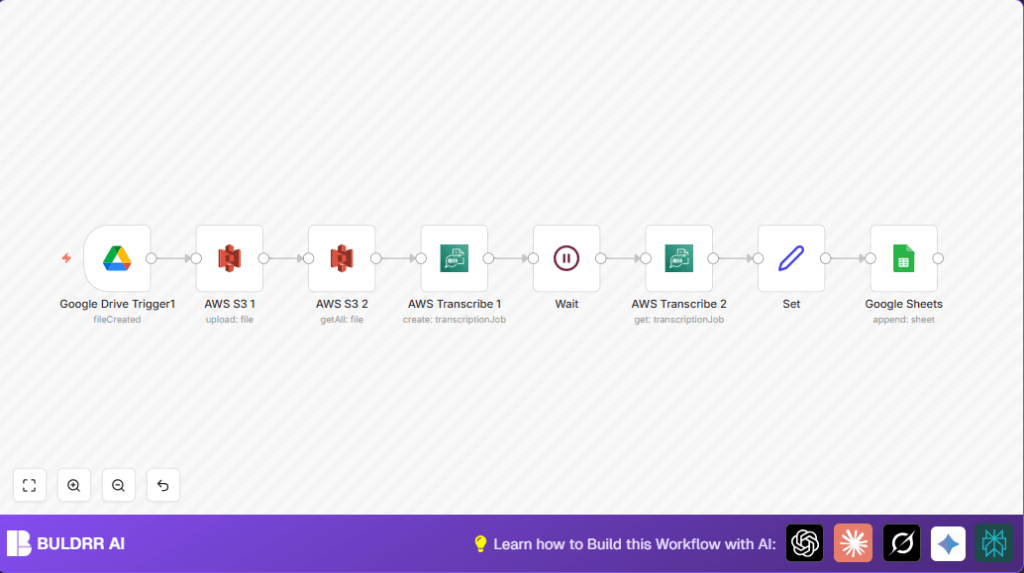
This workflow watches a Google Drive folder for new audio files.
It uploads these files to an AWS S3 bucket and starts a transcription job in AWS Transcribe.
The workflow waits while AWS converts the audio to text, then grabs the transcription.
It saves the text along with info like date and links to a Google Sheet.
The automation saves you time and cuts down mistakes by handling everything automatically.
How This Workflow Works (Input → Process → Output)
Inputs
- Google Drive audio file: A new audio file in a specific Google Drive folder triggers the workflow.
Processing Steps
- Upload to AWS S3: The file is uploaded to an AWS S3 bucket tagged to show it comes from Google Drive.
- Confirm upload: The workflow checks the S3 bucket to make sure the upload worked.
- Start transcription: It creates a job in AWS Transcribe using the S3 file’s URI.
- Wait: The workflow pauses until AWS finishes transcribing.
- Retrieve result: The completed text is fetched along with metadata like creation date and original file link.
- Prepare data: The text and info are organized into variables ready to log.
Output
- Google Sheets: The transcription text and details are appended as a new row in a Google Sheet.
Tools and Services Used
- n8n: Workflow automation platform.
- Google Drive with OAuth2: Watches audio files in a specific folder.
- AWS S3: Stores the audio files for transcription.
- AWS Transcribe: Converts audio files to text.
- Google Sheets with OAuth2: Logs transcription text and info.
Who Should Use This Workflow
This workflow fits users needing to quickly turn voice recordings into text.
It helps managers, support teams, or anyone dealing with many audio files and wanting less manual work.
The user wants fewer mistakes in tracking transcriptions and faster access to conversation summaries.
Beginner Step-by-Step: How to Use This Workflow in n8n
Import and Setup
- Download this workflow by clicking the Download button on this page.
- Open your n8n editor where you want to add this automation.
- Select Import from File and upload the downloaded workflow file.
Configure Credentials and IDs
- Add your Google Drive OAuth2 credentials for the folder watcher node.
- Set AWS credentials for the S3 upload and Transcribe nodes.
- Update your S3 bucket name where audio gets stored.
- Set Transcribe’s settings, like adding a unique suffix to job names if needed.
- Input your Google Sheets OAuth2 credentials for logging.
- Check the Sheet ID and the range (usually A:D) matches your spreadsheet.
Test and Activate
- Add a small audio file to the watched Google Drive folder to trigger the workflow.
- Observe n8n’s execution panel for any errors or pauses.
- After confirming it works, toggle the workflow to active mode for production use.
You can find more options for running workflows smoothly using self-host n8n if needed.
Common Issues and Solutions
- Transcription Job Name Exists: Add a timestamp to the job name to keep it unique.
{{$json["Key"] + '-' + Date.now()}} - No Trigger from Google Drive: Check folder permissions and make sure the folder URL is correct.
- S3 Upload Fails: Ensure AWS roles and bucket names are correct and allow uploads.
- Wait Node Stuck: Confirm the webhook resumes correctly to avoid endless waiting.
Customizations You Can Make
- Watch a different Google Drive folder by changing the folder URL in the trigger node.
- Add more tags when uploading files to S3 for better file organization.
- Adjust the Wait node’s timeout or webhook response to match AWS Transcribe’s processing time.
- Log extra info like language codes or job status by changing the Set node variables.
Summary
→ Saves hours weekly by automating transcription of audio files.
→ Cuts errors from manual data entry.
→ Automatically logs transcriptions with metadata to Google Sheets.
→ Uses Google Drive, AWS S3, AWS Transcribe, and Google Sheets integrated in n8n.
→ Easy to set up and runs automatically when new audio files arrive.
