
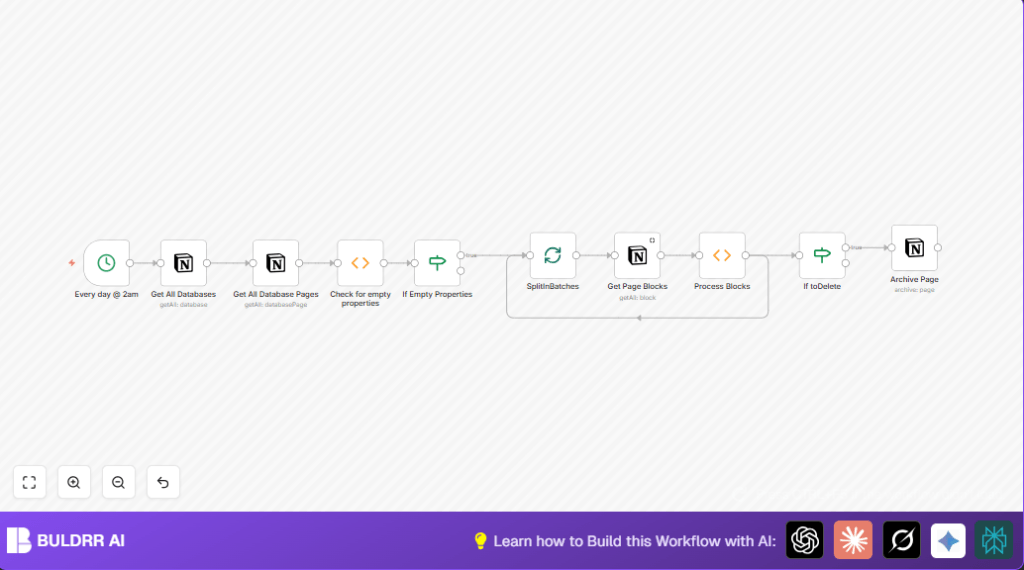

What This Automation Does
This workflow finds empty Notion pages and archives them automatically each day.
It stops your workspace from being full of blank or unfinished pages.
It works quietly every night at 2 AM and cleans up pages that have no content or data.
This saves you time checking pages yourself and keeps your Notion neat.
The workflow uses the Notion API to get all databases, then all pages inside each database.
It looks at page properties to see if they are empty.
If properties look empty, it checks page content blocks for any real data.
Only pages fully empty in properties and content get archived.
Inputs, Processing Steps, and Output
Inputs
- Notion account with API access: The workflow needs to connect to a Notion workspace to get databases and pages.
- n8n account: To run and manage the automation.
Processing Steps
- At 2 AM daily, Cron node triggers the workflow.
- Notion node fetches all databases from the connected Notion workspace.
- For each database, Notion node fetches all pages inside it.
- Function node checks the properties of each page, marking pages with empty properties.
- If node filters only pages flagged as empty in properties.
- SplitInBatches node processes one page at a time for further checking.
- Notion node retrieves all content blocks inside each page.
- Function node named “Process Blocks” examines blocks to confirm if page content is empty.
- If node decides whether to archive based on block content emptiness.
- Notion node archives the confirmed empty pages in Notion.
Output
Pages in Notion that have no property data and no content blocks are archived automatically each day.
This reduces clutter and manual cleanup work.
Who Should Use This Workflow
This is for people managing many Notion pages and databases.
If many pages remain empty or unfinished, this workflow helps keep things tidy.
Content managers, project leads, or teams can use it to reduce time spent on manual page checks.
It works well for anyone who wants to automate cleanup tasks in Notion.
Tools & Services Used
- n8n: Automation platform to create and run the workflow.
- Notion API: Provides access to databases, pages, and content blocks inside Notion workspace.
Beginner Step-by-Step: Running This Workflow in Production
1. Download and Import Workflow
- Click the Download button on this page to get the workflow file.
- In the n8n editor, open the menu and choose Import from File.
- Select the downloaded workflow file to load it into n8n.
2. Configure Credentials and Settings
- In the imported workflow, add your Notion API Key in the Notion nodes credentials.
- If needed, update database IDs, page IDs, or other parameters in the nodes to fit your Notion setup.
- Double-check that the Cron node is set to the desired time (default 2 AM).
3. Test the Workflow
- Run the workflow manually once to check it works as expected.
- Look at the execution logs to confirm pages are identified and archived correctly.
4. Activate for Regular Use
- Switch on the Cron node to enable scheduled runs.
- Set the workflow status from inactive to active in n8n.
- Monitor initial runs to ensure no mistakes happen in page archiving.
For users running self-host n8n, confirm your server is online and able to run scheduled workflows.
Customizations
- Change batch size in the SplitInBatches node to process more pages per run.
- Adjust the time in the Cron node to run the cleanup at hours that suit your team.
- Modify JavaScript in the Function nodes to tweak what counts as empty properties or blocks.
- Add notifications via email or Slack after archiving pages to stay informed.
- Filter to process only certain databases if not all should be cleaned.
Troubleshooting
- Issue: No pages get processed despite databases existing
Cause: The workflow may have wrong database IDs or lack permissions.
Fix: Check that{{$json["id"]}}expressions correctly pass database IDs and Notion API credentials have access to all content. - Issue: Errors in Function node scripts
Cause: Unexpected data structure or missing fields.
Fix: Use n8n’s node preview to see actual data and adjust code accordingly.
Pre-Production Checklist
- Confirm Notion API keys used in n8n have database and block permissions.
- Test the workflow on small test database with known content to avoid mistakes.
- Set batch size and Cron timing per your workspace size and use.
- Backup your Notion content before running mass archival tasks.
Deployment
Activate the Cron node for scheduled archival.
Toggle the workflow status to active.
Watch the first few runs in n8n execution logs to check if pages archive correctly.
Adjust batch sizes or function logic if unexpected results appear.
Regularly look at your Notion workspace to ensure valuable pages remain and only empties get archived.
Conclusion
Using this workflow saves hours by cleaning empty Notion pages automatically every day.
The process is clear, so no important pages are lost by mistake.
Users get an organized workspace without manual checking.
Future upgrades could add reports or tagging to improve content management further.
This workflow helps keep Notion focused on what matters without clutter and extra work.
Code Snippets for Important Function Nodes
Check for Empty Properties Function Node
This code flags pages that have all empty properties.
for (item of items) {
  let toDelete = false;
  for (const key in item.json.properties) {
    let type = item.json.properties[key].type;
    let data = item.json.properties[key][type];
    if (!data || data.length == 0) {
      toDelete = true;
    } else {
      toDelete = false;
      break;
    }
  }
  item.json.toDelete = toDelete;
}
return items;
Process Blocks Function Node
This code verifies if page content blocks have real text or are empty.
let returnData = {
  json: {
    toDelete: false,
    pageID: $node["SplitInBatches"].json["id"],
  }
};
if (!items[0].json.id) {
  returnData.json.toDelete = true;
  return [returnData];
}
for (item of items) {
  let toDelete = false;
  let type = item.json.type;
  let data = item.json[type];
  if (!toDelete) {
    if (data.text.length == 0) {
      toDelete = true;
    } else {
      returnData.json.toDelete = false;
      break;
    }
  }
  returnData.json.toDelete = toDelete;
}
return [returnData];