
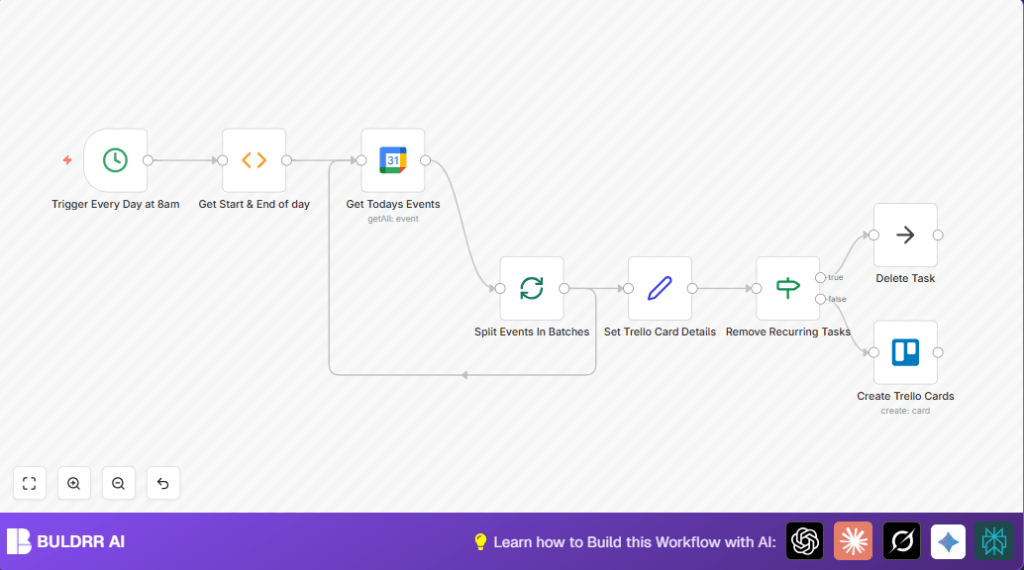

What This Workflow Does
This workflow automatically copies relevant Google Calendar events into Trello as task cards each morning at 8 AM.
It solves the problem of spending time manually entering meeting events into Trello for team tracking.
After running, Trello has cards for each important meeting with details, ready for the team to act on.
The automation fetches only today’s calendar events, skips common repeated habits like lunch, and creates well-structured Trello cards.
This saves about 30 minutes daily and reduces mistakes from manually missing events.
Inputs, Processing, and Output
Inputs
- Google Calendar events: All events scheduled for the current day, with full details and links.
- Credentials: Google Calendar OAuth credentials for reading events.
- Trello API credentials: API Key and token for writing cards to a specific board.
Processing Steps
- Trigger the workflow daily at 8:00 AM using a Cron node.
- Use a Function node to calculate timestamp range from midnight to 11:59 PM of the current day.
- Retrieve all single-instance Google Calendar events using Google Calendar node, filtering by the computed time range.
- Split events into batches of one event each using SplitInBatches node to avoid API throttling or timeouts.
- Map event properties (title, description, start time, link) into Trello card fields using a Set node.
- Filter out recurring or non-actionable events like “Lunch” or “Check email and start day” with an IF node.
- Create detailed Trello cards per event using a Trello node with formatted description sections for meeting purpose, next steps, decisions, and discussions.
Output
Trello board updated every day with new cards representing important calendar meetings.
Each card contains relevant data and links to the calendar event for easy reference.
Who Should Use This Workflow
This is for anyone who uses Google Calendar and Trello together and wants to avoid manual transferring of meeting details.
Non-technical users who want to save time managing daily meetings and keep their team informed will benefit.
You do not need to build the workflow yourself; just follow the easy import and configure steps.
Tools and Services Used
- n8n Automation Platform: To run, schedule, and connect nodes.
- Google Calendar API: To fetch daily calendar events.
- Trello API: To create task cards from calendar events.
Beginner Step-by-Step: Using This Workflow in Production
Step 1: Download and Import Workflow
- Download the workflow file using the Download button on this page.
- In n8n editor, click on “Import from File” and choose the downloaded workflow JSON.
Step 2: Configure Credentials
- Add Google Calendar OAuth credentials with read access if not already set.
- Provide Trello API Key and Token with write access to your target board.
Step 3: Update IDs and Fields
- Check and update calendar email address under Google Calendar node if changed.
- Update Trello board ID or list ID to match your Trello setup.
Step 4: Test the Workflow
- Manually run the workflow in n8n to see if Trello cards are created.
- Verify cards appear with correct event details.
Step 5: Activate Workflow
- Toggle workflow from inactive to active to let it run daily at 8 AM.
- Make sure n8n instance runs continuously for proper triggering.
If using self-host n8n, refer to self-host n8n resources for hosted operation.
Common Customizations
- Add event names like “Daily Standup” to IF node filters to skip more repetitive tasks.
- Edit Trello card description template in the Create Trello Cards node to add custom sections.
- Change time range in date computing Function node to cover working hours only.
- Add nodes to send Slack or email notifications after Trello cards are created.
Troubleshooting Tips
- Google Calendar API Errors: Reauthorize Google OAuth credentials in n8n if errors or empty data.
- Trello Cards Not Created: Ensure Trello API Key and Token have write access and board permissions.
- Recurring Tasks Not Filtered: Match event summary text exactly in IF node conditions or use regex.
Pre-Production Checklist
- Verify all API credentials are authorized and active.
- Run manual tests with example events.
- Confirm filtering logic excludes unwanted events.
- Check trigger time and timezone settings.
- Back up existing Trello board data if needed.
Deployment Notes
After activating the workflow, keep the n8n instance running so it triggers at 8 AM daily.
For self-host n8n, use proper server uptime and monitoring.
Check logs regularly early on for errors.
Summary
✓ Saves about 30 minutes each day.
✓ Avoids missing important meeting tasks.
✓ Automatically creates clear Trello cards.
✓ Lets user focus more on real work, less on admin.
→ Outcome: organized, consistent task tracking without manual copying.
