

What This Automation Does
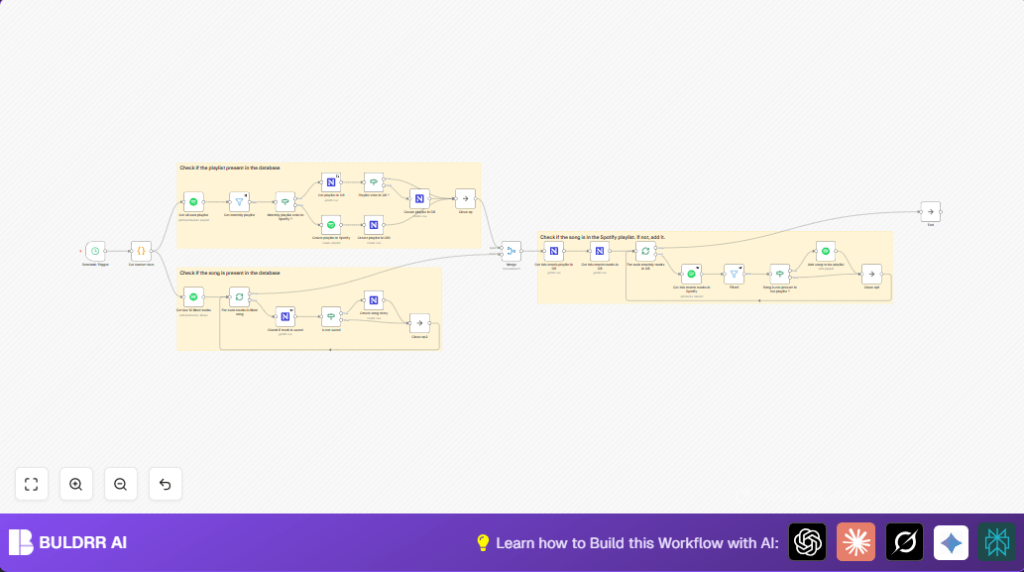
This workflow automatically manages monthly Spotify playlists by syncing liked songs with a database in NocoDB.
It solves the problem of manually creating and updating playlists, avoiding duplicates, and keeping records.
The result is up-to-date playlists with new liked tracks added every month, saved in both Spotify and NocoDB.
How The Workflow Works (Input → Process → Output)
Input
- Spotify user playlists and liked tracks.
- MocoDB playlist and song records.
- Current system date for naming playlists.
Processing Steps
- Get current month and year text for naming (e.g., “September ’24”).
- Fetch all Spotify playlists to find if current monthly playlist exists.
- Check NocoDB if playlist record exists.
- Create playlist on Spotify and save to NocoDB if missing.
- Pull last 10 liked tracks from Spotify.
- Check each track if already in database; add new tracks to NocoDB.
- Get monthly playlist tracks from Spotify and NocoDB.
- Add any missing new tracks to Spotify playlist.
Output
- An accurate monthly Spotify playlist containing the newest liked tracks.
- Updated NocoDB playlist and song records.
Who Should Use This Workflow
This automation is for Spotify users who want to keep monthly playlists up to date without manual work.
It is good for music lovers who liked many songs and want to avoid duplicates and errors.
Users familiar with n8n who want to use automation to save time benefit most.
Tools and Services Used
- Spotify API: Accesses user playlists and liked tracks.
- NocoDB: Stores playlist and song data records.
- n8n Automation Platform: Orchestrates API calls and decision logic.
Beginner Step-by-Step: How to Use This Workflow in n8n
Download and Import
- Click the Download button on the workflow page to save the file locally.
- Open your n8n editor where you build and run automations.
- Use the “Import from File” option to load the downloaded workflow into n8n.
Configure Credentials and Details
- Add Spotify OAuth credentials in the Spotify node to enable API calls.
- Enter your NocoDB API key and project info in the NocoDB nodes.
- Check and update any database table names or IDs if different from defaults.
- If needed, paste or adjust the date formatting code in the Code node.
Test and Activate
- Run the workflow manually once to confirm connections and outputs work.
- Look for outputs showing current date, playlist found or created, tracks fetched.
- If all tests pass, activate the workflow toggle in the top right to run on schedule automatically.
- Monitor first few runs for errors or warnings and adjust node settings if needed.
Customization Ideas
- Change how many liked tracks to check by adjusting the limit in the Spotify node.
- Modify the schedule timing to run daily, weekly, or monthly.
- Edit the naming format in the Code node to change playlist titles.
- Add extra track info (like artist or album) to save in NocoDB database.
- Add a Webhook node for manual triggering instead of relying on a schedule.
Troubleshooting Common Problems
Spotify API Rate Limit Errors
Cause: Running workflow too often or requesting too much data quickly.
Fix: Run automation less frequently and pull fewer tracks each time.
Missing Data from NocoDB Queries
Cause: Incorrect filter conditions or wrong table IDs in nodes.
Fix: Double-check filters and project IDs. Test API calls separately.
Duplicates from Playlist Name Mismatches
Cause: Playlist name format inconsistent or case-sensitive mismatches.
Fix: Use consistent naming in the Code node and filter nodes. Check Spotify playlist names manually.
Pre-Production Checklist
- Confirm Spotify OAuth credentials are set and working in Spotify nodes.
- Validate NocoDB API keys, project ID, and table names.
- Confirm Schedule Trigger node runs manually without error.
- Check Code node outputs correct currentDate object and playlist name.
- Ensure tables in NocoDB for playlists and songs have necessary fields.
- Test logic that checks if tracks or playlists exist in Spotify and NocoDB.
- Backup Spotify and NocoDB data before running automation the first time.
Deployment Guide
After testing in n8n editor, turn on the workflow by toggling the active switch.
Watch execution logs for the first runs to catch errors and confirm new tracks add properly.
Review Spotify API usage limits and database quotas regularly to avoid interruptions.
This setup works well in n8n Cloud or if you prefer to run on your own server, see self-host n8n.
Summary
✓ Automates monthly Spotify playlist updates with latest liked songs.
✓ Prevents duplicate tracks and playlist creations on Spotify and database.
✓ Saves hours of manual work every month.
→ Keeps playlists and database fully in sync.
→ Allows easy customization of schedule, tracks, and playlist names.
→ Works with n8n cloud or self-host n8n scenarios.
