

What this workflow does
This workflow helps you automatically get SEO keyword data from SerpBear for a website.
It reads keyword rankings, makes simple calculations, sends data to an AI for analysis, and saves the results in Baserow.
This saves time and avoids mistakes from doing these tasks by hand.
Who should use this workflow
This workflow is for digital marketers managing many websites.
It works well for people who need weekly SEO reports but want to spend less time gathering data and making insights.
Tools and services used
- SerpBear API: To fetch keyword ranking data for a domain.
- OpenRouter API with LLaMA model: To analyze SEO data and generate expert suggestions.
- Baserow database: To save AI analysis results with date and website info.
- n8n automation platform: To run and connect all these steps in a workflow.
Inputs, processing steps, and output
Inputs
- Domain name to check keyword rankings for.
- SerpBear API Key to access keyword data.
- OpenRouter API Key to send prompt for AI analysis.
- Baserow credentials and table setup for saving data.
Processing Steps
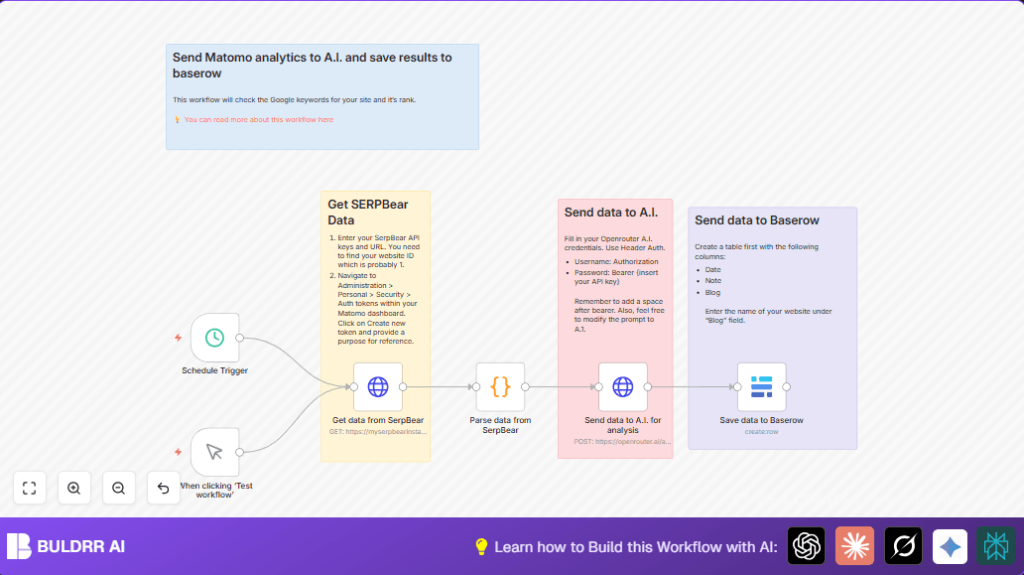
- Trigger workflow by schedule or manual start via Schedule Trigger or Manual Trigger.
- HTTP Request node sends GET request to SerpBear API with domain to get keyword ranking JSON.
- Code node parses JSON, calculates current and average positions, detects trends (improving, stable, or declining), and builds a detailed AI prompt.
- HTTP Request node sends prompt to OpenRouter AI endpoint for SEO analysis.
- Baserow node creates new database entry with the AI’s text, current date, and website name.
Output
A saved, structured SEO analysis entry in Baserow that can be reviewed anytime.
Beginner step-by-step: How to use this workflow in n8n
Download and Import
- Download the workflow file using the Download button on this page.
- Inside your n8n editor, click Import from File and select the downloaded workflow file.
Configure Credentials
- Add your SerpBear API Key in the HTTP Request node credentials (HTTP Header Auth with the Authorization header).
- Add your OpenRouter API Key in the AI HTTP Request node credentials (Bearer token in Authorization header).
- Connect your Baserow account credentials and choose the right database and table to save data.
- Verify the domain parameter in the SerpBear HTTP Request node matches the target website you want to analyze.
Test the Workflow
- Run the workflow manually using the Manual Trigger node to make sure data fetch, AI analysis, and database save work correctly.
Activate for Production
- Turn on the workflow switch to activate automated weekly runs.
- Monitor executions in n8n to check for any errors or warnings.
If you use self-host n8n, you can check this link for server setup help: self-host n8n.
Customization ideas
- Change the domain in SerpBear API request node to analyze different websites.
- Modify the prompt template in the Code node to add more questions or specific keywords.
- Adjust the schedule from weekly to daily or monthly based on your reporting needs.
- Add error handling nodes to catch API failures or empty responses.
- Expand Baserow columns and update field mappings if more data needs saving.
Troubleshooting common issues
- 401 Unauthorized from SerpBear API: Check the API Key is correct and not expired. Update credentials in n8n if needed.
- Empty or bad AI response: Make sure the prompt is correctly formatted and encoded. Test with a simpler prompt first.
- Data not saving to Baserow: Verify table field IDs match the mapped fields, and API credentials have proper access.
- Workflow doesn’t run: Confirm both Schedule Trigger and Manual Trigger nodes are connected properly.
Pre-production checklist
- Check SerpBear API token is active and domain name is correct.
- Test manual trigger fetches data successfully.
- Validate Code node runs with no errors and makes the prompt.
- Confirm AI node gets a good analysis text response.
- Test Baserow node saves a record to your table.
- Add sticky note nodes to explain the workflow steps clearly.
- Backup workflow JSON file before going live.
Summary of benefits and results
✓ Saves hours of manual SEO keyword data collection and report writing weekly.
✓ Reduces human errors and late responses in SEO monitoring.
→ Automatically calculates keyword position trends and averages.
→ Generates expert SEO recommendations using AI analysis.
→ Keeps historical SEO performance data saved neatly in a database.
