
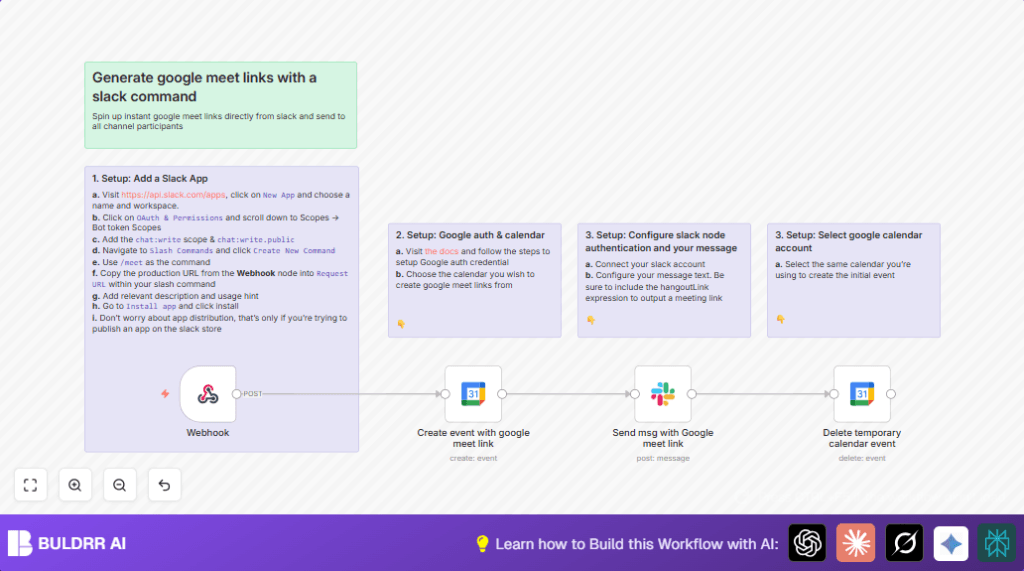

What this workflow does
This workflow creates Google Meet links instantly when you type a slash command in Slack. It makes a quick Google Calendar event with a Meet link, sends the link back to Slack, and then deletes the event so your calendar stays clean.
This solves the problem of wasting time switching apps and copying meeting links manually. You get a ready-to-use Meet link in your Slack channel with one simple slash command.
Who should use this workflow
Teams that use Slack for chat and Google Meet for video calls will find this helpful. It’s best for people who run many quick meetings and want to save minutes by not creating links outside Slack.
This workflow fits users who have some setup done for Slack apps and Google Calendar access.
Tools and services used
- Slack slash commands: To trigger the workflow inside a Slack channel.
- Google Calendar API: To create and delete short calendar events with Google Meet links.
- Slack chat API: To post messages with the Meet link back into the Slack channel.
- n8n automation: Manages the webhook, event creation, Slack message, and event deletion.
Inputs, process, and output
Inputs
- Slash command /meet in Slack
- Slack channel ID from the slash command payload
Process
- Webhook node receives the slash command request from Slack.
- Create event with google meet link Google Calendar node creates a 15-minute event starting now, adding a Google Meet link.
- Send msg with Google meet link Slack node posts a message with the Meet link in the same Slack channel.
- Delete temporary calendar event Google Calendar node deletes the event that was just created.
Output
Slack channel receives a chat message with a direct Google Meet link ready to use.
Beginner step-by-step: How to use this workflow in n8n
1. Import the workflow
- Download the workflow file using the Download button on this page.
- Open the n8n editor where you want to run the automation.
- Use the “Import from File” option to load the workflow.
2. Configure credentials and settings
- Add your Google OAuth credentials for Google Calendar access.
- Add Slack API credentials with
chat:writeandchat:write.publicscopes. - If needed, update the Google Calendar ID in the event creation and deletion nodes to the calendar you want.
- Ensure the Slack channel ID uses the expression
{{$json["body"].channel_id}}in the Slack node.
3. Link Slack slash command
- Copy the Webhook URL from the Webhook node after saving the workflow.
- Paste this URL into Slack app settings for the slash command request URL.
- Make sure the slash command is named, for example,
/meet. - Install or reinstall the Slack app in your workspace if needed.
4. Test and activate
- Run the workflow manually once in n8n to start.
- In Slack, type the slash command (
/meet) in a test channel. - Check Slack channel for the Google Meet link message.
- If all works well, activate the workflow to run automatically.
You can now create and share Google Meet links right from Slack.
Customizations ideas
- Change meeting length by editing the end time expression in the Google Calendar event node.
- Modify Slack message text to add tags or instructions.
- Create a separate Google Calendar for these quick meetings to keep your main calendar clean.
- Rename the Slack slash command to something else if more fitting.
- Add reminders in Google Calendar events to notify participants before the meeting.
Common issues and fixes
Slack command returns 404 error
Check the Webhook URL in Slack matches exactly the one from the Webhook node.
Google Meet link missing
Make sure conference data creation is enabled in Calendar node and OAuth credentials have proper permissions.
Slack message not sent to correct channel
Verify channel ID uses {{$json["body"].channel_id}} and Slack token has needed scopes.
