
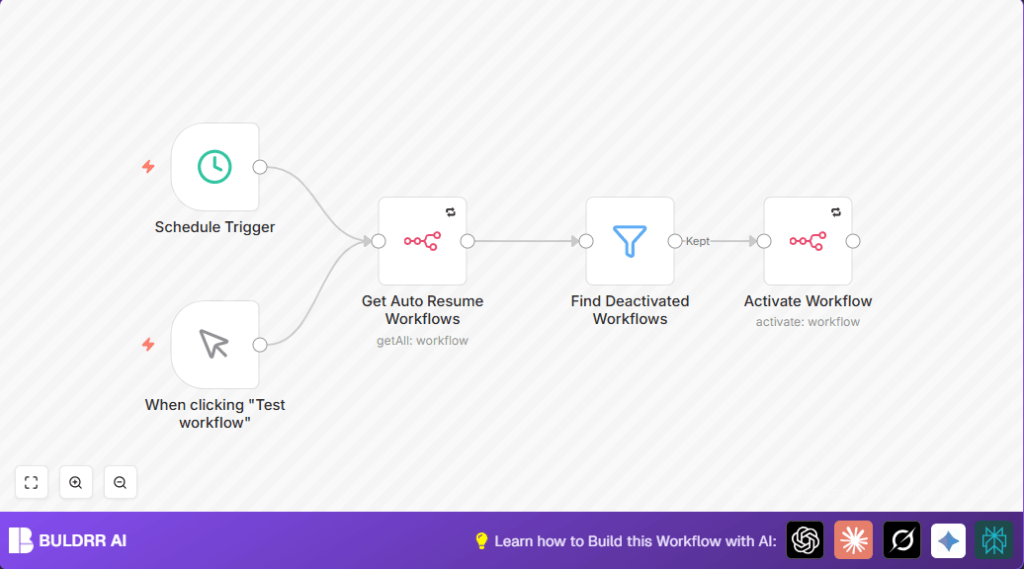

What This Auto-Resume Workflow Does
Every n8n user who runs more than a handful of workflows
hits the same problem: workflows go silent without warning.
A credential expires. An error disables a workflow.
Someone clicks the wrong toggle. And the automation that
was supposed to run every 4 hours has been sitting off
for 3 days — and nobody noticed.
This workflow is your uptime system. It’s the automation
that watches your other automations.
Every 4 hours it runs automatically and:
→ Scans all workflows tagged with auto_resume:true
→ Finds any that are currently disabled
→ Reactivates them immediately via the n8n API
→ Keeps every critical automation running without you
logging in to check
You set it up once. From that point, your workflows
stay running 24/7 — even after errors, restarts, or
accidental deactivations.
This Is an Uptime Tool, Not Just a Convenience Feature
The real cost of a disabled workflow isn’t the 5 minutes
it takes to manually reactivate it. It’s what didn’t happen
while it was off.
→ Leads that weren’t captured for 3 days
→ Orders that weren’t processed overnight
→ Reports that were never sent to the team
→ Follow-up emails that never went out
By the time you notice the workflow is disabled, the
damage is already done.
This workflow treats n8n workflow uptime the same way
a server monitoring tool treats website uptime — as
something that should never be left to manual checks.
The auto_resume:true tag system gives you precise control:
→ Tag only the workflows that must stay running at all times
→ Leave others untagged (development, testing, paused by choice)
→ The reactivation system only touches the ones you’ve marked critical
It’s a lightweight reliability layer for your entire
automation stack — running in the background, every 4 hours,
without any maintenance.
Who Should Use This Workflow
This setup is for anyone running many workflows in n8n.
If workflows sometimes stop due to errors or are paused by mistake, this helps fix that fast.
It is good for users wanting to keep automations running without checking all the time.
Works with both self-host n8n or n8n Cloud users.
Tools and Services Used
- n8n Cloud or self-hosted instance: To manage workflows and access API.
- n8n API Credential: To securely list and activate workflows through API.
- Schedule Trigger node: Runs the workflow every 4 hours automatically.
- Manual Trigger node: Runs the workflow when you want to check manually.
- Filter node: Picks only the disabled workflows for activation.
- Activate Workflow operation: Turns disabled workflows back on.
How the Workflow Works (Input → Process → Output)
Input
The workflow starts with a manual or scheduled trigger.
The scheduled trigger runs every 4 hours.
This input tells the workflow to check which workflows need activation.
Processing Steps
- The system lists all workflows with the tag
auto_resume:trueusing the API. - The Filter node selects workflows where
active === false, meaning disabled ones. - The workflow loops through these disabled workflows.
- Each disabled workflow is activated using the Activate Workflow node with the workflow’s ID.
Output
Disabled workflows matching the tag become active again.
No manual searching or activating is needed.
Automations keep running without stopping.
The Most Common Reasons n8n Workflows Get Disabled
Understanding why workflows go disabled helps you decide
which ones to tag with auto_resume:true.
1. Credential expiry
OAuth tokens expire. API keys get rotated. When n8n can’t
authenticate, it disables the workflow after a failed run.
Auto-resume brings it back — though you’ll still need to
refresh the credential for it to run successfully.
2. Error threshold reached
Some n8n configurations disable workflows after repeated
consecutive errors. If a temporary API outage caused 5
failed runs in a row, auto-resume gets the workflow active
again once the external service recovers.
3. Accidental manual deactivation
In large n8n instances with multiple users, workflows
get toggled off accidentally during editing or debugging.
Auto-resume catches these within 4 hours.
4. n8n instance restart
Self-hosted n8n instances can fail to reactivate all
workflows correctly after a server restart or update.
Auto-resume acts as a post-restart health check.
5. n8n Cloud maintenance windows
During planned maintenance, some workflows may not
resume correctly. Auto-resume handles the recovery
automatically.
Tag any workflow that falls into these categories
with auto_resume:true and this system handles recovery
without any manual intervention.
Beginner Step-by-Step: How to Use This Workflow in n8n Production
Downloading and Importing
- Download the workflow file using the Download button on this page.
- Open your n8n editor.
- Click on “Import from File” and select the downloaded workflow.
Configuring the Workflow
- Add your n8n API credential in the credential field to allow API calls.
- If you have any custom IDs, emails, channels, or folders used in the workflow, update them accordingly.
Testing and Activating
- Run the workflow manually using the Manual Trigger to ensure it works.
- Check the output to make sure disabled workflows get listed and activated.
- If all is good, activate the workflow to let it run on schedule every 4 hours.
Customizations
- Change schedule interval in Schedule Trigger to suit your needs, like every 1 hour or 12 hours.
- Modify filter conditions to include other rules such as workflow names, owners, or other tags.
- Add notification nodes after activation, like email or Slack, to get alerts when workflows are resumed.
- Adjust the tag search filter if you use a different tag like
auto_resume=enabled.
Troubleshooting
No workflows get reactivated
Check if workflows have the tag auto_resume:true exactly.
Make sure the filter condition is set to {{$json.active}} === false.
API credential errors
Verify the n8n API credential has rights to list and activate workflows.
Go to Credentials → Edit n8n API credential inside n8n and confirm permissions.
Pre-Production Checklist
- Confirm workflows have the exact tag
auto_resume:true. - Test the Manual Trigger and verify disabled workflows appear.
- Try the schedule trigger with a short interval for testing.
- Ensure the API credential allows workflow management.
- Backup all workflows before enabling auto-reactivation.
Deployment Guide
Enable the workflow in n8n and save changes.
Watch workflow run history and logs to confirm workflows are found and reactivated.
Consider adding notification nodes to be informed whenever activations happen.
Conclusion
This auto-resume workflow makes sure workflows set for auto-resume never stay off accidentally.
You save hours spent looking for disabled workflows.
Workflows recover themselves without manual work.
Try adjusting schedule or adding notifications for more control.
