
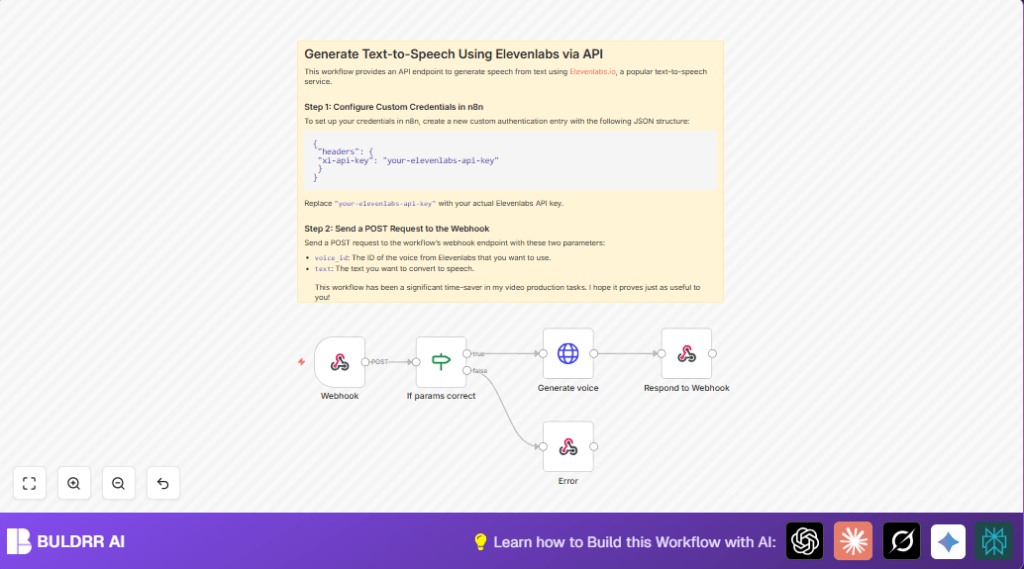

What This Workflow Does
This workflow receives text and a voice ID through a webhook.
It checks the inputs, sends those to Elevenlabs API for text-to-speech, and returns the audio file directly.
If inputs are missing, it responds with a clear error message.
This saves time and stops manual steps to create speech from text.
The workflow starts by taking a POST request with voice and text.
Then it verifies those inputs exist and are valid.
Next, it calls Elevenlabs API with that text and voice info.
The output audio is sent back as a binary response to the original sender.
If input is invalid, it sends JSON showing the error.
In short, it makes turning scripts into spoken audio fast and automatic without manual copying or software switching.
Tools and Services Used
- n8n: Runs the automation workflow.
- Elevenlabs API: Generates speech audio from text and voice IDs.
- Custom Credential in n8n: Stores Elevenlabs API Key securely.
- HTTP Clients (Postman, curl, or Apps): To send POST requests to the webhook URL.
Inputs, Processing Steps, and Outputs
Inputs: The workflow takes a POST request with JSON body containing two key fields: voice_id and text.
Processing Steps:
- Check if both
voice_idandtextexist in the incoming request. - If valid, send a POST call to Elevenlabs API’s text-to-speech endpoint using the given voice ID and text content.
- Receive the streamed audio binary from the API.
- Send this binary back as the response to the webhook caller.
- If inputs missing, respond with JSON error message instead.
Outputs: A direct binary audio file if successful, or JSON error info if inputs are invalid.
Beginner Step-by-Step: How to Use This Workflow in Production
Step 1: Download and Import Workflow
- Download the workflow file using the Download button on this page.
- Open the n8n editor.
- Import the downloaded file by clicking “Import from File” in the editor.
Step 2: Configure Credentials and Settings
- Add your Elevenlabs API Key in n8n under Custom Credentials for the HTTP Request node.
- Check if you need to update any voice IDs, emails, or channels in the workflow to fit your use case.
- Verify the webhook path matches your setup if changed.
Step 3: Test the Workflow
- Send a test POST request to the webhook URL with a JSON body containing
voice_idandtext. - Check if you get an audio binary response.
- If the input is missing a parameter, confirm the JSON error response is returned.
Step 4: Activate for Production Use
- Save and activate the workflow inside n8n by toggling the workflow active switch.
- The webhook URL becomes live and starts accepting real requests.
- Monitor executions in n8n and check logs for errors or warnings.
Common Issues and Failure Handling
Input Missing: If voice_id or text is not included, the workflow detects this and responds with { "error": "Invalid inputs." }.
API Key Unauthorized: If the Elevenlabs API Key is wrong or missing in credentials, the HTTP Request node gets 401 errors.
Check credentials and update the key.
No Audio Returned: If the voice ID is incorrect or the request body is wrongly formatted, the Elevenlabs API call fails.
Confirm the URL uses the dynamic expression {{ $json.body.voice_id }} and JSON body has { "text": "{{ $json.body.text }}" }.
Customization Ideas
- Change the output audio format via the Respond to Webhook node if Elevenlabs API supports other types.
- Enhance validation by checking text length or voice ID format in the If node.
- Add logging nodes to watch requests or collect usage stats before calling the API.
- Allow multiple or default voices dynamically in the webhook payload.
- Send generated audio to storage or messaging services for automated delivery.
Deployment Notes
After testing, enable the workflow by activating it in the n8n interface.
Your webhook endpoint will accept real requests from this moment.
Monitor all runs inside n8n’s execution logs.
Fix any issues by reviewing error messages and node outputs.
For reliable hosting and scalability, consider self-host n8n on your own server or cloud environment.
Summary
→ This workflow turns text and voice ID into audio files automatically.
→ It checks inputs, calls Elevenlabs API, then returns audio directly.
→ Invalid inputs get clear JSON error messages.
→ Users save time and avoid manual text-to-speech steps.
→ Workflow works inside n8n with simple setup and activation.
