

What This Workflow Does
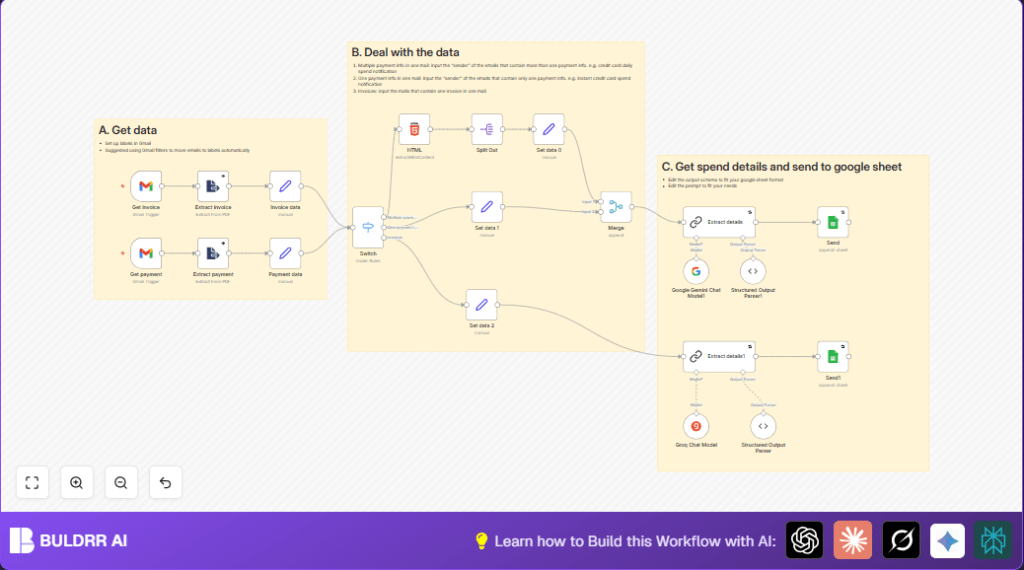
This n8n workflow reads new invoice and payment emails from Gmail labels every minute.
It unlocks and reads attached PDF invoices using a set password.
Then it finds and separates single or multiple payment notifications or invoices.
It sends the email content to Google Gemini and Groq AI models for text extraction.
The AI structures the data into standard fields like date, merchant, amount, and category.
Finally, it adds the clean and verified spend data into a Google Sheets document.
This process saves hours of manual work and reduces mistakes in bookkeeping.
Who Should Use This Workflow
Any finance team or individual processing many bank or credit card emails monthly can use this.
It helps those who want to stop typing spend details manually and avoid errors.
Tools and Services Used
- Gmail: Holds labeled invoice and payment emails.
- n8n: Automation platform to run the workflow.
- Google Gemini AI: Extracts structured data from parsed email content.
- Groq AI model: Complements data extraction with another AI parser.
- Google Sheets: Stores all cleaned spend data for accounting.
Inputs, Processing Steps, and Output
Inputs
- Incoming Gmail emails labeled as invoices or payments.
- Attached password-protected PDF invoices.
- Email HTML and plain text content.
Processing Steps
- Trigger nodes poll Gmail every minute for labeled emails.
- PDF extractors unlock and read attachment content.
- Set nodes normalize email content into consistent data fields.
- Switch node routes emails into three categories: invoice, multiple payments, or one payment.
- HTML parsing extracts spend details using CSS selectors.
- Split nodes break multiple payment emails into individual records.
- Merge nodes combine all spend records for AI parsing.
- LangChain AI nodes (Google Gemini and Groq) parse details into JSON.
- Structured Output Parser nodes verify fields against schema.
- Google Sheets node appends parsed spend details to the ledger.
Output
A structured and verified transaction record is stored in Google Sheets.
It includes date, merchant, amount, category, currency, and payment card.
Beginner Step-by-Step: How to Use This Workflow in n8n
Download and Import the Workflow
- Download the workflow file using the Download button on this page.
- Open n8n Editor and click “Import from File”.
- Select the downloaded workflow file.
Setup Credentials
- Add your Gmail OAuth2 credentials.
- Add your Google Sheets OAuth2 credentials.
- Add API Keys for Google Gemini and Groq AI models.
Update Workflow Settings
- Check that Gmail Trigger Get invoice and Get payment nodes have proper Gmail label IDs matching your labels.
- Confirm the PDF password in Extract from File (PDF) nodes is set to E223706995 or your password.
- If needed, update Google Sheets spreadsheet ID and sheet name in the Google Sheets append nodes.
- Check AI prompts inside LangChain AI nodes to match your extraction goals.
Test and Activate
- Run the workflow once manually to test with recent emails.
- Check the Google Sheet for appended structured spend details.
- If everything works, activate the workflow for live use.
- Adjust polling interval if needed.
For help running n8n on your own server, see self-host n8n.
Customization Ideas
- Change the PDF password in the extractors to match secured attachments.
- Add Gmail labels for other credit cards or banks in the Gmail Trigger node filters.
- Modify CSS selectors in HTML parsing nodes to fit different email formats.
- Adjust AI extraction JSON schemas to add or remove spend data fields.
- Edit AI prompt wording to improve accuracy of spend detail extraction.
Handling Errors and Troubleshooting
- No emails found: Check Gmail labels and filters exist and label IDs match.
- Failed PDF extraction: Verify PDF password and that attachment property matches.
- AI output errors: Review and update AI prompt and structured output schema.
- Google Sheets append fails: Renew OAuth2 credentials and confirm sheet ID and name.
Pre-Production Checklist
- Confirm Gmail labels and filters tag emails properly.
- Test Gmail OAuth2 credentials in n8n.
- Validate PDF extraction on sample emails.
- Run AI parsing with test emails and check output.
- Check Google Sheets OAuth2 and permissions.
- Backup important sheets before full deployment.
Deployment Guide
Turn on the workflow in n8n.
Make sure Gmail triggers run every minute.
Watch workflow logs for errors initially.
Set alerts on key node failures if needed.
Summary
✓ Automates reading invoices and payments from labeled Gmail.
✓ Extracts locked PDF and email content for spend info.
✓ Uses two AI models to parse complex unstructured data.
✓ Saves hours of manual work and reduces errors.
→ Produces clean, structured spend data in Google Sheets.
→ Ready for bookkeeping and financial analysis.
