
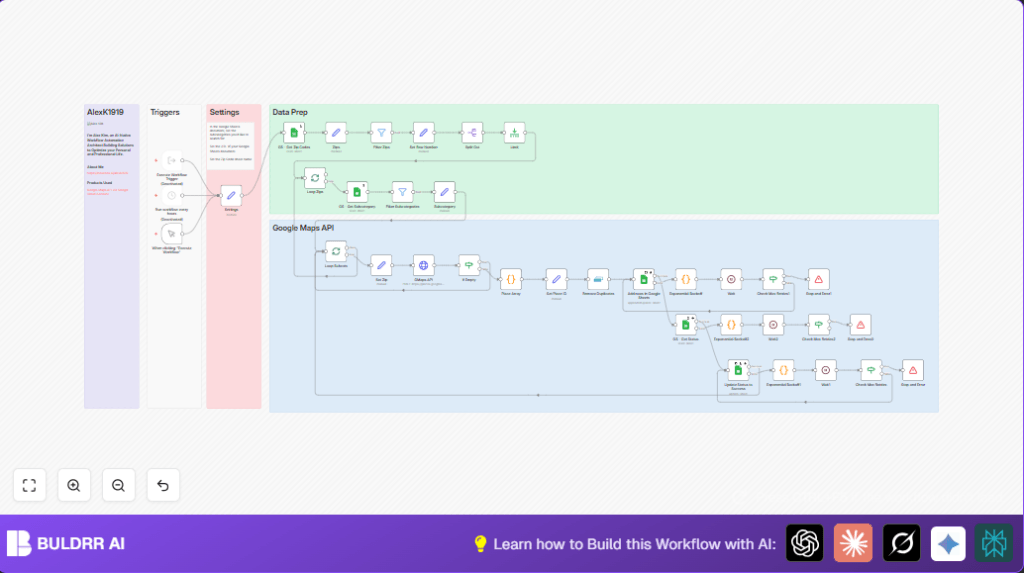

What This Automation Does
This workflow collects local business leads from Google Maps by zip code and category.
It solves the problem of spending many hours searching and copying data manually.
The result is a list of clean and detailed business leads saved automatically into Google Sheets.
The workflow uses information from Google Sheets as input, calls the Google Maps Places API, processes the data, and writes unique leads back to Google Sheets.
It also manages errors and API limits to run smoothly.
How the Workflow Works
Inputs
- List of zip codes from a Google Sheet.
- List of business subcategories also from a Google Sheet.
Processing Steps
- Loops through each zip code and subcategory pair.
- Sends a search query to the Google Maps Places API with these details.
- Checks if API returns any business places. If nothing found, skips to next.
- Extracts each business place as an individual item.
- Removes duplicates by checking place IDs.
- Updates or adds lead information in the Google Sheets document.
- Marks each zip code as “scraped” after the successful process.
- Handles Google Sheets API limits with exponential backoff retry and waits.
Outputs
- A Google Sheet populated with unique business leads including phone, rating, address, and website.
- Status updates in the zip code sheet to track progress.
Who Should Use This Workflow
This is useful for marketers and salespersons who need local business leads often.
Also for anyone who wants to automate getting business data by zip code and category without errors or manual work.
Tools and Services Used
- Google Sheets API: Reads zip codes and categories, writes results.
- Google Maps Places API: Searches businesses by subcategory and zip code.
- n8n platform: Orchestrates the automation with nodes and workflows.
- Google OAuth 2.0: Provides secure API access.
Beginner Step-by-Step: How to Use the Workflow in n8n
Step 1: Import the Workflow
- Download the provided workflow file from this page.
- In your n8n editor, click “Import from File” and upload the workflow file.
Step 2: Add Credentials
- Open the credentials section in n8n.
- Add or select existing Google OAuth 2.0 credentials for Google Sheets API.
- Add or select Google OAuth 2.0 credentials for Google Maps Places API.
Step 3: Update Configuration
- Open the “Settings” node in the workflow.
- Update your Google Sheets document URL in the gs_url parameter.
- Check the sheet names for categories (e.g., “Google Maps Categories”) and zip codes (e.g., “AZ Zips”).
- Adjust any other IDs, emails, or table names if the workflow uses specific references.
Step 4: Test the Workflow
- Run the workflow manually to check it works.
- Look for error messages or issues in the execution logs.
Step 5: Activate for Production
- Switch to automatic triggers like the scheduled trigger to run periodically if desired.
- Activate the workflow in n8n by enabling it.
- Check outputs in Google Sheets after runs.
For larger scale use, consider self-hosting n8n to have more control and API limits.
Edge Cases and Failure Handling
The workflow checks when Google Maps API returns no places and moves on silently.
If Google Sheets API limits are hit, it uses exponential backoff code nodes that delay and retry calls.
After a max retry count, the workflow stops gracefully with an error message.
Duplicates are filtered out by place ID comparisons so no repeated leads are written.
Customization Ideas
- Change the “textQuery” parameter in the Google Maps API node to add city or state for tighter search.
- Add extra Google Maps fields like open hours or photos for more lead info.
- Adjust batch sizes in loop nodes to balance speed vs API limits.
- Switch from manual to scheduled triggers for automatic regular updates.
Sample Code for Place Extraction
The “Place Array” node uses this code to split results:
const places = items[0]?.json?.body?.places || [];
let output = [];
if (places.length > 0) {
  for (let i = 0; i < places.length; i++) {
    output.push({ json: { place: places[i] } });
  }
}
return output;
This code separates each place from the API response to make them individual items for processing.
Sample Exponential Backoff Code
To handle API rate limits, code nodes use this example logic:
// Define the retry count
const retryCount = $json["retryCount"] || 0;
const maxRetries = 5;
const initialDelay = 1;

if (retryCount < maxRetries) {
  const currentDelayInSeconds = initialDelay * Math.pow(2, retryCount);
  return {
    json: {
      retryCount: retryCount + 1,
      waitTimeInSeconds: currentDelayInSeconds,
      status: 'retrying'
    }
  };
} else {
  return {
    json: {
      error: 'Max retries exceeded',
      retryCount: retryCount,
      status: 'failed'
    }
  };
}
This stops the workflow after 5 tries and grows wait time between attempts.
Summary
✓ The workflow saves time by automating local business lead collection.
✓ Results are clean, unique, and detailed leads stored in Google Sheets.
✓ It handles API limits and errors without stopping unexpectedly.
→ Users get reliable and up-to-date lead lists by zip code and category.
→ Easy to setup and run inside n8n, with options for automation.
