
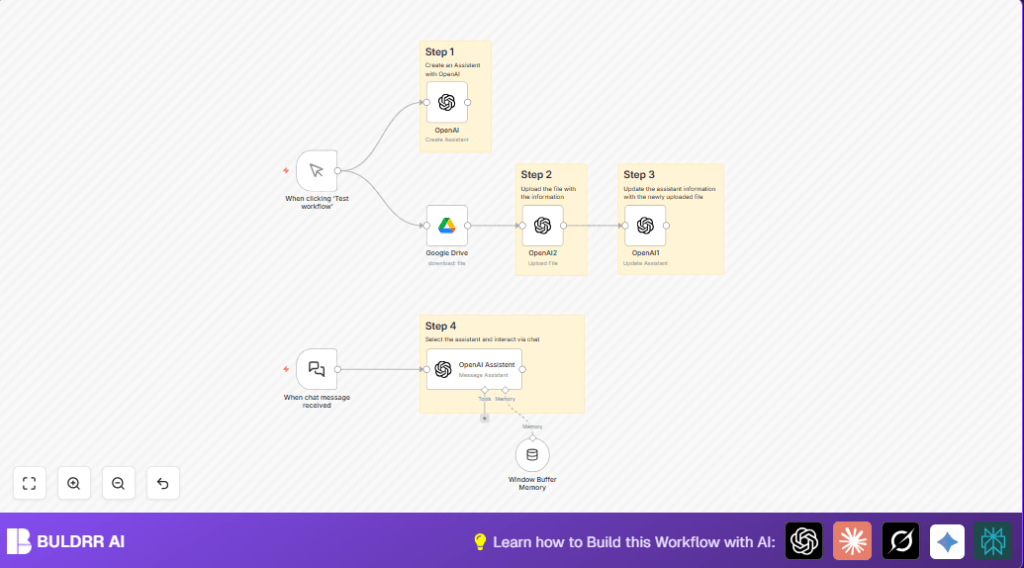

What This Automation Does
This workflow builds a chat assistant using OpenAI and Google Drive. It solves the problem of slow, manual updates of travel info for customer support. The result: fast, accurate answers for website visitors from the latest travel documents without needing manual input every time.
The workflow downloads the newest travel document from Google Drive as a PDF. Then it uploads this to OpenAI to update a dedicated assistant’s training. When visitors chat, the assistant only uses info from the travel file and keeps conversation memory for better replies.
This saves a lot of time and makes answers consistent and friendly, keeping visitors happy and boosting bookings.
Tools and Services Used
- n8n: Workflow automation platform controlling all steps.
- Google Drive API with OAuth2: Accesses and downloads travel documents.
- OpenAI API: Creates and updates the custom travel assistant. Handles chat conversations.
- Webhook: Receives chat messages live from website or app visitors.
Inputs, Processing Steps, and Outputs
Inputs
- Google Drive travel document file ID and OAuth2 credentials.
- OpenAI API key and assistant model details.
- Incoming chat message payloads via webhook.
Processing Steps
- The Google Drive node downloads the travel data doc and converts it to PDF.
- An OpenAI file upload node sends this PDF to OpenAI as new training material.
- Another OpenAI assistant update node links the new file to the assistant’s knowledge.
- A Webhook node receives chat texts from website users.
- The Window Buffer Memory node keeps the last messages to keep context alive.
- An OpenAI assistant chat node replies to user questions only with travel document info.
Outputs
- Real-time, accurate chat responses about travel info.
- Automated knowledge updates for the assistant from new Google Drive documents.
Beginner Step-by-Step: How to Use This Workflow in n8n Production
Step 1: Download and Import the Workflow
- Use the Download button on this page to get the workflow file.
- Open the n8n editor, click the top left menu, and choose “Import from File”.
- Select the downloaded file to load the workflow into n8n.
Step 2: Configure Credentials and IDs
- Add your Google Drive OAuth2 credentials in n8n.
- Put your OpenAI API Key in the OpenAI nodes.
- Update the
fileIdin the Google Drive node if you have a different travel doc. - Confirm the assistant ID is selected or use the expression to link to your assistant.
Step 3: Test the Workflow
- Run the workflow manually once to make sure the assistant is created and the document downloads successfully.
- Verify the PDF uploads to OpenAI and the assistant updates without errors.
Step 4: Activate for Production
- Switch the workflow toggle to “Active” so it runs on live chat messages.
- Share the webhook URL from the Webhook node with your website or chat front-end.
- Begin receiving real-time questions answered using the latest travel info.
If hosting n8n yourself, check out self-host n8n for setup details.
Customizations
- Change the
fileIdin the Google Drive node to update which travel document feeds the assistant. - Modify the assistant’s instruction text inside the OpenAI assistant creation node for different focus or style.
- Switch to other supported OpenAI models like
gpt-4o-minito suit performance or cost needs. - Add translation nodes or multi-language prompts for international visitor support.
- Connect other document sources with additional file and upload nodes for more thorough training.
Troubleshooting Common Issues
Problem: “Failed to download file” in Google Drive node
Cause: Using the wrong fileId or missing OAuth2 credentials.
Solution: Double-check the Google Drive file link matches the fileId. Re-authenticate Google Drive OAuth2 credentials in n8n settings.
Problem: “OpenAI file upload failed” error
Cause: The binaryPropertyName set in OpenAI upload node does not match the property output by Google Drive node.
Solution: Make sure the Google Drive node outputs the PDF as data.pdf binary data and that the same name is used in the upload node.
Problem: Assistant gives unrelated or generic answers
Cause: Missing or incomplete instructions in the OpenAI assistant node.
Solution: Revisit the assistant node and add clear instructions to respond only with info from the travel document and decline unrelated questions politely.
Pre-Production Checklist
- Ensure the Google Drive travel document is shared correctly with the OAuth2 app.
- Validate OpenAI API keys and check usage quotas.
- Test manual runs to confirm workflow nodes execute without errors.
- Use webhook tools to send test chat messages and verify accurate assistant replies.
- Back up assistant configuration and uploaded files before big changes.
Deployment Guide
Activate the workflow in n8n by enabling the toggle switch.
Copy the webhook URL created by the Webhook node and connect it to the website chat frontend or app for visitor messages.
Monitor the execution logs in n8n for any errors or API usage warnings.
Set notifications in n8n or hosting environment for error spikes or reaching OpenAI API limits.
Summary Result
✓ Fast updating travel assistant using latest Google Drive document.
✓ Accurate, friendly chat answers for website visitors.
✓ Saves manual work and prevents inconsistent support responses.
→ A single workflow managing document download, upload, and chat interaction.
→ Easy to customize travel info, assistant instructions, and chat behavior.
