

What this workflow does
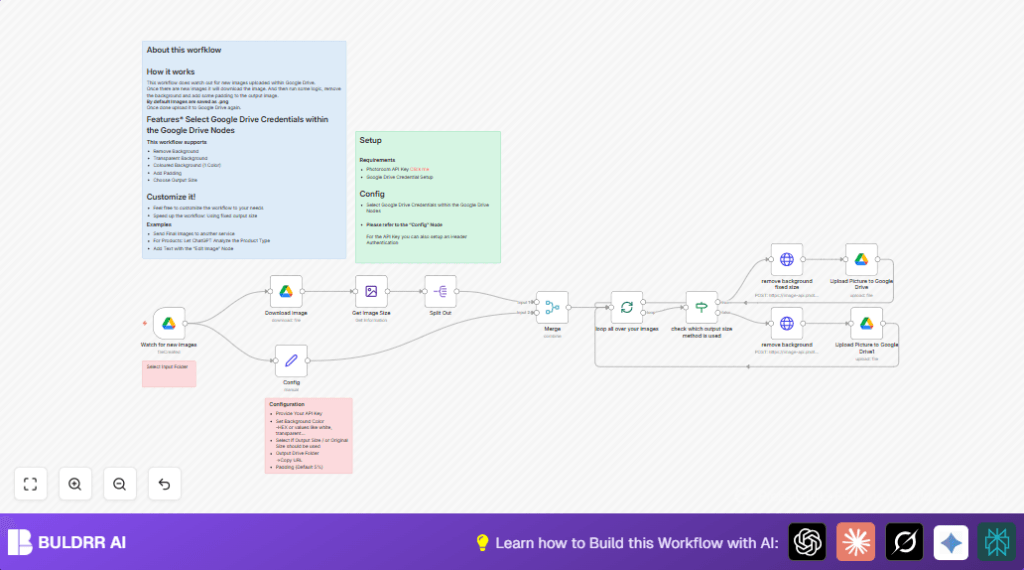
This workflow watches a Google Drive folder for new images, removes the backgrounds using the Photoroom API, and uploads clean images back to Google Drive automatically.
It solves the problem of spending too much time manually editing product photos to remove backgrounds and resize images.
The result is ready-to-use, consistent product images without manual work or delays.
How the workflow works: Inputs, Process, and Output
Inputs
- New image files uploaded into a specific Google Drive input folder.
- Photoroom API key for background removal.
- Configuration settings like background color, padding, and output size.
Processing Steps
- Google Drive Trigger detects new files in the chosen folder.
- Google Drive node downloads each image with metadata.
- Edit Image node reads the original image size.
- Split Out splits size data for further use.
- Set node defines parameters: background color, padding, output size, API key, and output folder.
- Split In Batches processes multiple images in batches.
- If node checks whether to keep input size or use fixed output size.
- HTTP Request nodes send images to Photoroom API, passing size, padding, background color, and API key.
- Google Drive upload nodes save processed PNG images in the output folder with prefixed filenames.
Output
Processed images with removed backgrounds, consistent sizes or padding as specified, uploaded back to Google Drive.
Who should use this workflow
This is for ecommerce managers or small business owners who get many product images that need background removal.
Also good for anyone wanting to save time by automating repetitive photo editing tasks.
Tools and services used
- Google Drive API: To watch, download, and upload files.
- Photoroom API: To remove or customize image backgrounds.
- n8n automation platform: To connect all steps in one workflow.
Beginner step-by-step: How to use this workflow in n8n
Step 1: Import Workflow
Download the workflow file using the Download button on this page.
In the n8n editor, click “Import from File” and select the downloaded workflow.
Step 2: Add Credentials
Add your Google Drive OAuth2 credentials to the Google Drive nodes.
In the Set node, enter your Photoroom API key.
Step 3: Update Folder IDs
In the Google Drive Trigger node, make sure the input folder to watch is correct.
In the Set node, update the output folder URL where processed images go.
Step 4: Configure Image Settings
Adjust background color, padding, keepInputSize boolean, and outputSize as needed inside the Set node.
Step 5: Test the Workflow
Upload one or more images to the Google Drive input folder.
Check if the workflow triggers, processes, and uploads images correctly.
Step 6: Activate for Production
Toggle the workflow to Active in n8n.
It will now automatically check for new images every minute and process them.
If using self hosting or VPS setup for n8n, learn more about self-host n8n.
Common customizations
- Change background color by updating bg_color in the Set node.
- Adjust image padding percentage in the Set node.
- Toggle between keeping original image size or resizing by changing the keepInputSize boolean.
- Change where processed files go by editing OutputDriveFolder in the Set node.
- Rename output files by modifying filename patterns in the Google Drive upload nodes.
What happens if something goes wrong (Edge cases and failures)
- If the workflow does not start when images upload, check the folder path in the Google Drive Trigger and reconnect Google credentials.
- If the Photoroom API returns errors or no result, verify the API key in the Set node.
- If images upload with no background removed, confirm the HTTP Request nodes use POST with “multipart-form-data” and correct headers.
Result you get after running this workflow
✓ Images uploaded to the chosen Google Drive folder have backgrounds automatically removed.
✓ Images are saved with consistent sizes and padding as defined.
✓ Manual photo editing time greatly reduced.
✓ Product images have a uniform, professional look ready for ecommerce.
Summary
→ A workflow that watches a cloud folder, removes image backgrounds, and uploads clean photos automatically.
→ Saves time and reduces errors in preparing images for online stores.
→ Uses Google Drive for file management and Photoroom API for editing.
→ Can be updated easily for padding, background color, or size.
