

What This Workflow Does
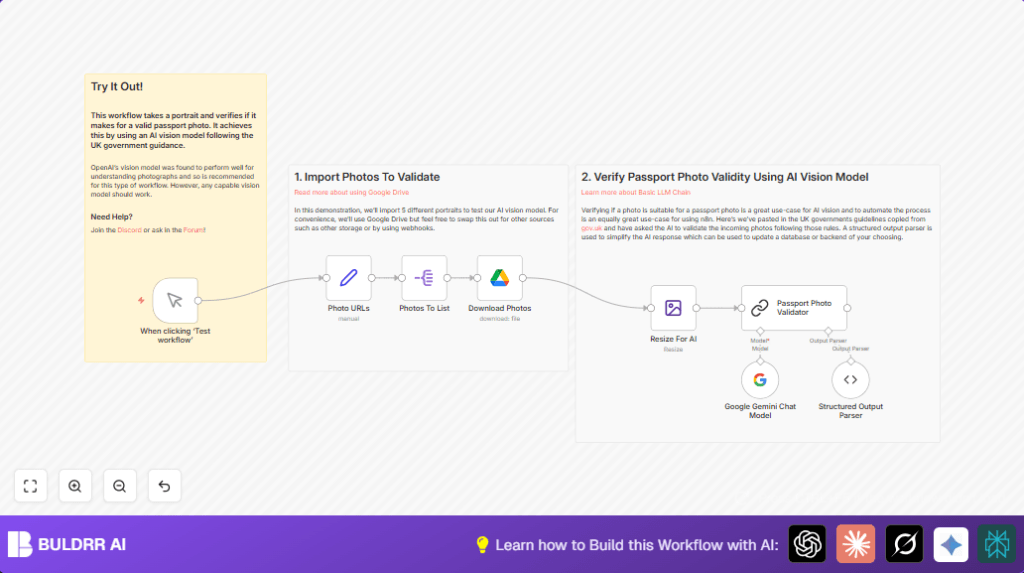
This workflow uses AI to check if passport photos follow the UK official rules. It downloads photos from Google Drive, resizes them, and asks Google Gemini AI to see if each photo is OK. Then it gives clear answers about each photo’s validity and reasons if a photo is not correct.
This saves time by automating a slow, hard manual check. It helps photo studios avoid mistakes and unhappy customers.
Who Should Use This Workflow
Photo studios checking many passport photos can use this to automate quality control.
Anyone who needs fast and accurate checking of UK passport photos with less manual work will find it useful.
Tools and Services Used
- Google Drive: Stores and shares portrait photos.
- n8n Automation Platform: Runs the workflow with nodes for each step.
- LangChain Nodes in n8n: Connects to AI models and parses responses.
- Google Gemini (PaLM) API: Provides AI vision and language analysis.
- Edit Image Node: Resizes photos before AI validation.
- OAuth2 Authentication: Used to access Google Drive files.
Inputs, Processing Steps, and Output
Inputs
An array of photo names and their Google Drive URLs is prepared in the workflow. Photos must be shared or accessible with correct permission.
Processing Steps
- Split Array: Break the photo list into single items for processing.
- Download Photos: Use Google Drive node to get each image file.
- Resize Photos: Use an image editor node to reduce size to 1024×1024 pixels if bigger.
- AI Validation: The LangChain LLM node sends each image with UK passport photo rules as prompt to Google Gemini.
- Parse AI Output: Use a structured output parser node to get JSON with keys like is_valid, photo_description, and reasons.
Output
The workflow provides a clear JSON output showing if each photo is valid or not. It also gives reasons for invalidity and a description of the photo.
Beginner Step-by-Step: How to Use This Workflow in n8n
1. Download and Import the Workflow
Click the Download button on this page to get the workflow file.
In your n8n editor, choose “Import from File” and upload the downloaded file.
2. Configure Credentials and Settings
Add your Google Drive OAuth2 credentials to the Download Photos node.
Enter your Google Gemini API Key in the LangChain nodes for AI processing.
Update photo URLs or file IDs in the Photo URLs Set node if needed.
3. Test the Workflow
Run the workflow manually by clicking Manual Trigger then “Execute Node”.
Check the output of the Structured Output Parser node to see validation results.
4. Activate for Production
Change the trigger from manual to scheduled or webhook for automatic runs.
Save and activate the workflow to run regularly or on demand.
Consider self-host n8n if data privacy or control is important.
Customization Ideas
- Switch the photo source from Google Drive to Dropbox or HTTP URLs.
- Change image resize dimensions in the Resize For AI node to match specific AI model needs.
- Add notifications via Slack or email for invalid photos.
- Use different AI models like OpenAI GPT-4 in place of Google Gemini.
- Connect outputs to databases or spreadsheets to store photo validation results.
Handling Errors and Edge Cases
If the Google Drive node cannot download files, check if file URLs are shared properly and the OAuth2 credentials have permission.
If AI responses are not structured or JSON parsing fails, confirm that the prompt asks AI to return data in the required JSON format.
Resize node may fail on unsupported or corrupted images. Use JPEG or PNG photo files and verify images before running.
Summary of Results
✓ Saves hours weekly by automating passport photo checks.
✓ Reduces human errors and inconsistent quality.
✓ Gives clear, structured photo validation output.
→ Enables faster, more reliable photo processing.
→ Supports easy integration with other systems for notifications or record keeping.
