
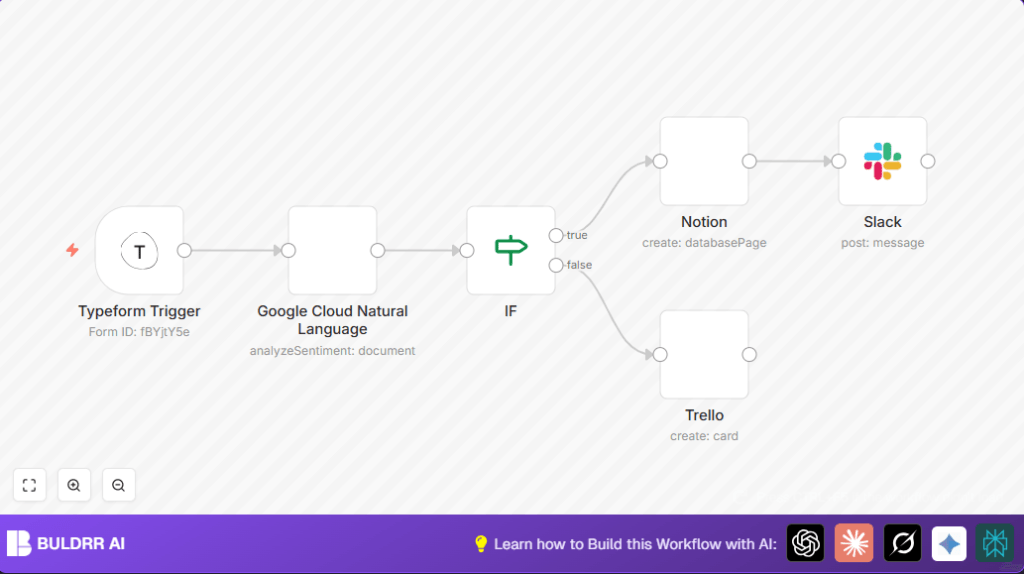

What This Workflow Does
This workflow in n8n takes feedback from your Typeform survey. It checks if the feedback is good or bad using Google Cloud Natural Language for sentiment score. If feedback is positive, it saves it in Notion, adds a Trello card, and sends a Slack message to your team. If feedback is neutral or negative, it still makes a Trello card but skips Notion and Slack notifications. This saves time and helps act on feedback faster.
The problem is to avoid reading every message manually. This automation sorts and shares feedback smartly to keep the team informed and organized.
Tools and Services Used
- Typeform: Collects customer feedback via survey.
- Google Cloud Natural Language API: Analyzes text to give sentiment score.
- Notion: Stores positive feedback in a database.
- Trello: Creates cards for all feedback for visual tracking.
- Slack: Sends notifications to team channels about positive feedback.
- n8n: Orchestrates the whole workflow.
How the Feedback Workflow Works (Inputs → Processing → Outputs)
Inputs
- New feedback submission from Typeform survey.
- Text answers such as “Any suggestions” and user name.
Processing Steps
- Typeform Trigger receives survey submission.
- Google Cloud Natural Language analyzes the feedback text and returns a sentiment score.
- IF node checks if sentiment score is greater than 0.
- If positive (> 0), the flow sends data to Notion to save feedback.
- Create a Trello card summarizing feedback and score (for both positive and neutral/negative branches).
- Send a Slack message only if feedback is positive.
Outputs
- Notion database updated with positive feedback and user details.
- Trello board updated with cards for all feedback.
- Slack channel notified only about positive sentiment feedback.
Beginner Step-by-Step: How to Use This Workflow in n8n Production
Step 1: Import the Workflow
- Download the workflow file using the Download button on this page.
- Open the n8n editor (cloud or self-host n8n).
- Click on the top-right menu and select Import from File.
- Choose the downloaded file to import the workflow.
Step 2: Add Credentials and Update IDs
- Add API credentials for Typeform, Google Cloud, Notion, Trello, and Slack in n8n credentials settings.
- Check the workflow nodes and update IDs if needed – like Typeform Form ID, Notion databaseId, Trello board/list ID, and Slack channel name or ID.
Step 3: Test the Workflow
- Trigger the workflow by submitting a test response in the connected Typeform.
- Look at the n8n executions to confirm the workflow runs and steps pass successfully.
- Verify feedback appears in Notion, Trello, and Slack as expected.
Step 4: Activate for Production
- Switch the workflow toggle ON in n8n editor.
- Ensure all credentials have proper permissions and API limits.
- Monitor workflow executions regularly from the n8n dashboard for errors.
Common Issues and Possible Fixes
- Webhook Not Triggering: Make sure to copy the webhook URL from the Typeform Trigger node and add it to Typeform webhook settings, then activate it.
- Google Cloud API Errors: Confirm the Natural Language API is enabled in Google Cloud console and OAuth credentials are valid.
- Notion Data Not Saving: Verify the database properties name and types exactly match the node configuration.
- Trello Card Failures: Check Trello list ID is correct and credentials are authorized.
- Slack Messages Missing: Double-check Slack channel name and API token permissions.
Customizations to Fit Your Needs
- Change Sentiment Threshold: Adjust the IF node to filter stronger positive feedback by increasing the score limit from 0 to 0.5 or more.
- Add Negative Feedback Alerts: Add a Slack message node on the negative branch to notify support about critical issues.
- Store Extra Data in Notion: Map additional fields like email address or feedback date to Notion properties.
- Use Multiple Trello Lists: Route Trello cards into separate lists depending on negative, neutral, or positive sentiment for visual clarity.
Summary of Results
✓ Feedback automatically sorted by sentiment.
✓ Positive feedback logged in Notion for review.
✓ All responses added as Trello cards for visual tracking.
✓ Slack messages alert team only for positive messages.
→ Saves hours of manual sorting.
→ Helps team act faster on customer insights.
→ Avoids missing important feedback.
