

1. What This Workflow Does
This workflow listens for transfer state changes from Wise and then records key transfer info into Airtable automatically.
It stops manual tracking and mistakes by logging transfer ID, date, reference, and amount as soon as a transfer updates its status.
You get quick, correct transfer records in Airtable for easy financial checks and audits.
This helps people managing international payments save time and avoid errors from copying data across systems.
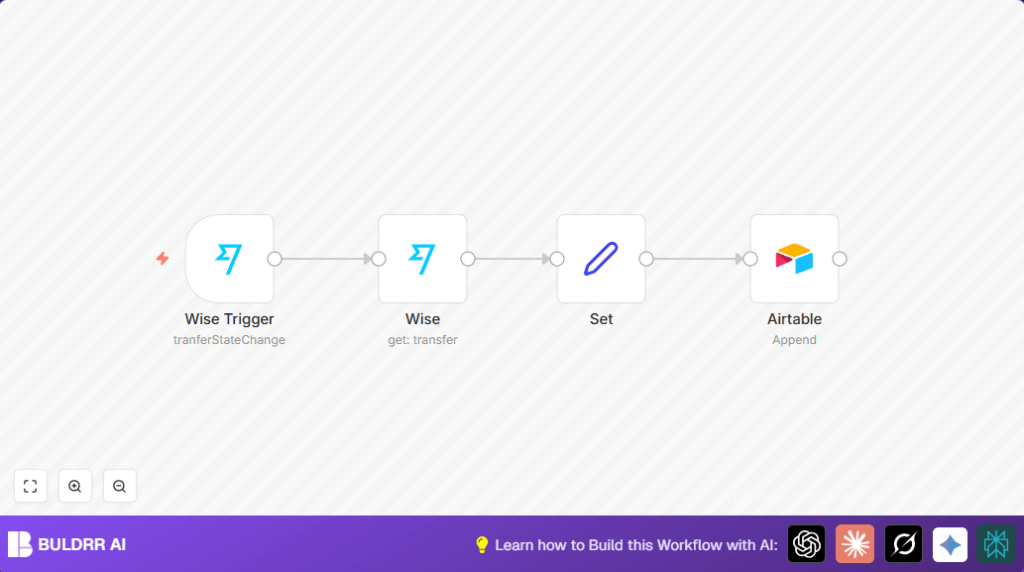
It works by catching Wise events, fetching detailed transfer info, formatting data, and appending it to Airtable.
2. Tools and Services Used
- Wise API: Sends transfer state change events and allows API calls to get full transfer details.
- Airtable API: Receives new transfer records to store details in a table.
- n8n automation platform: Orchestrates event listening, data fetching, formatting, and appending records.
3. Inputs, Processing, and Outputs
Inputs
- Real-time webhook notifications from Wise when a transfer changes state.
- Transfer ID from webhook to query detailed transfer info.
Processing
- Wise Trigger in n8n listens on transfer state changes using Wise API credentials.
- Wise node fetches detailed transfer data by transfer ID.
- Set node formats needed fields: ID, creation date, reference, amount.
- Airtable node appends this data as a new record in the specified table.
Outputs
- New, structured transfer record is created in Airtable for every state change.
- Easy to track transfer progress and status updates instantly.
4. Beginner Step-By-Step: Using This Workflow in n8n Production
Download and Import Workflow
- Download the workflow file using the Download button on the page.
- In the n8n editor, click “Import from File” and upload the downloaded workflow.
Configure API Credentials
- Open the imported workflow and add your Wise API credentials in the Wise Trigger and Wise nodes.
- Add your Airtable API credentials in the Airtable node.
Update IDs and Table Settings
- Replace the Wise Profile ID with your profile in the trigger node settings.
- Check Airtable table name matches your base and table.
Test the Workflow
- Run the workflow manually to make sure Wise events are caught and Airtable records append properly.
Activate for Production
- Switch workflow toggle to active so it listens for live Wise transfer updates.
- Keep your n8n instance connected reliably. Use self-host n8n if hosting independently.
5. Common Customizations
- Add more transfer details like transfer status, recipient type, or currency in the Set node using additional JSON expressions.
- Change Airtable node table to log records in different tables or bases.
- Insert an IF node after fetching transfer details to filter transfers, for example, record only completed transfers.
6. Troubleshooting
Problem: Wise Trigger webhook never fires.
Cause: Event name typed incorrectly or webhook not registered at Wise developer console.
Solution: Confirm event is exactly “tranferStateChange” and webhook URL is active on Wise.
Problem: Airtable append fails.
Cause: Wrong table name or improper API key permissions.
Solution: Double-check Airtable table name spelling and API key rights to append records.
7. Pre-Production Checklist
- Test Wise webhook by making a sample transfer state change.
- Verify Wise node gets full transfer data.
- Check Set node formats fields correctly.
- Make sure Airtable records are added when running manually.
- Backup Airtable base before bulk tracking.
8. What Users Get
Users stop wasting hours entering payment data manually.
Transfers update automatically in Airtable as soon as their status changes in Wise.
Financial teams get fast, error-free records.
Audits and reconciliations become easier and quicker.
9. Summary
✓ Saves time by automating transfer tracking.
✓ Removes mistakes from manual data entry.
✓ Shows transfer status updates instantly.
✓ Records detailed transfer info in Airtable.
✓ Makes financial audits and reconciliation simpler.
