

What This Automation Does for You ⚙️
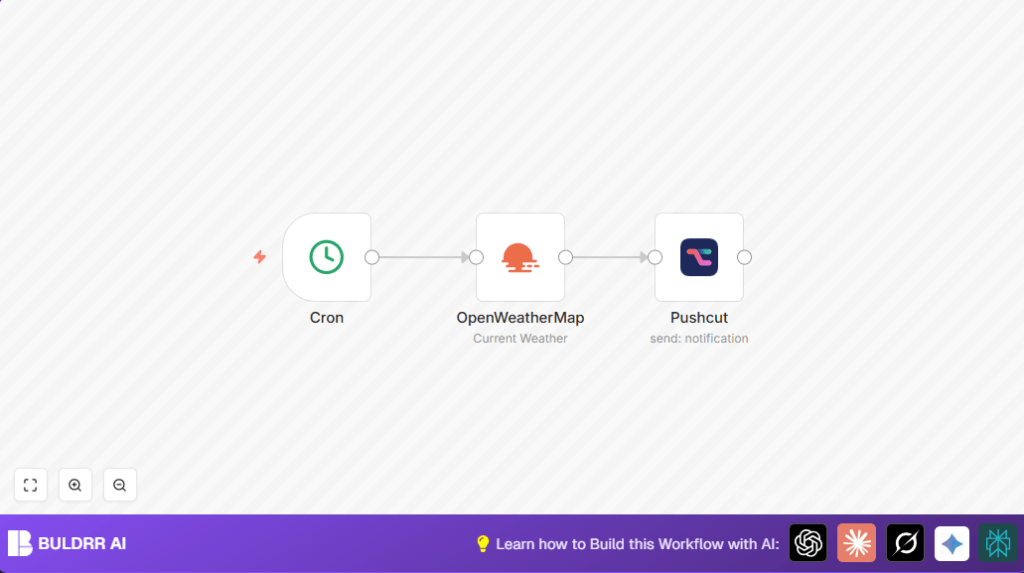
This workflow checks the temperature in Berlin every day at 9 AM.
It gets the current weather from OpenWeatherMap.
Then it sends a short notification to your Apple device with the temperature.
You do not need to open any app or website to see the weather.
This saves you time and helps you plan your day better.
Inputs, Process, and Outputs
Inputs
- Scheduled time trigger at 9 AM daily from the Cron node.
- City name as “berlin” and API Key for OpenWeatherMap node.
- Pushcut API credentials and notification name.
Processing Steps
- Cron node fires at 9 AM.
- OpenWeatherMap node fetches current temperature and weather data for Berlin.
- Pushcut node formats a short message with temperature and sends it as a notification.
Output
- Pushcut notification showing temperature in Celsius on user’s Apple device.
Who Should Use This Workflow
This is for people who want to get a quick weather update automatically each morning.
It helps busy users avoid checking many weather apps and prevents surprises in plans because of unexpected weather.
Anyone using Apple devices who wants a daily push notification for weather can benefit.
Tools and Services Used
- n8n automation platform: Creates and runs the workflow.
- OpenWeatherMap API: Gives current weather data for the city.
- Pushcut API: Sends push notifications to Apple devices.
Beginner Step-by-Step: How to Use This Workflow in n8n
Step 1: Download and Import the Workflow
- Download the workflow file using the Download button on this page.
- Inside the n8n editor, click on “Import from File”.
- Select the downloaded file to import the workflow.
Step 2: Add API Keys and Configure Nodes
- Open the workflow and configure OpenWeatherMap node.
- Enter your valid OpenWeatherMap API Key in credentials.
- Leave city name as “berlin” or change to your preferred city.
- Configure Pushcut node with your Pushcut API credentials.
- Make sure the notificationName matches your setup in the Pushcut app.
Step 3: Test and Activate
- Manually run the workflow once to check it works.
- Make sure the notification arrives on your Apple device.
- After confirming, set the workflow toggle to active.
- Check the executions in n8n dashboard to watch for errors.
If hosting your own n8n server, you can consult self-host n8n resources.
Customizations You Can Make ✏️
- Change the city in the OpenWeatherMap node to get weather for any location.
- You can edit the notification text in the Pushcut node to show more info like humidity or weather description.
- Example expression to show weather condition:
=Hey! It's {{$node["OpenWeatherMap"].json["weather"][0]["description"]}} with {{$node["OpenWeatherMap"].json["main"]["temp"]}}°C today.- You can set the Cron node to run multiple times a day for frequent updates.
- Change the notificationName in Pushcut node to send alerts to different devices or user groups.
Troubleshooting ????
- Invalid API key error in OpenWeatherMap node: Check for typos in the API Key or get a new key from OpenWeatherMap.
- No notifications from Pushcut node: Confirm Pushcut API credentials are correct.
- Make sure the notificationName exactly matches the name set inside the Pushcut app.
Pre-Production Checklist ✅
- Run the Cron node manually to test timing.
- Check if the OpenWeatherMap node returns temperature data in JSON.
- Send a test notification from the Pushcut node before activating.
Deployment Guide
Switch workflow to active in n8n after adding all credentials.
Watch executions to verify each daily run works fine.
Make sure API keys remain valid to keep getting weather data and notifications.
Summary and Result
✓ User gets automatic weather updates every morning at 9 AM.
✓ Eliminates need to open weather apps manually.
✓ Saves time daily with quick, simplified notifications.
✓ Helps plan daily activities based on reliable temperature info.
✓ Easy to set up by importing workflow and adding API keys.
