
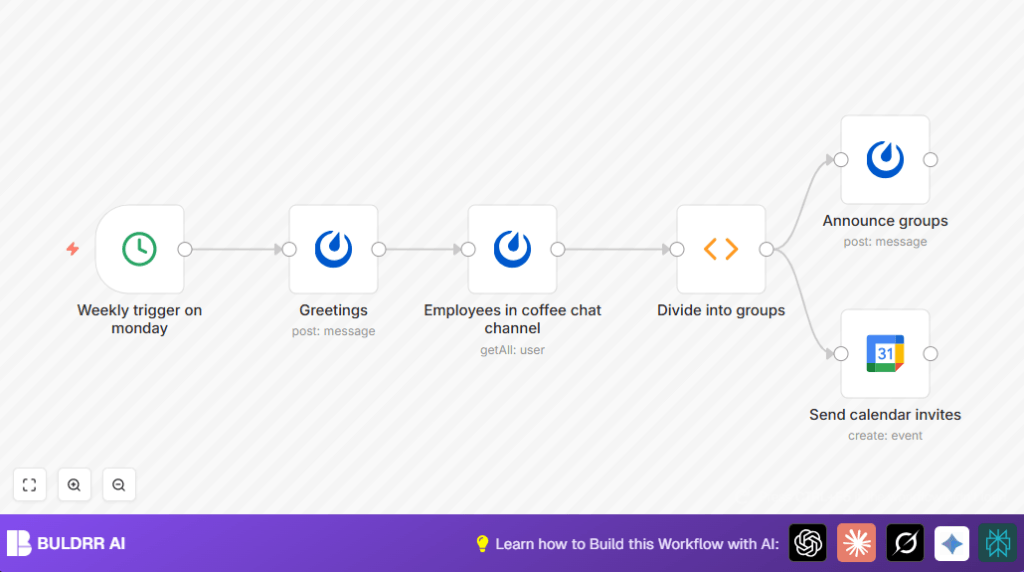

What This Workflow Does
This workflow runs every Monday at 10 AM to organize virtual coffee chats for team members in a Mattermost channel.
It collects active users, groups them into threes (or twos when needed), posts the groups in Mattermost, and sends Google Calendar invites with conference links.
The main purpose is to save time and avoid errors when setting up these chats manually.
Inputs, Process, and Outputs
Inputs
- Mattermost Channel ID: Used to find users who want to join the coffee chat.
- Mattermost API Credentials: Needed to read users and post messages.
- Google Calendar Credentials: Used to send invites to user emails.
Processing Steps
- Trigger: A Cron node starts the workflow every Monday at 10 AM.
- Greeting: A Mattermost node sends a welcome message about upcoming groups.
- Get Users: Another Mattermost node fetches all active users from the coffee chat channel.
- Group Users: A Function node shuffles and divides users into groups of three or two.
- Announce Groups: Another Mattermost node posts grouped usernames in the channel.
- Send Invites: A Google Calendar node sends calendar events with Google Meet links to group members.
Outputs
- Mattermost Messages: Introductory message plus group announcements in the coffee chat channel.
- Calendar Invites: Google Calendar events sent to the emails of grouped users with meeting details.
Who Should Use This Workflow
This is for team leads or HR coordinators who want to save time creating virtual coffee chats for remote teams.
The workflow is helpful for any group using Mattermost and Google Calendar who wants fair, random groups and automatic invites.
Tools and Services Used
- n8n Automation Platform: Runs the workflow and connects all nodes.
- Mattermost API: Reads user list and posts messages in the coffee chat channel.
- Google Calendar API: Creates calendar events and conference links for virtual meetings.
Beginner Step-by-Step: How to Use This Workflow in n8n
Download and Import
- Use the Download button on this page to get the workflow file.
- Open n8n editor where the workflow runs.
- Click top right menu, choose “Import from File”, and select the downloaded file.
Configure Credentials and IDs
- Add or update Mattermost API credentials inside n8n.
- Add or update Google Calendar OAuth2 credentials inside n8n.
- Update the Coffee Chat Mattermost Channel ID in all Mattermost nodes.
- If needed, adjust emails, calendar IDs, or other fields as the workflow comments show.
Test and Activate
- Run the workflow once manually to check for errors and correct output.
- Watch the Mattermost channel for test messages and check the Google Calendar for test invites.
- If all works, activate the workflow by toggling the active switch in n8n.
From now on, this workflow will run every Monday automatically.
You can also explore running self-host n8n if hosting on your own server is preferred.
Understanding the Grouping Function Code
The key piece is the Function node that organizes users into groups.
It first makes an array with usernames and emails, then shuffles it randomly.
Next, it creates groups of three from this shuffled array.
If the last group has only one person, it adds that person to the previous group, so no single-member group appears.
The code outputs grouped usernames and emails to be used for messages and calendar invites.
const ideal_group_size = 3;
let groups = [];
let data_as_array = [];
let newItems = [];

// Take all users from input
for (let j = 0; j < items.length; j++) {
  data_as_array.push({ username: items[j].json.username, email: items[j].json.email });
}

// Shuffle function
function shuffle(array) {
  let currentIndex = array.length, temporaryValue, randomIndex;

  while (currentIndex !== 0) {
    randomIndex = Math.floor(Math.random() * currentIndex);
    currentIndex--;
    temporaryValue = array[currentIndex];
    array[currentIndex] = array[randomIndex];
    array[randomIndex] = temporaryValue;
  }

  return array;
}

data_as_array = shuffle(data_as_array);

// Create groups of 3
for (let i = 0; i < data_as_array.length; i += ideal_group_size) {
  groups.push(data_as_array.slice(i, i + ideal_group_size));
}

// Avoid groups with single person
for (let k = 0; k < groups.length; k++) {
  if (groups[k].length === 1) {
    groups[k].push(groups[k - 1].shift());
  }
}

for (let l = 0; l < groups.length; l++) {
  newItems.push({ json: { groupsUsername: groups[l].map(a => a.username), groupsEmail: groups[l].map(b => b.email) } });
}

return newItems;
Customization Options
- Change Group Size: Modify
ideal_group_sizeinside the Function node for groups of 2, 4, or other. - Set Meeting Time: Update the Google Calendar node start and end time fields for preferred coffee chat times.
- Edit Messages: Change greetings or group announcements in Mattermost nodes to add new text or emojis.
- Multiple Channels: Duplicate relevant nodes and set different channel IDs for separate team coffee chats.
- Add Reminders: Add a delayed Mattermost node triggered shortly before the meeting to remind group members.
Troubleshooting
- No users found: Check the Mattermost Channel ID and verify users belong to that channel.
- Function node errors: Make sure the user list is not empty and the JavaScript code is copied exactly.
- Google Calendar invites not sent: Confirm user emails exist in Mattermost profiles and are correctly fetched.
- Messages not posted: Verify Mattermost API credentials have posting permissions and channel IDs are correct.
Pre-Production Checklist
- Confirm Mattermost API credentials have read and post permission for the coffee chat channel.
- Make sure Google Calendar OAuth credentials have event write and conference scopes.
- Test Cron node manually to ensure the workflow starts on schedule.
- Run the user fetch Mattermost node alone to see active user list.
- Check the Function node output groups for correctness and balance.
- Send a test message using the Mattermost node to the target channel.
- Try sending a calendar invite to your own email to confirm Google Calendar event creation.
Deployment Guide
Once fully tested, activate the workflow in n8n by turning on the active toggle.
The workflow will then run every Monday at 10 AM, handling the entire coffee chat setup automatically.
Monitor n8n execution logs for errors and check messages and calendar invites as confirmation.
Summary of Benefits and Results
✓ Saves around 2 hours weekly by automating group creation and invites.
✓ Eliminates manual errors like missed invites or uneven groups.
✓ Provides clear group announcements in Mattermost channels.
✓ Sends timely Google Calendar invites with conference links.
✓ Frees up coordinators to focus on other HR tasks.
