

What This Automation Does
This workflow takes receipt uploads from a Typeform form and does all the heavy lifting to add expense records into Airtable for you.
It stops hours of manual typing and mistakes when you enter spent money info.
It uses AI from Mindee to read total, date, merchant, and more from your receipts.
You get a neat table of expenses ready to use.
Tools / Services Used
- Typeform: For collecting receipt uploads from users through a form.
- HTTP Request Node: To download the receipt image from the Typeform submission.
- Mindee: AI-powered receipt data extraction API to get key details.
- Set Node: To organize extracted data for easier use.
- Airtable: Stores all expenses in a structured table.
- n8n: Orchestrates and automates the whole process.
Inputs → Processing Steps → Output
Inputs
- Receipt image file uploaded via Typeform expense form.
Processing Steps
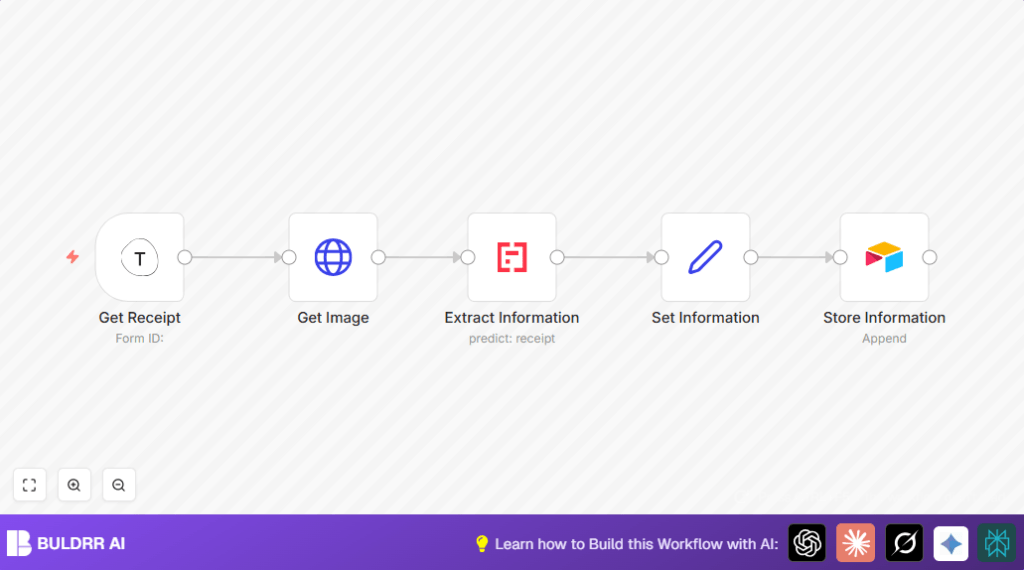
- Trigger: The workflow starts when a new Typeform submission arrives.
- Download Receipt Image: Uses HTTP Request node to get the file from the submitted URL.
- Extract Receipt Data: Mindee AI reads the downloaded file extracting amount, date, merchant name, time, and category.
- Organize Data: The Set node formats these values into clear, named fields.
- Save to Airtable: Adds a new record with receipt details in the Expenses table.
Output
New record in Airtable with accurate and complete expense data.
Who Should Use This Workflow
If you spend time uploading receipts and typing out details manually, this saves time.
It fits small business owners, freelancers, or anyone tracking expenses with photos.
No deep technical skills needed to run this if basic accounts are set up.
Beginner Step-by-Step: How to Use This Workflow in n8n
Step 1: Download and Import Workflow
- Click the Download button on this page to get the workflow file.
- Open your n8n editor.
- Use Import from File option to load the workflow.
Step 2: Configure Credentials and Settings
- Add your API keys for Typeform, Mindee, and Airtable in the credentials section.
- Update the Typeform form ID if different from default.
- Check and change Airtable base and table names if you use a custom setup.
- If there are any email addresses, Slack channels, or URLs in nodes, update these to your preferences.
Step 3: Test the Workflow
- Submit a test receipt via the Typeform form.
- Watch the workflow run and check that Airtable receives a new record.
- Fix any errors by checking API keys and correctness of field mapping.
Step 4: Activate for Production
- Once tested and working, activate the workflow toggle in n8n.
- The workflow will then run automatically on new Typeform submissions.
If self hosting n8n, consider self-host n8n for running this automation reliably on your own server.
Edge Cases and Errors
- Missing Receipt File: If Typeform submission lacks a file upload, the workflow cannot download or extract data.
- Unsupported File Format: Mindee supports common images like JPEG, PNG, and PDFs. Other formats may cause extraction errors.
- Incorrect API Credentials: Wrong keys or expired tokens cause failures in either Mindee or Airtable nodes.
- Invalid Airtable Table or Fields: The workflow requires the Expenses table with mapped columns. Mismatch will drop records.
Customization Ideas
- Adjust the category mapping logic in the Set node to assign categories better.
- Add more fields such as payment method or notes by configuring Airtable columns and Set node mappings.
- Insert a Slack or email notification node after saving data to alert about new expenses.
- Add a Function node to check if the file URL is valid before processing.
- Use Loop or Batch nodes for handling many receipts uploaded at once.
Pre-Production Checklist
- Make sure Typeform webhook is active and capturing form submissions.
- Test Mindee node with example receipt images.
- Verify Airtable base and Expenses table exist with correct columns.
- Run sample receipts and cross-check Airtable records.
- Backup Airtable data before going live.
Deployment Guide
After setup, enable the workflow in n8n.
Keep an eye on workflow runs in execution logs.
Add notifications for failures or successful runs as needed.
Summary of Workflow Benefits
✓ Saves manual data entry time.
✓ Removes errors from mistyped amounts.
✓ Keeps expense records organized in Airtable.
✓ Automates from receipt upload to data storage.
✓ Easy to activate and adjust as needs change.
