
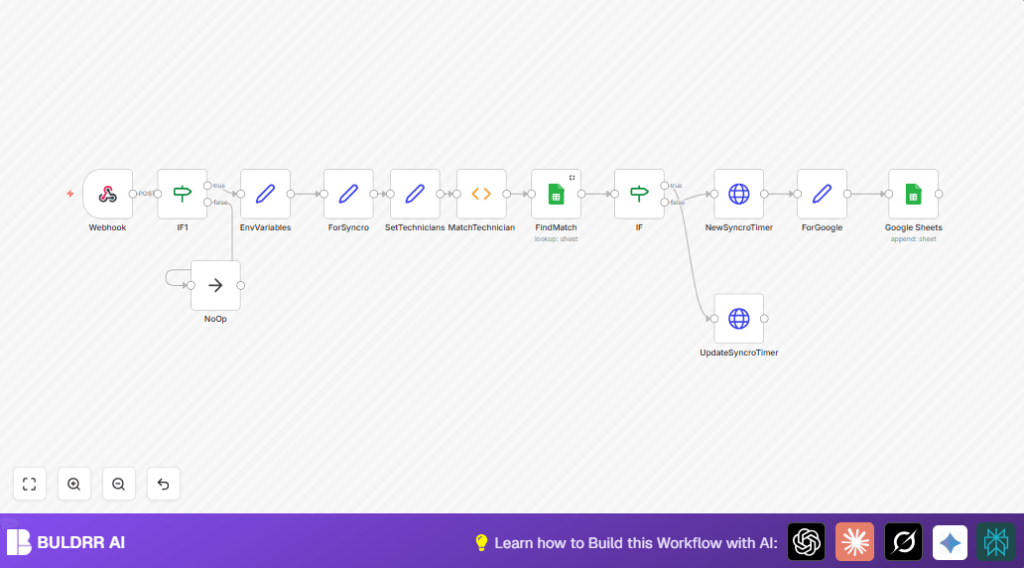

What This Workflow Does
This workflow connects Clockify and Syncro MSP to avoid manual copying of time entries. It saves time and stops errors by syncing Clockify time entries to Syncro tickets automatically. The workflow checks if an entry is new or existing, then creates or updates the timer in Syncro, and logs all actions in Google Sheets for records.
The main problem it solves is wasting hours weekly on manual time transfers and fixing billing mistakes. The final result is less work, fewer errors, and a clear history of synced time entries.
Who Should Use This Workflow
This workflow is for people who track time in Clockify and bill through Syncro MSP. It helps managers and teams who want to avoid manual updates and reduce errors in billing time. Anyone needing accurate, automated syncing between these two tools will benefit.
Tools and Services Required
- Clockify account: Sends time entry data via webhook.
- Syncro MSP account: Uses API to create or update timer entries.
- Google Sheets: Stores synced entries and prevents duplicates.
- n8n workflow automation: Runs the process, either cloud or self-host n8n.
- Google API credentials: Allow n8n to read and write Google Sheets.
- Syncro API credentials: Use HTTP Header Auth for API requests.
How This Workflow Works: Inputs, Processing, Outputs
Inputs
- Clockify sends new or updated time entry data as JSON via webhook.
- Google Sheets contains saved Clockify IDs to check duplicates.
- User name from Clockify to map to Syncro technician ID.
Processing Steps
- The Webhook node receives Clockify data on POST.
- IF node filters entries only for projects containing “Ticket”.
- Set node stores Syncro base URL for API requests.
- Set node uses regex to get Syncro ticket ID from project name format like “Ticket [1234]”.
- SetTechnicians node holds mapping of Clockify usernames to Syncro technician IDs.
- Function node looks up the technician ID matching the Clockify user.
- Google Sheets node searches for the Clockify time entry ID to avoid duplicates.
- An IF node checks if the entry exists in Google Sheets to decide the path.
- If entry exists, HTTP Request node sends a PUT request to update Syncro timer entry.
- If entry is new, HTTP Request node sends POST to create a new timer in Syncro.
- New or updated entries are logged back to Google Sheets for future duplicate checks.
Outputs
- Updated or newly created timer entries in Syncro MSP tickets.
- Accurate records in Google Sheets showing synced Clockify and Syncro entry IDs.
- Reduced manual workload and fewer billing errors.
Beginner Step-by-Step: How to Use This Workflow in n8n
Import the Workflow
- Download the workflow file using the Download button on this page.
- Open n8n editor in your browser.
- Click on “Import from File” and select the downloaded workflow.
Configure Credentials and Settings
- Add Google API credentials in n8n to allow access to your Google Sheets.
- Add Syncro MSP API credentials as HTTP Header Auth in n8n.
- Update the Syncro base URL in the EnvVariables node with your real Syncro subdomain.
- Set your Google Sheet ID in the FindMatch and Google Sheets nodes.
- Ensure Clockify webhooks are configured to send POST requests to the webhook URL shown by n8n.
Test and Activate the Workflow
- Trigger a test Clockify time entry and watch if the workflow runs without errors.
- Check Google Sheets that the new entry logs properly.
- If everything works, activate the workflow in n8n for production use.
Customization Ideas
- Add more technicians and their Syncro IDs in the SetTechnicians node.
- Change the regex in ForSyncro node if project name format differs.
- Add extra columns and data points to Google Sheets logging nodes for richer records.
- Add security to the webhook with basic authentication or IP filtering.
- Add notification nodes (email or Slack) for alerts when syncing fails.
Edge Cases and Troubleshooting
- If Syncro API returns “401 Unauthorized,” check the HTTP Header Auth credentials in n8n.
- Google Sheets lookup returns no data: verify sheet ID and API credentials have access.
- Regex extraction fails when project names don’t match the “Ticket [1234]” pattern.
- If technician names don’t match those in the mapping, the technician ID will be missing.
- Ensure webhook URL and HTTP method are correctly set in Clockify.
Summary of Benefits and Results
✓ Saves hours weekly by automating time entry sync.
✓ Reduces billing errors from manual mistakes.
✓ Provides clear logs of synced entries in Google Sheets.
✓ Frees teams to focus on real work instead of admin.
→ Reliable syncing keeps Syncro tickets updated with correct time data.
→ Supports growth by scaling automated billing workflows.
