
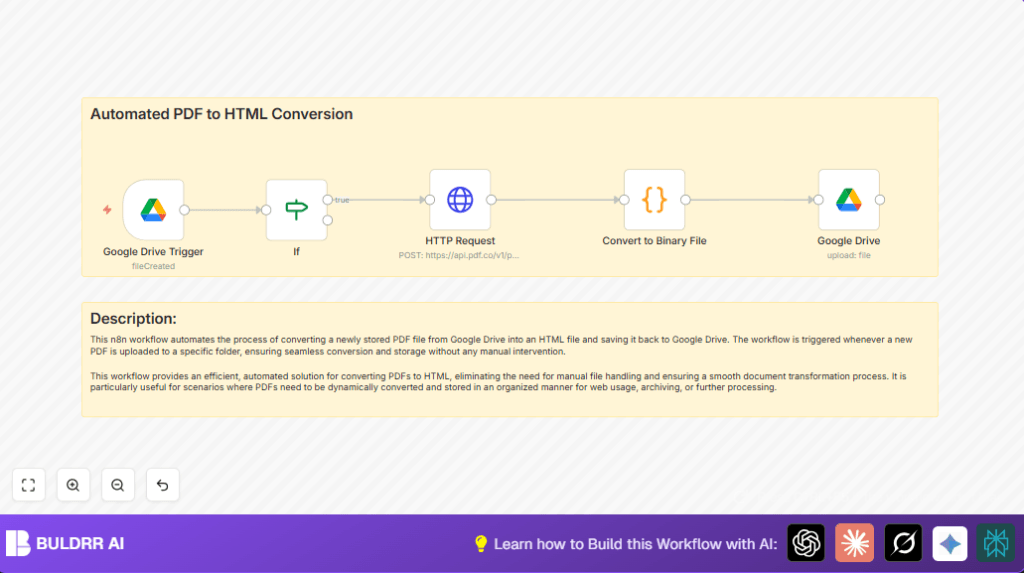

converts it to HTML automatically — no manual steps, no copy-pasting,
no waiting.
It works like this: you (or a team member, or a client) uploads a PDF
to a designated Google Drive folder. The workflow detects it within
seconds, sends the file to the PDF.co conversion API, receives the
HTML output, and uploads the converted file back to Google Drive —
all without you touching anything.
The result is a clean HTML file sitting in your Drive folder, ready
to publish on a website, paste into a CMS, or send to a developer.
This is especially useful for content teams, legal teams, and
publishers who deal with high volumes of PDFs that need to go live
as web content — fast.
The most common business uses:
→ Extract and publish PDF reports as web pages
→ Pull table data from PDFs into structured HTML tables
→ Convert product catalogs, whitepapers, or documentation into web-ready format
→ Batch-process incoming PDFs from clients or partners into HTML automatically
Download the free workflow template below and have it running in under 15 minutes.
What This Workflow Does
This n8n workflow monitors a Google Drive folder and converts every
new PDF file to HTML automatically using the PDF.co API.
Here is the exact sequence of events when a new PDF is uploaded:
1. The Google Drive Trigger node detects the new file within
1 minute of upload (polling interval is configurable).
2. An IF node checks the file’s MIME type to confirm it is a PDF
(application/pdf). Non-PDF files are ignored and the workflow
stops — preventing failed API calls on wrong file types.
3. The HTTP Request node calls the PDF.co API endpoint:
POST https://api.pdf.co/v1/pdf/convert/to/html
It passes the Google Drive file URL and your API key.
PDF.co processes the file and returns a URL pointing to
the converted HTML content.
4. A second HTTP Request node (or Code node) fetches the HTML
content from the returned URL and converts it to binary
data — the format Google Drive needs to save a file.
5. The Google Drive node uploads the binary HTML file to your
specified output folder, naming it after the original PDF
(e.g., report.pdf becomes report.html).
Total time from PDF upload to HTML file appearing in Drive:
15–45 seconds depending on PDF size and API response time.
Here is what happens step by step:
1. A new PDF lands in your watched Google Drive folder
2. The workflow detects it and sends it to the PDF.co conversion API
3. PDF.co extracts all content — including tables, paragraphs, and headings — and returns clean HTML
4. The HTML is packaged into a file and uploaded to a separate Google Drive folder
5. The HTML file is ready to publish, embed, or edit immediately
No copy-pasting from PDFs. No manual reformatting. No lost table data. The extracted content comes out structured and web-ready every time.
Who Should Use This Workflow
Who Should Use This Workflow
Content managers and web editors: You receive PDFs from clients,
partners, or internal teams and need to publish them as web pages.
Manual conversion is slow and inconsistent. This workflow handles
every new PDF the moment it lands in Drive.
Legal and compliance teams: You process contracts, policy documents,
and regulatory filings in PDF format. Converting them to HTML makes
them searchable, linkable, and easier to embed in internal portals.
Publishers and media companies: You receive press releases, reports,
and white papers as PDFs. This workflow converts them to HTML
automatically so your editorial team can paste directly into
WordPress, Webflow, or any CMS without reformatting.
Developers and agencies: You build document management systems
for clients. This workflow drops directly into any pipeline where
PDFs need to become HTML — no custom code required.
If you or your team converts more than 5 PDFs per week manually,
this workflow pays back its setup time in the first day.
Tools and Services Used
- Google Drive: Stores and watches the PDF and HTML files.
- n8n Automation Platform: Runs the workflow. For users hosting themselves, self-host n8n is an option.
- PDF.co API: Converts PDF files to HTML via HTTP requests.
Inputs, Processing Steps, and Output
Inputs
- New PDF files uploaded in a Google Drive folder.
Processing Steps
- Trigger node watches Google Drive folder for new files.
- If node checks if new file is a PDF.
- HTTP Request node sends PDF URL to PDF.co API for HTML conversion.
- Code node turns HTML text into a binary file format for Google Drive.
- Google Drive node uploads the HTML file to a folder.
Output
- HTML files saved in Google Drive ready for web use.
Beginner step-by-step: How to Use This Workflow in n8n
Import and Setup
- Download the workflow file from this page.
- In the n8n editor, select Import from File and upload the downloaded workflow.
- Open the imported workflow to view all steps.
Configure Credentials and Settings
- Add Google Drive OAuth2 Credentials in n8n if not set.
- Insert the PDF.co API Key in the HTTP Request node’s HTTP Header Auth section.
- Update folder IDs or URLs in the Google Drive Trigger and upload nodes to match your folders.
- Check or edit the Code node script for output filename if needed.
Test and Activate
- Run the workflow using a test PDF in the watched Google Drive folder.
- Verify the HTML file appears in the target folder after completion.
- Activate the workflow by toggling the active switch for continuous production use.
Workflow Details: How It Works Inside n8n
The workflow starts from the Google Drive Trigger node.
It looks every minute for new PDF files in a folder.
If found, an If node tests the file’s type to allow only PDFs to proceed.
Next, the HTTP Request node calls PDF.co API.
It sends PDF file link and asks for HTML format in the response.
Then the Code node takes the returned HTML text and converts it into binary data.
It formats the data so Google Drive node can upload it as an HTML file properly.
Finally, the Google Drive node uploads the new HTML file into a specified folder.
This ends the workflow cycle and keeps files organized automatically.
Customization Ideas
- Change file names dynamically in the Code node for clear naming.
- Add more nodes to convert PDFs into DOCX, TXT, or other formats using APIs.
- Arrange HTML files into date-based subfolders in Google Drive for better order.
- Adjust trigger polling speed or add batch handling to process many PDFs at once.
Common Issues and Fixes
Error: “Invalid OAuth credentials” on Google Drive nodes
Your Google Drive OAuth2 token has expired or been revoked.
Go to n8n Settings → Credentials → find your Google Drive
credential → click Reconnect → re-authorize with Google.
This usually happens after a Google account password change
or if you revoked permissions in your Google account settings.
Error: HTTP 401 Unauthorized from PDF.co API
Your PDF.co API key is missing, wrong, or placed in the
wrong header field. In the HTTP Request node, go to
Authentication → Header Auth → verify the header name
is exactly “x-api-key” (lowercase) and the value is your
full API key with no extra spaces.
Error: HTML file not appearing in Google Drive output folder
Two possible causes:
(1) The Code node is not outputting binary data correctly —
open the Code node, run it manually, and check the output
panel shows a “binary” field with MIME type “text/html”.
(2) The Google Drive upload node has the wrong folder ID —
double-check the folder ID in the node matches your actual
output folder in Drive.
Error: Workflow triggers on non-PDF files
The IF node checks MIME type to filter non-PDFs. If non-PDF
files are getting through, check the IF condition: it should
check $json.mimeType === “application/pdf”. If the MIME type
field name is different in your n8n version, use the
Expression editor to find the correct field name from
the trigger node output.
Error: PDF.co returns an error or empty HTML
Large PDFs (50+ pages) or scanned PDFs (image-only, no text
layer) may fail or return empty HTML. PDF.co’s free tier
also has a file size limit of 10MB. For scanned PDFs,
you need to enable OCR in the API request by adding
“ocr”: true to the request body. For files over 10MB,
upgrade to a PDF.co paid plan.
Error: Workflow stops after IF node with no output
If the uploaded file is not recognized as a PDF (MIME type
mismatch), the IF node routes it to the False branch where
nothing happens — this is correct behavior. Check n8n’s
execution log to see which branch was taken and what MIME
type the file reported.
Pre-Deployment Checklist
- Verify Google Drive OAuth2 credentials are working and allowed access.
- Test workflow by uploading a sample PDF in the watched folder.
- Confirm HTTP Request node returns HTML from PDF.co successfully.
- Check that the Code node converts HTML text to binary properly.
- Ensure HTML uploads to right Google Drive folder and filename.
- Use logs in n8n to catch and fix any errors before going live.
Deployment Guide
Once tests clear, turn on the workflow by flipping the active switch.
Monitor the first runs carefully to see that conversion and uploads work smooth.
Use n8n’s logs to find any issues if the process fails.
Summary of Results
✓ Automatically detects new PDFs in Google Drive within 60 seconds
✓ Converts PDF to clean HTML using PDF.co API — no manual steps
✓ Handles standard PDFs and scanned PDFs (with OCR option)
✓ Saves HTML file back to Google Drive with original filename
✓ Filters non-PDF files automatically — only PDFs are processed
✓ Works for any team size — share the watched folder with anyone
✓ Customizable: change output format, folder structure, file naming
✓ Free to start — PDF.co free tier + Google Drive + n8n self-hosted
