

What This Automation Does ⚙️
This workflow finds all open external projects that have no budgeted cost set.
It groups them by company and cost center, then sends an email to each cost center team to notify missing budgets.
The goal is to save time by automating weekly budget checks and improving financial accuracy.
This helps stop errors in reports and delays in decisions when budget data is missing.
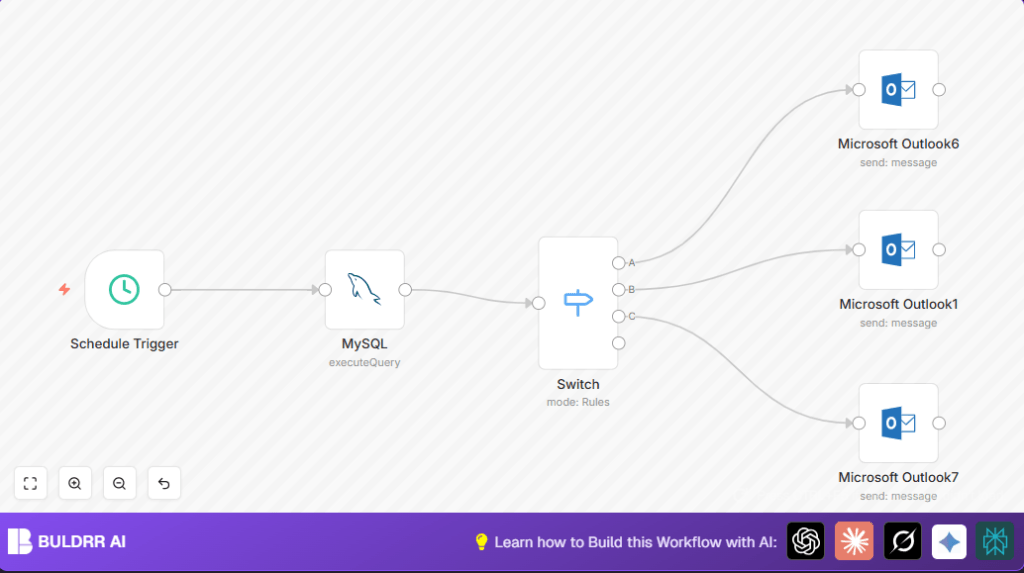
It works by using a Schedule Trigger, a MySQL query, routing with a Switch node, and sending emails through Microsoft Outlook nodes.
Inputs, Process, and Outputs
Inputs
- Project data from a MySQL database with fields like company, cost center, status, and budgeted cost.
- Weekly trigger signal from the Schedule Trigger node.
Processing Steps
- Run a SQL query to get active projects with zero budget cost.
- Group the query results by company and cost center.
- Use Switch node to split data based on cost center names.
- Send customized HTML emails to the correct cost center teams via Microsoft Outlook nodes.
Outputs
- Email notifications sent to cost center owners listing how many projects lack budget info.
Tools and Services Used
- n8n: Workflow automation platform.
- MySQL Database: Stores project data queried for missing budgets.
- Microsoft Outlook API: Sends email alerts.
Beginner Step-by-Step: How to Use This Workflow in n8n
Step 1: Download and Import Workflow
- Download the workflow file using the Download button on this page.
- Inside the n8n editor, click on “Import from File”.
- Select the downloaded workflow file to load it into your editor.
Step 2: Configure Credentials and Settings
- Add your MySQL database credentials to the MySQL node.
- Add Microsoft Outlook API credentials to the Outlook nodes.
- Check and update cost center email addresses in the Outlook nodes if needed.
- Adjust cost center names in the Switch node if your cost centers differ.
Step 3: Test and Activate Workflow
- Run the workflow manually once to test data and email sending.
- Look at workflow execution logs for errors or missing data.
- When satisfied, activate the workflow to run automatically on schedule.
- Optionally, monitor initial runs and check email delivery.
Following these steps sets you up for weekly automated budget audits without deep technical work.
Known Edge Cases and Troubleshooting ????
Issue: Emails Not Being Sent
Check that cost center names in the Switch node exactly match the database data.
Case or extra spaces can cause routing not to work.
Issue: MySQL Query Errors or Timeouts
Verify database credentials and permissions.
Test the SQL query directly in your database client to make sure it runs without error.
Customization Ideas ✏️
- Add more cost centers by extending the Switch node and Outlook nodes accordingly.
- Change email recipients to match your team contacts by editing the Outlook nodes fields.
- Modify the schedule trigger to run more or less often.
- Extend the SQL query to include more project details or filter differently.
Pre-production Checklist ✅
- Test the MySQL query independently for correct results and permissions.
- Verify Switch node outputs match your actual cost center names exactly.
- Send sample emails to verify proper formatting and delivery.
- Confirm the workflow schedule matches your reporting needs.
Deployment Guide
Activate the workflow in n8n after thorough testing.
Check execution logs to catch and debug any errors.
Store all credentials securely and limit access to keep financial notifications safe.
Setting up error notifications or logs will help catch issues early.
If running on your own server, consider self-host n8n for security and control.
Summary
✓ This workflow saves time by automating weekly budget audits.
✓ It finds projects missing budgets and alerts cost center teams by email.
✓ Helps improve financial reports and speeds decision making.
→ User gets ready-to-run automation requiring minimal setup.
→ Emails clearly specify which cost centers need attention.
