
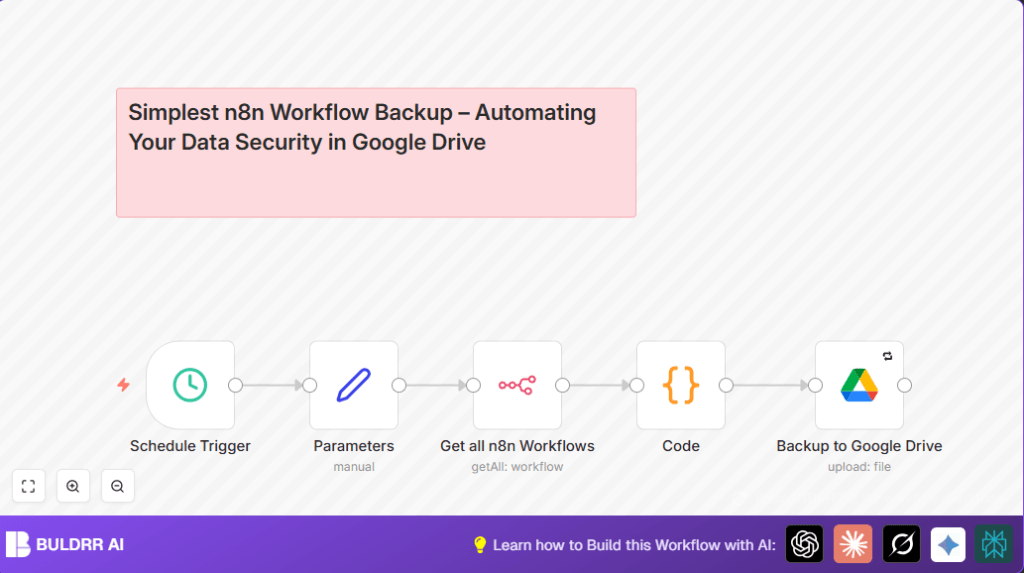

What this workflow does
This workflow automatically exports all active n8n workflows as JSON files every day at 1:30 AM. It sends these files to a chosen Google Drive folder for safe backup. This helps users avoid losing recent changes and saves time by removing the need to export manually.
The backup happens daily and uploads files automatically, helping to keep workflow data current and secure.
Who should use this workflow
Users who manage many n8n workflows and want to keep automatic backups will benefit most. It suits people worried about losing work or spending time exporting workflows.
Basic knowledge of n8n and Google Drive setup is needed. For privacy or more control, self-host n8n is also an option.
Tools and services used
- n8n Schedule Trigger node: Runs the workflow daily at 1:30 AM.
- n8n API node: Gets all active workflows and their JSON data.
- Code node: Converts each workflow’s JSON to a base64-encoded file ready for upload.
- Google Drive node: Uploads JSON files to the specified folder.
- Set node: Holds Google Drive folder URLs for easy editing.
Workflow inputs, processing, and output
Inputs
- Trigger time set at 1:30 AM daily from the Schedule Trigger.
- Folder URLs from the Set (Parameters) node.
- n8n API credentials for fetching workflows.
Processing steps
- The n8n API node retrieves all active workflow data.
- The Code node encodes each workflow JSON into base64 and prepares it as a file.
- The Google Drive node uploads each file to the target folder, retrying if uploads fail.
Output
One JSON file per workflow appears in the specified Google Drive folder every day.
Beginner step-by-step: How to use this workflow in n8n
Step 1: Import the workflow
- Download the workflow file using the Download button on this page.
- Open n8n editor and click “Import from File” to upload the downloaded workflow.
Step 2: Configure credentials and parameters
- Add your n8n API credentials to the Get all n8n Workflows node.
- Add Google Drive credentials to the Backup to Google Drive node.
- Update the folder URL in the Parameters node to your Google Drive backup folder.
Step 3: Test the workflow
- Manually trigger the Schedule Trigger to run the workflow once.
- Check Google Drive for uploaded JSON files.
Step 4: Activate the workflow
- Turn on the workflow in n8n to run automatically daily.
This process helps you use the workflow safely in production.
Customizations
- Change the daily backup time or frequency in the Schedule Trigger.
- Update the Google Drive folder by editing the Parameters node.
- Add timestamps to filenames by changing file name expression in the Google Drive node:
{{$json.name + "_" + new Date().toISOString() + ".json"}- Include inactive or deleted workflows by adjusting API call filters in the Get all n8n Workflows node.
- Add email notifications by placing an email node after backups to alert on success or errors.
Common problems and solutions
- Backup files missing in Google Drive: Check the folder URL in Parameters and Google Drive permission.
- Fail to fetch workflows in n8n API node: Renew or fix API credentials.
- Errors in Code node: Review JSON structure and adjust the JavaScript code.
Pre-production checklist
- Confirm API credentials are valid.
- Verify Google Drive folder is accessible.
- Test workflow by manual trigger.
- Make manual backup of workflows before starting automation.
Deployment
After testing, activate the workflow live in n8n. Monitor initial runs and check logs for errors.
Ensure enough Google Drive space for backups.
Scheduling happens automatically without user action.
Summary of results
✓ Saves 8-10 hours every month by removing manual exports.
✓ Keeps daily updated backup files stored securely on Google Drive.
✓ Reduces risk of losses from accidental workflow deletions.
→ Enables easier recovery of workflow data.
→ Frees time to focus on building new automations.
