

What This Automation Does
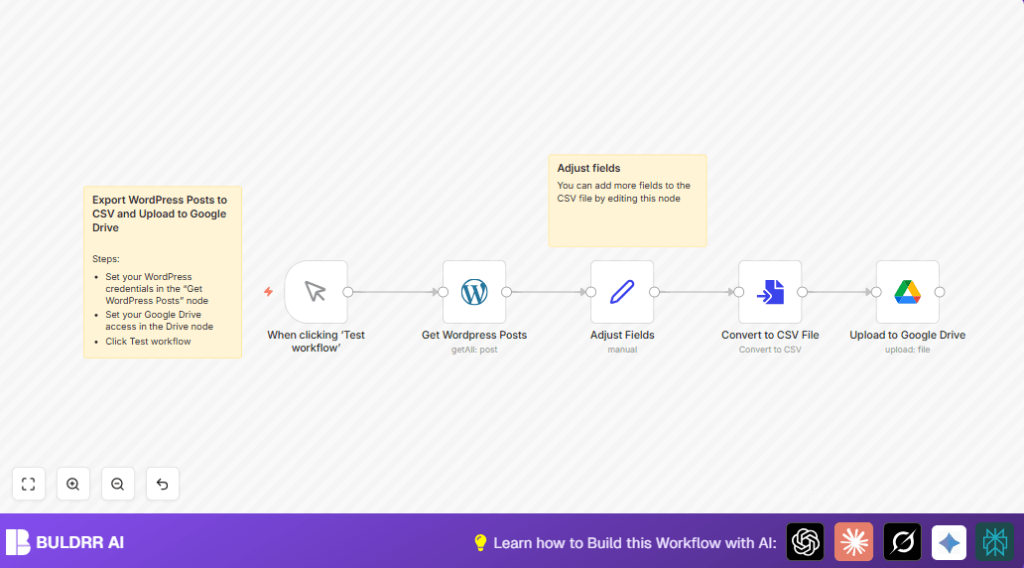
This workflow runs when started manually in n8n and exports all published WordPress posts as a clean CSV file.
It grabs the posts, makes data easy to read, then saves the file to Google Drive automatically.
The main problem it solves is to stop wasting time doing exports and uploads by hand.
The output is a CSV file stored in Google Drive folder, ready for backup or reports.
Inputs, Processing Steps, and Output
Inputs
- WordPress API: Provides access to all published posts as JSON data.
- Manual trigger in n8n: Starts the workflow only when clicked to control execution timing.
Processing Steps
- Fetch posts: Get all published posts using the WordPress node set to getAll with status “publish”.
- Simplify data: Use a Set node to pick only needed fields (id, title, link, content) converting complex nested JSON fields to simple strings.
- Convert to CSV: Transform the cleaned post data into a CSV file stored in memory with the Convert to File node.
- Upload file: Send the CSV file directly to Google Drive using a Google Drive node connected with service account credentials.
Output
The CSV file named “WordPress-Posts.csv” appears in Google Drive in the selected folder.
The workflow provides an easy way to download and keep monthly backups without manual steps.
Who Should Use This Workflow
This automation is for content managers or site owners who export WordPress posts often.
It helps by removing manual exports and upload errors.
Beginners, those who do not code, or people who want to save time will find it helpful.
Tools and Services Used
- WordPress API: Source of published posts data.
- n8n Platform: Orchestrates automation workflow.
- Google Drive with Service Account: Used to store exported CSV file securely.
Beginner Step-by-Step: How to Use This Workflow in n8n
Download and Import Workflow
- Download the workflow file using the Download button on this page.
- Inside the n8n editor, click the gear icon and select “Import from File”.
- Choose the downloaded workflow file to import it.
Configure Credentials and Settings
- Open the imported workflow and add your WordPress API credentials in the WordPress node.
- In the Google Drive node, select or add Service Account credentials.
- Update any folder IDs, drive IDs, or file names if you want to save to a specific location or use a different name.
Test and Activate
- Run the workflow by clicking the manual Manual Trigger node’s “Execute Node” or “Test Workflow”.
- Check Google Drive to confirm the CSV file uploads properly.
- Activate the workflow toggle switch to enable it fully for production use.
- Optionally, replace Manual Trigger with a Cron node to automate scheduling.
If running self-host n8n, consider checking self-host n8n for hosting options that fit your environment.
Customizations
- Add more post fields by editing Adjust Fields Set node with new assignments like
{{$json.date}}or{{$json.author_name}}. - Change CSV file name dynamically by using expressions like
WordPress-Posts-{{$now.format("YYYY-MM-DD")}}.csvin the Google Drive node. - Filter posts by category or tag in the Get WordPress Posts node using API parameters.
- Save CSV in a specific Google Drive folder by updating folder ID in the upload node.
- Use a Cron node to schedule exports automatically on a timer (daily, weekly, monthly).
Troubleshooting
- Authentication failed errors: Check that the API Key or Service Account credentials are correct and active in n8n credentials settings.
- Empty or partial CSV data: Double-check field expressions in the Adjust Fields node match your WordPress JSON structure.
- No file in Google Drive: Make sure the folder ID and Drive ID are right and service account has permission to write.
- Workflow does not run: Confirm the start node is set to Manual Trigger or scheduled trigger.
Pre-Production Checklist
- Verify WordPress API permissions to access posts.
- Test Google Drive service account credentials for upload rights.
- Run manual trigger to check full workflow from data fetch to file upload.
- Preview CSV file content in Convert to CSV File node before activating.
- Keep backups of existing Google Drive exports before the first run.
Conclusion
You now have a simple way to export WordPress posts as CSV files and store them automatically in Google Drive.
This stops manual export work, lowers errors, and frees time for more important tasks.
Try extending the workflow with schedules, filters, or email shares for more automation power.
