

What This Automation Does
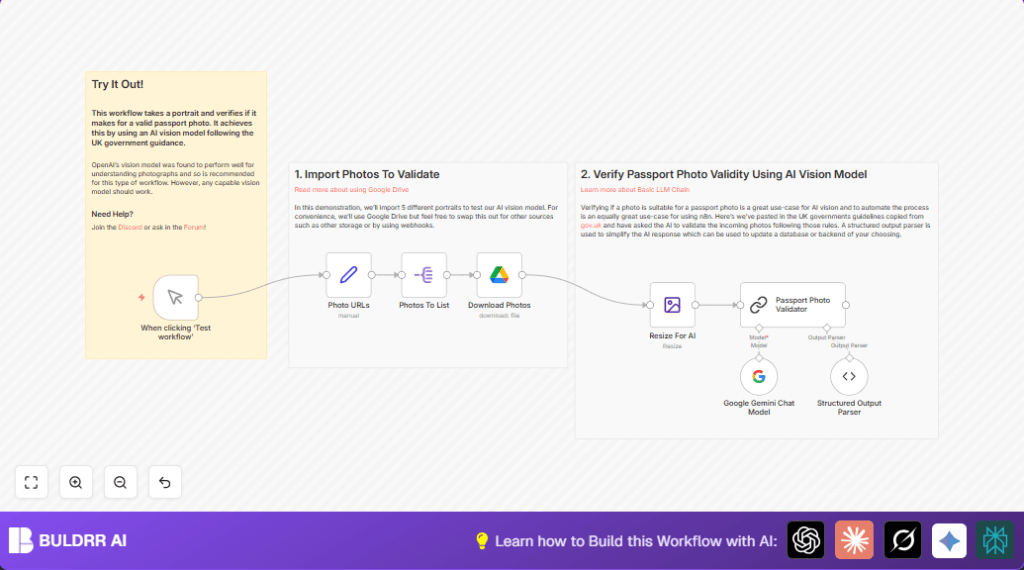
This workflow automatically checks passport photos from Google Drive against UK passport photo rules.
This saves time and reduces errors by using AI to approve photos fast.
- Imports photo URLs from Google Drive.
- Downloads and resizes images if too big.
- Uses Google Gemini AI to check photos meet government rules.
- Gets a clear report if photo is valid or not.
- Allows notifying or updating records for invalid photos.
- Removes the need for manual photo review.
Tools and Services Used
- n8n platform: Automate and connect services.
- Google Drive: Stores passport photos.
- Google Gemini (PaLM API): AI vision model to analyze images.
- LangChain Nodes: Handle AI communication and structured output parsing.
Inputs, Processing, and Outputs
Inputs
- An array of photo names and Google Drive URLs.
- OAuth credentials to access Drive and Google Gemini APIs.
Processing Steps
- Split photo array into single photo records.
- Download photos from Drive using their file IDs.
- Resize images larger than 1024×1024 pixels.
- Send each photo to Google Gemini AI with detailed UK passport photo guidelines.
- Receive validated reports with pass/fail flags and explanation.
- Parse AI response into structured data for easy use.
Outputs
- Structured validation result for each photo.
- Boolean valid flag, photo description, and list of issues if invalid.
- Ready data for notifications, database updates, or further processing.
Beginner Step-by-Step: Using This Workflow in n8n Production
Import the Workflow
- Download the workflow file by clicking the Download button on this page.
- Open the n8n editor where the user works.
- Use the option Import from File to upload the downloaded workflow.
Configure Credentials and IDs
- Add Google Drive OAuth credentials in n8n’s credential manager.
- Add Google PaLM API credentials for Google Gemini access.
- Update any photo folder IDs, email addresses, or channels in nodes for notifications if needed.
Test the Workflow
- Use the Manual Trigger node to run the workflow once manually.
- Check the execution for any errors or missing data.
Activate for Production
- Once tests pass, turn on the workflow by enabling its active status.
- Schedule or trigger the workflow as fits the user’s process.
- Monitor logs regularly for issues or API limits.
For higher volume or long-running processes, consider hosting the workflow on a server using self-host n8n.
Common Edge Cases and Failures
- If downloading photos fails, check OAuth scopes and Drive sharing permissions.
- Ensure file IDs are extracted correctly from Google Drive URLs, not full links.
- Verify AI prompt instructs structured JSON response to avoid parsing errors.
- Watch for rate limits in Google APIs and adjust batch sizes or add delays.
Customization Ideas
- Replace Google Drive URLs with other storage sources or API webhooks.
- Adjust AI validation prompts to fit different passport rules or company policies.
- Add nodes to notify users by email or Slack about rejected photos automatically.
- Use image cropping or enhancement before resizing to improve AI results.
- Break large photo batches into smaller groups to handle API limits better.
Summary
✓ Automates checking passport photos against UK government rules.
✓ Saves hours of manual work and reduces errors in visa application photos.
→ Provides a clear pass/fail result with detailed reasons from AI.
→ Enables quick notifications or updates in business workflows.
