

What This Automation Does
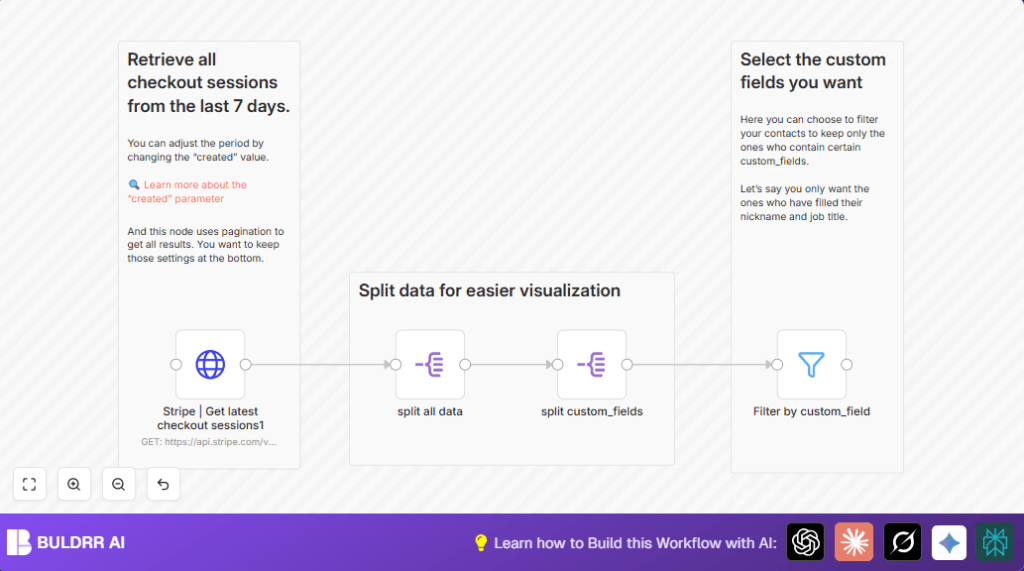
This workflow fetches Stripe checkout sessions made in the last 20 days automatically.
It breaks down each session to find customer details stored in custom fields.
It keeps only the parts where the key is “nickname” or “job_title”.
The end result is ready data for marketing or support follow-up without manual work.
Tools and Services Used
- Stripe API: To get checkout session data.
- n8n platform: To build and run the workflow.
- n8n nodes: HTTP Request, SplitOut, Filter, Sticky Note.
Inputs, Processing, and Outputs
Inputs
- The workflow starts by sending a GET request to Stripe API to get sessions created in last 20 days.
- Requires Stripe API Key set in n8n credentials.
Processing Steps
- Split the bulk array of session data into individual session records.
- Split the nested custom_fields array inside each session.
- Filter custom fields to keep only keys “nickname” and “job_title”.
- Optionally, add sticky notes for documentation inside the workflow editor.
Outputs
- A filtered list of customer custom fields showing only “nickname” and “job_title”.
- Structured outputs easy to connect to other systems like spreadsheets or emails.
Beginner Step-by-Step: How to Use This Workflow in n8n
Step 1: Import the Workflow
- Download the workflow JSON file using the Download button on this page.
- Go to your n8n editor where you want to use this workflow.
- Click on the menu and select “Import from File” to load the workflow.
Step 2: Configure Credentials and Settings
- Add your Stripe API Key in n8n’s credential manager if not already done.
- In the HTTP Request node, confirm the correct Stripe credential is selected.
- Check other node parameters and update IDs, emails, channel names, folders, or table names depending on your targets.
Step 3: Test and Activate
- Run the workflow once manually to check if sessions fetch correctly and outputs look right.
- Fix errors if any appear like missing credentials or authorization issues.
- Turn on the workflow using the toggle switch at the top right for scheduled or on-demand runs.
For more control or privacy, consider self-host n8n. This lets you run workflows on your own server.
Customization Ideas
- Change the date range in the HTTP Request node JSON to get sessions from last 7 or 30 days.
- Add more keys like “email” or “referral_code” in the Filter node to track more custom fields.
- Connect output to Google Sheets, email nodes, or CRM systems to automate reports.
Troubleshooting
Authentication failed error
This means the Stripe API Key is wrong or missing.
Update the credential in the HTTP Request node and test again.
No data or empty output
Check date filters are set right in the request JSON.
Try wider ranges or test the API call outside n8n.
Pre-Production Checklist
- Make sure Stripe credentials work correctly inside n8n.
- Test HTTP Request node alone to confirm sessions are fetched.
- Inspect output after each SplitOut node to ensure proper data splitting.
- Confirm Filter node passes only “nickname” and “job_title” fields.
- Run full workflow with sample data before going live.
- Save a backup copy of your workflow JSON before making big changes.
Deployment Guide
Enable the workflow in n8n by clicking the “Active” toggle at the top right.
Schedule it for automatic runs or run manually as you like.
Watch run history logs to catch errors or Stripe API rate limits.
Summary
✓ Saves time by automating Stripe checkout session data fetch.
✓ Filters custom fields “nickname” and “job_title” clearly.
✓ Reduces manual errors in customer info extraction.
→ Produces clean data ready for marketing or customer support.
→ Runs inside n8n with easy import and simple setup.
