

What This Workflow Does
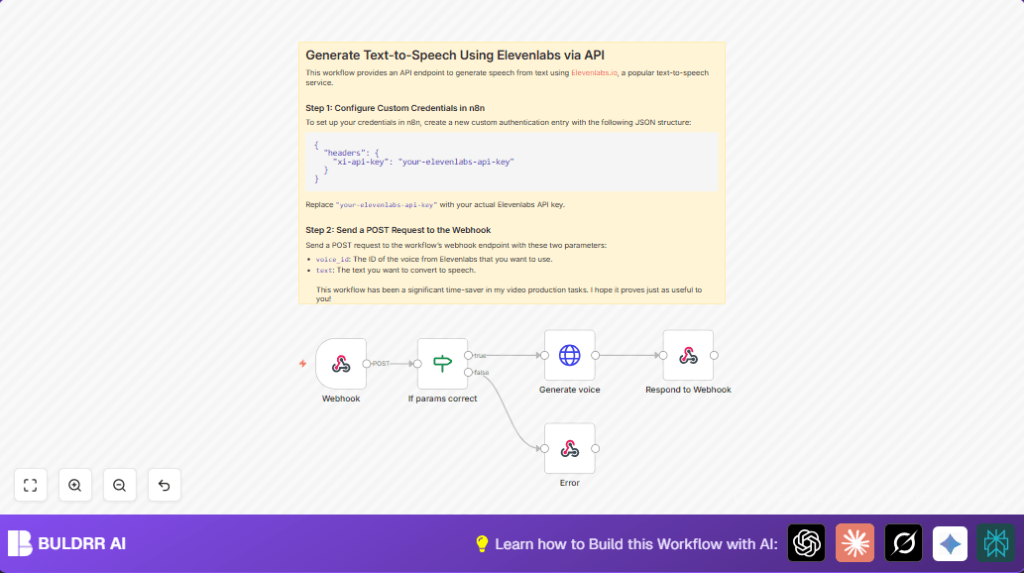
This workflow receives text and a voice ID through a simple HTTP POST request.
It sends the text to Elevenlabs API to create speech audio.
Finally, it sends back the audio file as a binary response to the requester.
It solves the problem of spending long time recording voice overs manually.
The outcome is an instant, natural-sounding voice audio from any text.
You get an easy to call API that produces speech in many voices without extra setup.
If inputs are wrong, user gets a clear JSON error instead of silence.
How the Workflow Works: Inputs, Processing, Outputs
Inputs
- voice_id: Identifier for the voice to use, sent in the POST body.
- text: The text script to convert to speech, sent in the POST body.
Processing Steps
- Webhook node receives the POST request at path
generate-voice. - If node checks if both
voice_idandtextexist in the request. - HTTP Request node calls Elevenlabs API at
https://api.elevenlabs.io/v1/text-to-speech/{{ $json.body.voice_id }}with the text in JSON body. - Elevenlabs returns speech audio in response.
- Respond to Webhook node sends this audio back as binary data to the caller.
- If the parameters are missing, a different Respond to Webhook node sends JSON error
{ "error": "Invalid inputs." }as response.
Outputs
The output is the audio speech in a binary format playable by clients.
If input is bad, the output is a JSON error message instead.
Who Should Use This Workflow
Anyone who needs fast, reliable text-to-speech generation without manual recording.
Content creators who want multiple voice options and languages easily.
Also helpful for developers building apps or sites needing instant voice narration.
People wanting to cut down hours of voice recording work.
Tools and Services Involved
- n8n Automation Platform: Runs the workflow and webhook.
- Elevenlabs API: Provides text-to-speech voice synthesis.
- HTTP POST Requests: Used to trigger the webhook and send input data.
- Custom HTTP Credentials: Store Elevenlabs API key securely in n8n.
Beginner Step-by-Step: How to Use This Workflow in Production
Importing the Workflow
- Click the Download button on this page to get the workflow file.
- Inside the n8n editor, click “Import from File”.
- Select the downloaded workflow JSON file and import it.
Configuring Credentials
- Go to “Credentials” in n8n and add new HTTP Request credentials for Elevenlabs API.
- In the headers, enter
{ "xi-api-key": "your-elevenlabs-api-key" }replacing with your real API key. - Assign this credential to the HTTP Request node named Generate voice.
Updating Parameters
- Check if the workflow requires changes in voice ID or text fields in input.
- Modify paths or add extra parameters if needed for your use.
Testing and Activating
- Send a test POST request to the webhook URL with JSON body containing
voice_idandtext. - Verify if the response returns audio as binary data playable in your system.
- If test succeeds, activate the workflow in n8n for real use.
- Share the webhook URL safely with your app or team.
For extra stability and more control, consider running self-host n8n on a server.
Customizations and Extensions
- You can add support for more voice options by changing the API call body or URL.
- You can change the webhook path from
generate-voiceto any URL you like for multiple endpoints. - Insert nodes to log input and output info to external storage like Google Sheets.
- Add security by checking API keys before voice generation to keep your webhook safe.
Common Errors and How to Fix
Error: 401 Unauthorized
Check if the Elevenlabs API key is correct in credentials.
Make sure the header is exactly xi-api-key and key is valid.
Error: If node does not pass inputs
Ensure you check body.voice_id and body.text exactly as spelled.
Use the “exists” operator and AND condition.
Pre-Production Checklist
- Verify Elevenlabs API key is active and allows TTS.
- Test webhook with sample POST requests having valid voice_id and text.
- Confirm audio output works in your client system.
- Check that invalid requests get clear error JSON output.
- Backup workflow JSON before final deployment.
Deployment Guide
Once ready, activate the workflow inside n8n for production.
Keep webhook URL private and do not share publicly.
Monitor call usage on Elevenlabs dashboard to avoid hitting limits.
Add monitoring or alerts if needed for volume spikes.
This workflow can grow with your needs and integrate into other automation steps.
Summary of Results
✓ Saves time by auto-generating speech from typed text instantly.
✓ Supports many voices via Elevenlabs API in one simple HTTP POST API.
✓ Returns ready-to-use audio files fast without manual recording.
✓ Gives clear errors if input is missing or wrong.
✓ Easy to test, configure and activate within n8n platform.
