
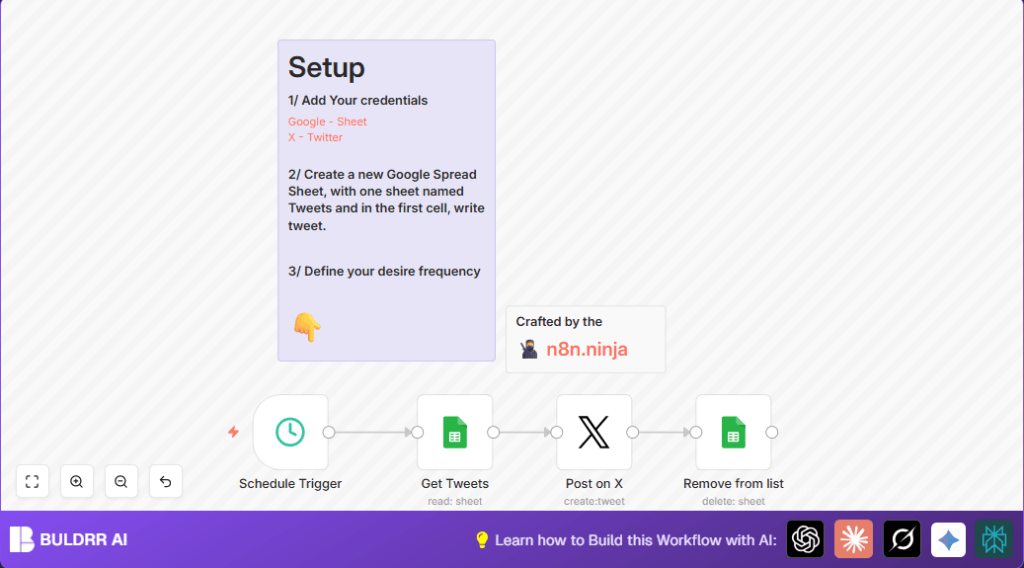

What This Workflow Does
This workflow automatically posts tweets from a Google Sheet to an X (Twitter) account every 6 hours.
It solves the problem of manually copying and posting tweets, saving a lot of time and avoiding mistakes like duplicate posts or missed posts.
Once it runs, it posts the next tweet from the list and removes it from the sheet. This keeps tweeting consistent and error-free.
Who Should Use This Workflow
This is for anyone managing social media posts with a list in a Google Sheet.
It works well for social media managers, small business owners, or teams who want to automate posting to X without manual copy-pasting.
Tools and Services Used
- n8n: Automation platform to run the workflow.
- Google Sheets: Stores the tweets in a sheet named “Tweets” with a “tweet” column.
- X (Twitter) API: Posts tweets from the account connected via OAuth2.
Inputs, Processing, and Output
Inputs
- The Google Sheet contains a list of tweets under the “tweet” column.
- The workflow triggers every 6 hours using the Schedule Trigger node.
Processing Steps
- It reads the first (next) tweet from the Google Sheet.
- Posts the tweet text to X using the Twitter node.
- Deletes the posted tweet’s row from the Google Sheet to avoid reposting.
Output
- New tweets appear on X timeline on the set schedule.
- Google Sheet updates by removing posted tweets.
Beginner Step-by-Step: How to Use This Workflow in n8n
Step 1: Import the Workflow
- Download the workflow file using the Download button on this page.
- Open the n8n editor where you want to run the automation.
- Click “Import from File” and select the downloaded workflow.
Step 2: Setup Credentials and IDs
- Enter Google Sheets OAuth2 credentials with access to the sheet.
- Enter Twitter OAuth2 credentials with permission to post tweets.
- Check and update the Google Sheets Document ID if needed.
- Make sure the sheet name is exactly “Tweets” and column “tweet” exists.
Step 3: Test the Workflow
- Run the workflow manually to check the post appears on X.
- Verify the tweet row is removed from the sheet after posting.
Step 4: Activate for Automatic Running
- Enable the workflow to run automatically every 6 hours as set by the schedule.
If using self-host n8n, review self-host n8n for hosting options.
Customization Ideas
- Change the Schedule Trigger to post more or less often.
- Add extra columns in Google Sheets for hashtags or media links and update Twitter node accordingly.
- Fetch multiple tweets at once using batch nodes to post several tweets each run.
- Add logging nodes to save each posted tweet with date/time.
- Include alert nodes to notify if posting fails via email or chat.
Troubleshooting Common Issues
- Authorization failed for Twitter node: Check that Twitter OAuth2 credentials are set and not expired. Reconnect if needed.
- No data from Google Sheets: Confirm Document ID and sheet name are correct. Make sure tweets exist.
- Wrong row deleted: Check the Google Sheets delete node setup points to the correct row.
Summary of Results
✓ Automated tweets post every 6 hours without manual work.
✓ Tweets are posted on X timeline consistently.
✓ Posted tweets are removed from Google Sheets to avoid repeats.
→ Saves hours of manual posting effort weekly.
→ Helps keep social media presence active and reliable.
