

1. What This Workflow Does
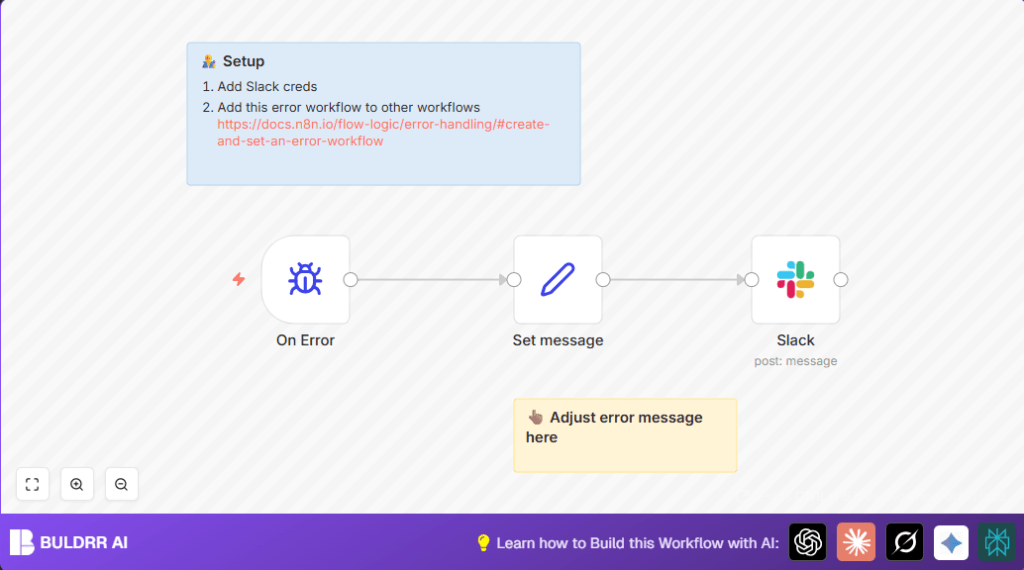
This workflow in n8n watches for errors in other workflows it is linked to.
When an error happens, it sends a message to a Slack channel.
The message includes which workflow failed, what node caused the error, and a link to the error details.
This helps teams see errors right away and fix problems faster.
2. Who Should Use This
This is for people who run business workflows in n8n and want quick alerts when something breaks.
It works well if the user has many workflows and manual error checking takes too long or misses issues.
The workflow fits teams using Slack to communicate and track work.
3. Tools and Services Used
- n8n Automation Platform: To build and run error-catching workflows.
- Error Trigger Node: Detects errors from linked workflows.
- Set Node: Formats the Slack message with error details.
- Slack Node: Sends messages to the chosen Slack channel using API keys.
Optionally, users can explore self-host n8n for control over hosting.
4. Beginner Step-by-Step: How to Use This Workflow in n8n
Downloading and Importing
- Download the workflow file using the Download button on this page.
- Open your n8n editor.
- Click on “Import from File” and upload the downloaded workflow.
Configuration
- Add Slack API credentials in the credential settings with your bot token.
- Update the Slack channel name in the Slack node if needed (for example, change to your preferred alert channel).
- Verify the message field in the Set node uses this expression exactly:
:warning: [prod] workflow `{{$json["workflow"]["name"]}}` failed to run! <{{ $json.execution.url }}|execution>

error message from node: {{ $json.execution.lastNodeExecuted }}
 {{ $json.execution.error.message }}
This expression inserts workflow name, error node, error message, and link.
Testing and Activation
- Run a test error manually in a sample workflow to see if alerts post in Slack.
- If the alert posts, activate this error workflow in n8n.
- In your main workflows, set this workflow as their error workflow to route errors here.
After this, any error in linked workflows triggers a Slack message.
5. Inputs → Processing → Outputs
Inputs
- Error information from any workflow that is linked to this error workflow.
Processing
- Error Trigger node catches error details from workflows.
- Set node creates a formatted Slack message.
- Slack node sends the message to the designated Slack channel.
Outputs
- A clear Slack notification for the user’s team about workflow failures.
- A clickable link in Slack to the detailed error execution in n8n.
6. Customizations Ideas
- Change the Slack Channel: Update the channel name in the Slack node to suit your team’s preferences.
- Add More Details: Edit the Set node’s message field to include time stamps, error types, or user info, using JSON from
$json.execution. - Error Severity Levels: Use conditional logic in the Set node to change message text depending on error seriousness.
- Richer Messages: Use Slack node attachments to add images or formatted blocks.
- Language Changes: Write the message in your team’s language by changing the text in the Set node.
7. Troubleshooting Common Issues
Slack node fails with invalid_auth error
The Slack API key is wrong or expired.
Check Slack credentials in the Slack node and update or refresh the bot API key.
No Slack alerts arrive even when workflows fail
The error workflow is not linked correctly to failing workflows.
Go to each main workflow’s settings and select this error workflow to capture errors.
Slack message looks broken or shows raw JSON
The expression in the Set node’s message field has syntax errors.
Check the message expression carefully for correct {{ }} and equals sign ‘=’ usage.
8. Pre-Production Checklist
- Check that Slack bot token is active and can post in the chosen channel.
- Test error triggering in a safe workflow to see Slack alerts work.
- Confirm the message expression renders formatted preview properly in the Set node.
- Make sure all your main workflows set this as their error workflow.
- Backup the workflows before turning on the error alert workflow.
9. Deploying the Workflow
After test success, activate the error alert workflow by switching it on inside n8n.
Keep an eye on Slack to spot workflow failure messages.
Tell your team about this fast error alert channel so they can act quickly.
10. Summary and Next Steps
✓ This workflow gives fast Slack alerts for errors in multiple n8n workflows.
✓ You see problem details clearly, including error node and direct link to debug.
✓ It removes manual error checking and speeds up fixing failed workflows.
→ Next, try adding success alerts, or saving errors to a database for tracking.
