
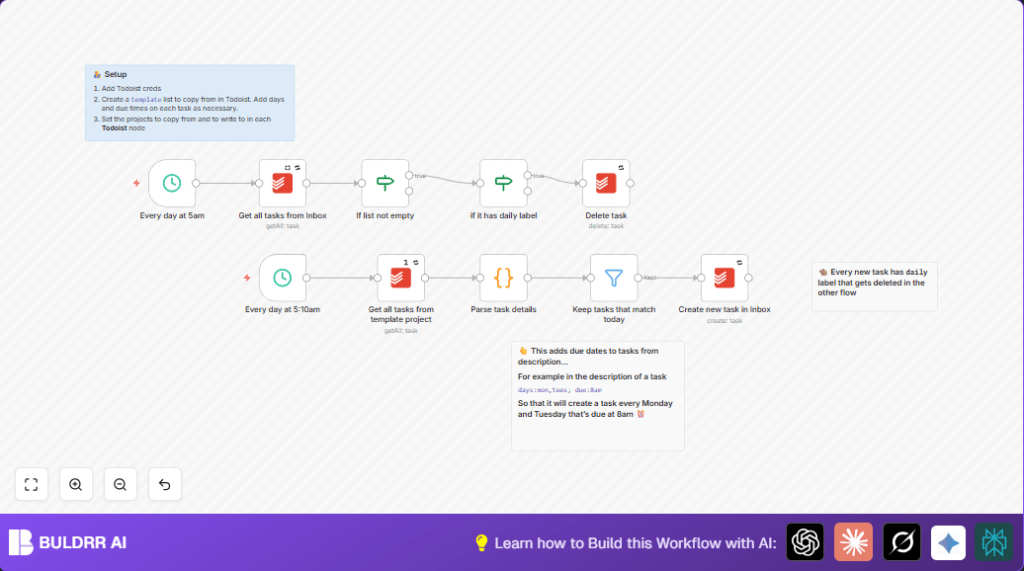

What this workflow does
This n8n workflow copies specific Todoist tasks every day with exact due dates for that day. It solves the problem of wasting time and making mistakes when copying weekly tasks manually. The workflow runs each morning, creates only tasks scheduled for that day with correct times, and cleans old copies from Inbox.
It works by reading from a Todoist “template” project. It reads task descriptions to find which days the task should appear and at what time. Then it makes new tasks with due dates set for today. It also removes old daily tasks before making new ones, keeping Inbox clean.
Tools and services used
- n8n: Automates workflows with nodes and triggers.
- Todoist API: Lets n8n get, create, and delete tasks.
Inputs, processing steps, and outputs
Inputs
- Todoist “template” project with tasks labeled with day names and due times in descriptions.
- Current day of the week to check which tasks to create.
Processing steps
- The workflow triggers daily at 5:10 AM.
- It fetches all tasks from the template project.
- Each task’s description is read to find which days it should run and due time.
- A JavaScript code node parses the description and converts the due time into an ISO date-time for today.
- Tasks not scheduled for today are filtered out.
- New tasks get created in the Inbox with the right due date, time, and a “daily” label.
- Separately, at 5:00 AM a cleanup process fetches all Inbox tasks.
- Tasks labeled “daily” from previous runs get deleted to avoid duplicates.
Outputs
- Correct daily tasks created automatically in Inbox with proper due dates and labels.
- Inbox cleared of old daily tasks before new ones are added.
Who should use this workflow
This workflow fits users who have recurring weekly tasks in Todoist that appear on different days and times. It is good for people who spend time copying tasks manually each day. If users need exact control of which days tasks appear and want less manual work, this helps.
Users should have a basic knowledge of n8n and Todoist API keys ready. No coding skill is needed since provided code is ready to paste.
Beginner step-by-step: How to use this workflow in n8n
Step 1: Download and import the workflow
- Click the Download button on this page to get the workflow file.
- Open n8n editor where workflows are managed.
- Use the “Import from File” option to import the downloaded workflow.
Step 2: Configure credentials and settings
- Go to Credentials in n8n.
- Add your Todoist API Key as a new Todoist API credential.
- In the imported workflow, assign this credential to all Todoist nodes.
- Update project IDs: enter your Todoist “template” project ID and Inbox project ID in the respective Todoist nodes.
- Check if the daily label ID matches your Todoist label. If not, update it.
Step 3: Test the workflow
- Run the workflow manually in n8n to check errors.
- Check Todoist Inbox project for created tasks and cleanup works as expected.
Step 4: Activate workflow for production
- Turn on the workflow using the toggle switch in n8n.
- Confirm schedule triggers run daily at 5:00 AM and 5:10 AM as set.
- Monitor workflow executions and check logs for issues.
Once active, the workflow will run automatically every day without manual steps.
For more control over hosting and privacy, consider self-host n8n.
const item = {};
item.description = $input.item.json.description;
item.content = $input.item.json.content;
const parts = item.description.split(';').map(v => v.trim());
parts.forEach(v => {
  const tag = v.split(':');
  if (tag.length === 2) {
    item[tag[0]] = tag[1].trim();
  }
});
if (item.due) {
  item.due = parseTimeString(item.due);
}
return item;

function parseTimeString(timeString) {
  const regex = /^(\d{1,2})(\.)?(\d{2})?([ap]m)$/i;
  const match = timeString.match(regex);
  if (!match) throw new Error("Invalid time format");
  let hours = parseInt(match[1], 10);
  let minutes = match[3] ? parseInt(match[3], 10) : 0;
  const period = match[4].toLowerCase();
  if (hours === 12) {
    hours = (period === 'am') ? 0 : 12;
  } else {
    hours = (period === 'pm') ? hours + 12 : hours;
  }
  const now = new Date();
  now.setHours(hours, minutes, 0, 0);
  return now.toISOString();
}
This code parses task descriptions to find days and due time, turning due times like “8am” or “8.30am” into today’s date-time format.
Customization ideas
- Change times in templates (e.g., “due:9am”) and update the parsing code for new formats.
- Add more filters like priority or labels to only create certain tasks each day.
- Modify Inbox project ID to send new tasks to any other Todoist project.
- Extend the parsing code to read extra info from descriptions, like notes or priority levels.
- Adjust schedule triggers for other times that fit personal or team routines.
Edge cases and troubleshooting
Problem: “Invalid time format” error in the code parsing node.
Cause: The format of “due:” text in Todoist does not match expected (like “8am” or “8.30am”).
Fix: Make sure task descriptions use “due:” in exactly correct format or update the regex in the code to accept other time styles.
Problem: Tasks not created at 5:10 AM trigger.
Cause: Workflow is not activated or Todoist credentials expired.
Fix: Confirm workflow is on in n8n and check API key validity in credentials.
Pre-Production Checklist
- Confirm Todoist API Key is correctly set in n8n credentials.
- Test daily schedule triggers manually inside n8n.
- Validate parsing code with example task descriptions.
- Run the workflow with test data before live use.
- Back up Todoist projects if possible to avoid data loss.
Summary of results
✓ Saves around 30 minutes daily spent on manual task copying.
✓ Reduces errors with due dates and times.
✓ Automates creating only tasks needed for the day.
✓ Keeps Inbox auto-cleaned from old daily tasks.
✓ Requires little technical knowledge to use after import.
