
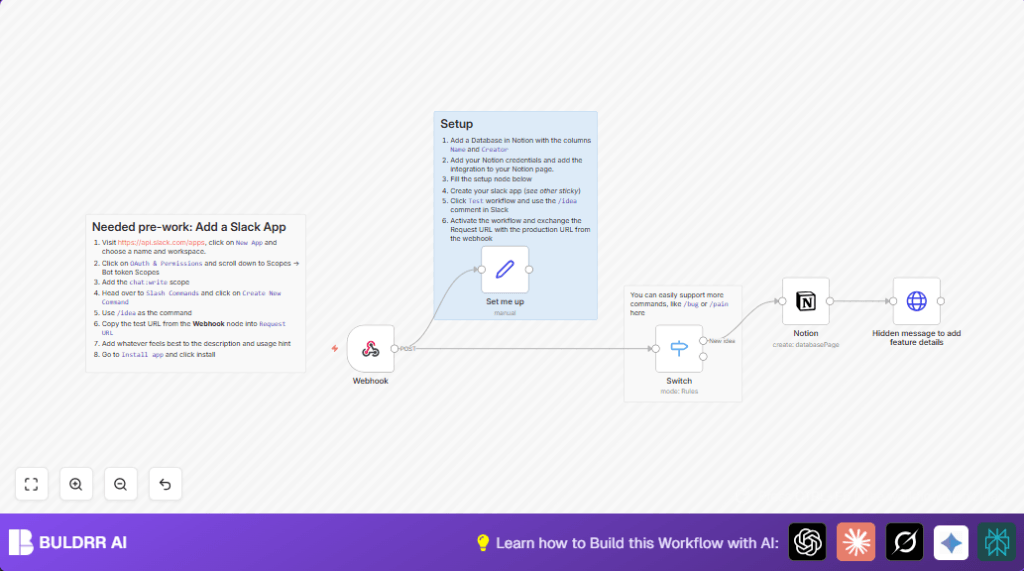

What This Workflow Does
This workflow takes commands from Slack, especially the /idea command, and saves the submitted ideas directly into a Notion database.
It stops users from typing ideas twice or losing them.
The result is an organized list of ideas connected to who sent them, with a confirmation sent back to Slack.
Inputs are Slack slash command posts, processed by n8n.
Then it checks the command type and writes a new page in Notion.
Finally, it sends a response message to Slack to confirm the idea was saved.
Tools and Services Used
- Slack API: sends slash command data.
- Notion API: receives new page creation requests.
- n8n: automation workflow that links Slack and Notion.
- Notion Integration: API token with write access to the database.
- Slack App: configured with chat:write scope and slash commands.
For those using self-hosted solutions, self-host n8n helps keep the automation running on your own server.
Beginner Step-by-Step: How to Use This Workflow in n8n
Step 1: Import the Workflow
- Click the Download button on this page to get the workflow JSON file.
- Inside n8n editor, use the menu and select “Import from File”.
- Find the downloaded JSON file and open it.
Step 2: Configure Credentials and Settings
- Go to the Notion node, then connect your Notion API key with write permission.
- Open the Set me up node and update the Notion database URL to your own.
- If needed, adjust the Slack slash command or channels in the nodes.
Step 3: Test the Workflow
- Activate the workflow with the toggle switch in n8n.
- Copy the production Webhook URL from the Webhook node.
- Replace the Webhook URL in your Slack app slash command settings.
- Send a test command in Slack like” /idea Try quicker automation”.
- Check if a new page appears in Notion and Slack sends a confirmation.
Step 4: Go Live
- When tests work, leave the workflow activated in n8n.
- Now the workflow listens and saves every idea sent from Slack.
How the Workflow Works (Input → Process → Output)
Input
The workflow starts with user typing a slash command like /idea in Slack.
Slack captures this and sends a POST request to n8n’s webhook.
Process
The Webhook node receives the Slack payload.
A Switch node checks if the command is /idea.
If yes, the workflow extracts the idea text and username.
The Notion node creates a new page in the specified database with these values.
The HTTP Request node sends a confirmation message back to Slack’s response_url.
Output
A new page in the Notion database with idea title and creator.
A confirmation message appears in Slack mentioning the user.
This closes the loop and ensures the idea is stored safely.
Customizations and Extensions
- Add more slash commands like /bug or /pain in the Switch node.
- Change confirmation messages in the HTTP Request node to add buttons or links.
- Include extra Notion properties like status, priority or tags.
- Notify channels or Teams apps on new entries.
Troubleshooting Common Errors
- Issue: Webhook 404 or no Slack response.
Fix: Check the Webhook URL matches n8n’s active Webhook node URL. - Issue: Notion API authentication fails.
Fix: Update Notion API key in credentials. - Issue: Slack confirmation missing.
Fix: Ensure HTTP Request node uses Slack response_url from payload.
Pre-Production and Deployment Tips
- Make sure Slack slash command points to active Webhook URL.
- Verify Notion database URL is in the Set me up node.
- Check Notion integration can write to the database.
- Send and confirm a slash command works before going live.
- Keep backups of the workflow JSON.
- Watch n8n logs and alerts for issues.
Summary of Benefits
✓ Saves time by removing manual copy tasks.
✓ Stops idea loss and double entries.
✓ Makes tracking ideas easy and fast.
✓ Sends instant confirmation to users.
✓ Easy to expand with more commands.
