
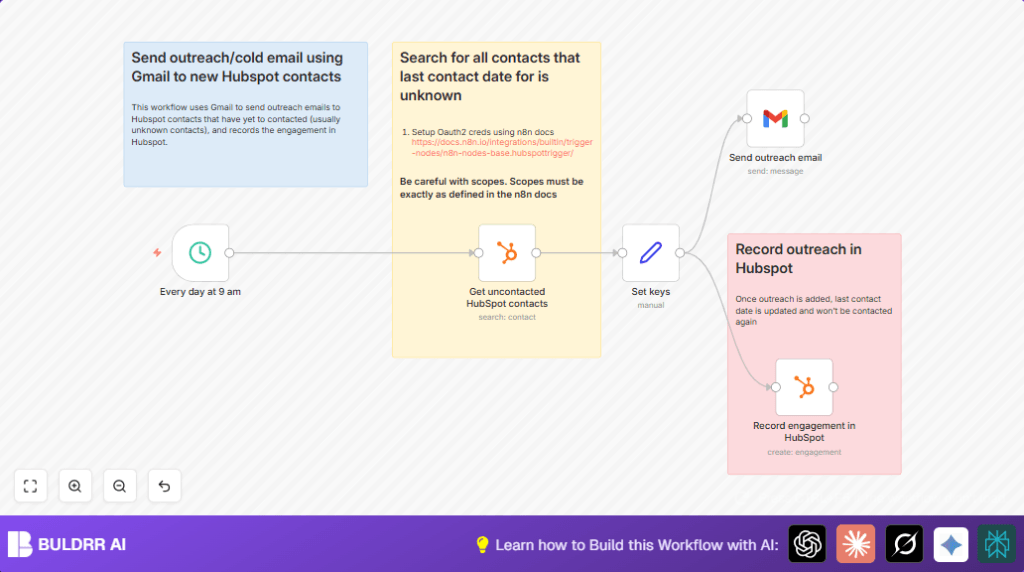

What this workflow does
This workflow finds HubSpot contacts without a last contacted date.
Then it sends each contact a personal email using Gmail.
After sending, it records the email activity in HubSpot to mark the contact as reached.
This saves hours spent on manual searching and emailing.
It helps avoid contacting the same lead twice.
Who should use this workflow
This workflow suits sales representatives or anyone managing leads in HubSpot.
It works best for teams needing to email new leads automatically every day.
If you spend time manually finding uncontacted leads and writing emails, this helps you save time and reduce errors.
Tools and services used
- HubSpot: To find uncontacted leads and update engagement records.
- Gmail: To send personalized outreach emails.
- n8n: Orchestrates the whole workflow, connecting HubSpot and Gmail.
Inputs, processing steps, and outputs
Inputs
- HubSpot contacts without a recorded last contact date.
- Contact details like first name and email address.
Processing Steps
- Trigger workflow daily at 9 AM.
- Search HubSpot for contacts missing last contact date.
- Personalize email content using the contact’s first name and email.
- Send email via Gmail with a custom sender name and subject.
- Record the email engagement in HubSpot linked to the contact ID.
- Update HubSpot to prevent future duplicate contact.
Outputs
- Sent emails to all qualifying uncontacted leads.
- Updated HubSpot engagement records marking leads as contacted.
Beginner step-by-step: How to use this workflow in n8n
1. Import the workflow
- Click the Download button on this page to get the workflow file.
- Inside n8n editor, go to menu and choose “Import from File.”
- Select the downloaded workflow file to add it to your n8n instance.
2. Configure credentials and settings
- Add your HubSpot OAuth2 credentials in the credential manager.
- Add your Gmail OAuth2 credentials configured for sending email.
- Check node settings—update contact property names, sender name, subject line if needed.
3. Test the workflow
- Run the workflow manually on a test contact to confirm email sends and HubSpot updates.
- Verify the email content is personalized and engagement is logged in HubSpot.
4. Activate for production
- Toggle the active switch in n8n to enable the workflow.
- Make sure your n8n is running continuously or scheduled to run at 9 AM daily.
- Monitor email and engagement logs to ensure smooth operation.
- Consider self-host n8n to run workflow reliably 24/7.
Edge cases and failure points
- If HubSpot search finds no contacts, check the property name and filter settings.
- If no emails send, check Gmail API credentials and ensure daily limits are not exceeded.
- If engagements do not record, verify contact ID mapping and mandatory metadata fields.
- Large volumes of contacts may require batching or pacing emails to avoid API or rate limits.
Customization ideas
- Change email content in the Set node to add different calls to action or branding.
- Adjust the scheduled trigger to send outreach at different times.
- Add more filters in HubSpot node for targeting specific segments.
- Include tracking URLs with UTM parameters inside emails for campaign analytics.
Summary of benefits and outcome
✓ Save about two hours daily by automating lead filtering and emailing.
✓ Reduce human errors in contacting leads.
✓ Reach more leads consistently every day.
✓ Automatically log contact engagement in HubSpot.
✓ Avoid contacting the same lead more than once.
