

What This Workflow Does
This n8n workflow copies new songs from Spotify’s Discover Weekly playlist into a separate archive playlist automatically every Monday at 8:30 AM.
It solves the problem of forgetting to save fresh songs and prevents duplicates in the archive.
The result is a clean, updated music archive without manual work.
How It Works
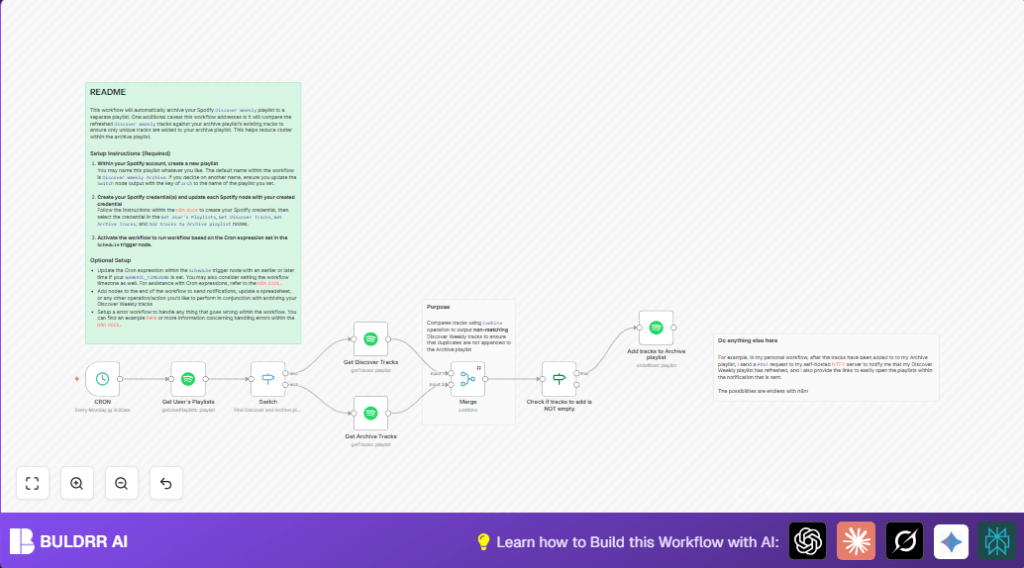
Input: It starts with checking user Spotify playlists.
Process: The workflow finds the current Discover Weekly and the archive playlists.
Then it gets tracks from both playlists to compare song URIs.
Only tracks that are new in Discover Weekly and not in the archive get selected.
Those unique new tracks get added to the archive playlist.
Output: An updated archive playlist with no duplicate songs.
Who Should Use This Workflow
Anyone who listens to Spotify Discover Weekly and wants to save new songs automatically.
The workflow is helpful for people who dislike manual copying of tracks each week.
Tools and Services Used
- Spotify with OAuth2 credentials: To access playlists and tracks.
- n8n platform: To create and run automation workflows.
- CRON node in n8n: To schedule the workflow weekly.
- Spotify nodes in n8n: To fetch playlists and add tracks.
Beginner Step-by-Step: How to Use This Workflow in n8n
Step 1: Download and Import Workflow
- Download the workflow file using the Download button on this page.
- Open n8n editor and select “Import from File”.
- Choose the downloaded workflow file and import it.
Step 2: Configure Credentials and IDs
- Add Spotify OAuth2 credentials in n8n credentials if not done yet.
- Open imported workflow and assign these credentials to all Spotify nodes.
- Check the Switch node playlist names “Discover Weekly” and “Discover Weekly Archive” and update if your playlists have different names.
- Confirm the playlist IDs passed to “Get Discover Tracks” and “Get Archive Tracks” nodes match the intended playlists.
Step 3: Test the Workflow
- Run the workflow manually once to check for errors and confirm tracks are fetched.
- If test is successful, verify if unique tracks move from Discover Weekly to the archive.
Step 4: Activate Workflow
- Switch the workflow toggle button to activate it for automatic running.
- Ensure n8n instance keeps running continuously for the scheduled trigger.
- Consider using self-host n8n if needing full control over execution.
Inputs, Processing, and Outputs
Inputs: User’s full set of Spotify playlists.
Processing Steps:
– The CRON node triggers weekly.
– The Spotify Get User’s Playlists node fetches playlist list.
– The Switch node filters playlists by name.
– Two Spotify getTracks nodes retrieve all songs in both playlists.
– The Merge node compares track URIs and outputs only new songs.
– The IF node checks if new tracks exist.
– The Spotify add tracks node adds unique songs to archive.
Outputs: Discover Weekly Archive playlist updated with only new, non-duplicate tracks.
Edge Cases and Troubleshooting
- If Spotify nodes fail with authentication errors, check and refresh OAuth2 credentials.
- If no tracks add to archive, confirm Merge node compares
track.urifields correctly. - If workflow does not trigger on time, verify CRON expression and n8n timezone settings match.
- If playlist names differ from “Discover Weekly” or “Discover Weekly Archive”, update Switch node rules accordingly.
Customization Ideas
- Rename archive playlist by changing Switch node playlist name rule.
- Adjust CRON node expression to change schedule time or day.
- Add HTTP Request node after archiving to send notifications via Telegram, Slack, or NTFY.
- Fetch extra track details or save data to databases for advanced tracking.
Summary of Benefits
✓ Saves over 30 minutes weekly on manual copying of songs.
✓ Prevents duplicate tracks in archive playlist.
✓ Keeps Discover Weekly archive orderly and up-to-date.
✓ Runs automatically without manual effort.
✓ Allows future expansion, like notifications or data export.
